
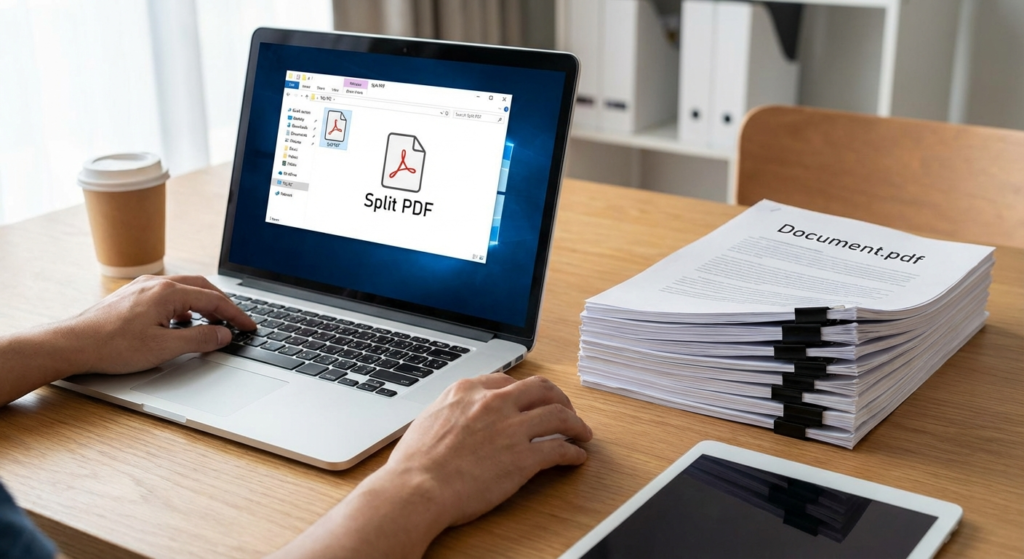
In the digital age, the Portable Document Format (PDF) is the gold standard for sharing information. However, dealing with massive, multi-page files can be a logistical nightmare. Whether you are a lawyer needing to extract specific evidence, a student isolating a single chapter from a textbook, or a business professional trying to email a specific invoice, the need to split PDF into pages is universal. This is where a robust PDF splitter becomes an essential utility in your digital toolkit.
Many users struggle with bulky files that are too large to email or too cluttered to present effectively. Fortunately, separating these files into manageable chunks is easier than ever. This guide explores the most effective methods to manage your documents, ranging from simple browser hacks to advanced PDF splitter software. We will dive deep into why this process helps, how to do it safely, and which tools offer the best return on investment for your time.
Why You Need a Reliable PDF Splitter in Your Workflow
Before diving into the "how-to," it is crucial to understand the "why." A PDF splitter is not just about breaking files apart; it is about document optimization and workflow efficiency. Large files slow down transfer speeds, clog storage, and confuse recipients who only need to see specific data points.
Imagine sending a 50-page contract when the client only needs to sign page 48. Not only does this look unprofessional, but it also increases the friction in getting the deal closed. A dedicated PDF splitter allows you to extract that single page, ensuring your communication is precise and targeted.
Email Attachment Limits
Most email providers have strict size limits (usually 25MB). Splitting a large PDF allows you to send documents in segments without using third-party cloud links.
Enhanced Privacy
When you share a massive file, you might accidentally share sensitive data on other pages. Splitting ensures you only share exactly what is intended.
Better Organization
Archiving involves categorizing documents. Breaking a year-long report into monthly files makes retrieval significantly faster and more logical.
How to Choose the Best PDF Splitter Tool
The market is flooded with tools claiming to be the ultimate PDF splitter. Choosing the right one depends on your specific needs: frequency of use, sensitivity of data, and budget. Just as you might use a power convertor to adapt energy for different devices, you need the right software to adapt your document structure for different purposes.
Online vs. Offline PDF Splitter
The primary decision involves choosing between cloud-based solutions and desktop applications. Online tools are convenient; they require no installation and work on any device. However, they require an internet connection and involve uploading your data to a remote server. For highly sensitive legal or financial documents, an offline desktop PDF splitter is generally recommended to ensure data sovereignty.
Method 1: Using Your Web Browser as a PDF Splitter
Believe it or not, you likely already have a free PDF splitter installed on your computer. Modern web browsers like Google Chrome and Microsoft Edge have built-in PDF viewers with a "Print to PDF" function that acts as a splitter.
- Open the PDF: Right-click your file and select "Open with" > Google Chrome (or Edge).
- Initiate Print: Press Ctrl + P (Windows) or Cmd + P (Mac) to open the print dialog.
- Select Destination: Change the printer destination to "Save as PDF" or "Microsoft Print to PDF."
- Choose Pages: In the "Pages" section, switch from "All" to "Custom." Here, you can type the page numbers you want to extract (e.g., "2-5, 8").
- Save: Click save. The browser will generate a new file containing only the selected pages.
This method is incredibly fast for one-off tasks and requires no third-party software downloads.
Method 2: Adobe Acrobat Pro – The Professional PDF Splitter
For users who handle documents daily, Adobe Acrobat Pro remains the industry standard. It offers a robust PDF splitter functionality that goes beyond simple page extraction. You can split by file size, top-level bookmarks, or a specific number of pages.
To use this feature in Acrobat:
- Open the document in Acrobat DC.
- Navigate to Tools > Organize Pages.
- Click the Split button in the toolbar.
- Set your criteria (e.g., split every 2 pages, or split when file size exceeds 5MB).
- Click Split to execute the command.
While this is a paid solution, the reliability and advanced features make it the superior PDF splitter for enterprise environments.
Method 3: Free Online PDF Splitter Tools
If you are on a mobile device or a public computer, online services like SmallPDF, iLovePDF, or Adobe’s free online tools are lifesavers. These platforms offer intuitive drag-and-drop interfaces.
Steps to Use an Online Splitter:
- Upload your file to the website.
- Visualize the pages in a grid view.
- Click on the pages you want to extract or select "Split all pages."
- Download the resulting ZIP file or individual PDFs.
Note: Always check the privacy policy of free sites. Ensure they delete your files from their servers after processing.
Key Features to Look For in a PDF Splitter
When evaluating a PDF splitter, do not settle for bare-bones functionality. Modern workflows demand versatility. Here is a breakdown of features that separate basic tools from professional-grade software.
Batch Processing
A high-quality splitter should handle multiple files simultaneously, saving you hours of manual work.
Bookmark Recognition
Advanced tools can split a PDF based on its table of contents or bookmarks, automatically naming files based on chapter titles.
Encryption Handling
The ability to unlock and split password-protected files (provided you have the password) is a critical feature for legal professionals.
Naming Conventions
Look for tools that allow you to define how the split files are named (e.g., OriginalName_Page_1.pdf) to maintain order.
Security Considerations When Splitting PDFs
Security is paramount when using any PDF splitter. When you upload a financial statement or a contract to a free online converter, you are technically handing a copy of that data to a third party. While reputable sites use SSL encryption and auto-delete protocols, the risk is never zero.
For sensitive data, sticking to offline software (like the Browser method or desktop apps) is advisable. Furthermore, if you are managing a website that hosts these PDFs, ensuring your server configuration is secure is vital. For WordPress users, understanding how to control bot access via robots.txt can help prevent search engines from indexing private PDF directories inadvertently.
Authoritative sources like Adobe emphasize the importance of secure document handling protocols to prevent data leaks during file manipulation.
Automating the Process: A Developer’s Approach
For those with technical skills, automating the PDF splitter process can save immense time. Libraries in Python, such as PyPDF2 or PDFMiner, allow you to write simple scripts to split thousands of pages in seconds. This is particularly useful for businesses that need to process invoices or reports generated by legacy systems.
An automated script can:
- Scan a folder for new PDFs.
- Split them based on specific text triggers (e.g., every time the word "Invoice" appears).
- Sort the resulting pages into specific client folders.
Common Mistakes to Avoid
Even with the best PDF splitter, errors can happen. Avoid these common pitfalls to ensure your document integrity remains intact.
1. Ignoring Metadata
When you split a file, the new files might retain the metadata of the original. If the original author’s name or edit history is sensitive, ensure your tool scrubs metadata from the new files.
2. Breaking Digital Signatures
Splitting a digitally signed PDF will almost certainly invalidate the signature. The cryptographic hash is based on the entire file; changing a single byte breaks the seal. Always split the document before applying final signatures.
3. Over-Compressing
Some online splitters also compress the file automatically. While this saves space, it can ruin the quality of images or architectural drawings. Check the settings to maintain original quality.
Conclusion
Mastering the ability to split PDF into pages is a fundamental skill for digital literacy. Whether you choose a simple browser-based workaround, a dedicated desktop PDF splitter, or an automated script, the goal remains the same: efficiency and organization. By isolating exactly the content you need, you streamline communication and protect sensitive information.
Remember to assess the sensitivity of your documents before choosing between online convenience and offline security. With the right tools and techniques outlined in this guide, you can conquer even the most unwieldy document stacks with ease.
Frequently Asked Questions
Yes, you can use the "Print to PDF" feature in web browsers like Chrome or Edge to extract specific pages, or use free online PDF splitter websites.
generally, no. A good PDF splitter extracts the pages exactly as they are. However, be careful with tools that "compress" files while splitting, as this can reduce image resolution.
You must know the password to open the file first. Once opened, you can use a PDF splitter to extract pages. Most tools will remove the password protection from the newly created split files.
While many reputable sites are secure, it is recommended to use offline desktop software for highly sensitive or confidential documents to eliminate the risk of data interception.
Yes, advanced tools like Adobe Acrobat Pro and specific PDF editing software allow you to split documents automatically based on top-level bookmarks.

