

We’ve all felt that stomach-drop moment. You’ve just poured your genius into a perfect paragraph, only to look up and see the little green light of the Caps Lock key mocking you. THE ENTIRE THING IS IN ALL CAPS.
Do you sigh, delete, and start over? Painstakingly retype it all? For years, that was the grim reality for many. But what if I told you there’s a built-in command—a secret handshake for Word power users—that can fix this in less than a second?
This isn’t just a neat trick. It’s a fundamental skill that separates the amateurs from the pros. Mastering the Word change case shortcut is about reclaiming your time, maintaining your creative flow, and producing flawlessly professional documents, every single time.
In this article, we’re going beyond the basics. You’ll learn not just the “what,” but the “why” and “how” to use text case tools like a seasoned editor. Get ready to transform your workflow.
📑 What You’ll Learn
The Magic Key: Mastering the Shift + F3 Shortcut
Let’s get right to it. The single most valuable keyboard shortcut for text editing in Microsoft Word is Shift + F3.
This simple combination is your command center for capitalization. Instead of hunting through menus, you can instantly cycle your selected text through its most common formats. It’s a toggle. A three-way switch for your words.
Think about it. How many times a day do you fix a capitalization error? Ten? Twenty? Fifty? Each time you move your hand to the mouse, find the cursor, navigate to the Home tab, click the ‘Aa’ button, and select an option, you’re losing precious seconds and, more importantly, breaking your concentration.
Shift + F3 eliminates that friction entirely. Based on our hands-on testing in countless document editing sessions, this one shortcut can genuinely save you hours of cumulative time over a year. It’s not an exaggeration; it’s simple math.
Understanding the “Case Cycle” for Maximum Speed
The beauty of the Word change case shortcut lies in its intelligent, cyclical nature. When you press Shift + F3, Word doesn’t just pick a random format. It analyzes the current state of your text and moves to the next logical step. Press it again, and it moves to the next one. And so on.
Here’s how that cycle typically works:
| Initial Text State | First Press (Shift+F3) | Second Press (Shift+F3) | Third Press (Shift+F3) |
|---|---|---|---|
| this is a test. | This is a test. (Sentence case) | THIS IS A TEST. (UPPERCASE) | this is a test. (lowercase) |
| This Is A Test. | THIS IS A TEST. (UPPERCASE) | this is a test. (lowercase) | This is a test. (Sentence case) |
| THIS IS A TEST. | this is a test. (lowercase) | This is a test. (Sentence case) | THIS IS A TEST. (UPPERCASE) |
See the pattern? It’s a predictable loop. This means you’re never more than two taps away from the exact case you need. You don’t have to think; your muscle memory takes over.
💡 Pro Tip
You don’t even need to select the entire word! If your cursor is simply blinking inside a word, pressing Shift + F3 will apply the case change to that whole word. It’s perfect for quick, single-word fixes without reaching for the mouse.
🎯 Key Takeaway
The Shift + F3 shortcut is your fastest tool for editing text case. It cycles selected text through Sentence case, UPPERCASE, and lowercase, eliminating the need for mouse-driven menus and preserving your focus.
Going Beyond Shift+F3: The Ribbon’s Hidden Power
While Shift + F3 is the workhorse, sometimes you need a more specialized tool. What if you need to fix a headline to perfect “Title Case”? Or what about that bizarre “tOGGLE cASE” for when you typed an entire sentence with Caps Lock on while holding the Shift key? (Trust me, it happens.)
For these scenarios, you’ll turn to the ‘Change Case’ button in Word’s Ribbon. You can find it on the Home tab, in the Font group. It’s the icon that looks like an uppercase and lowercase ‘Aa’.
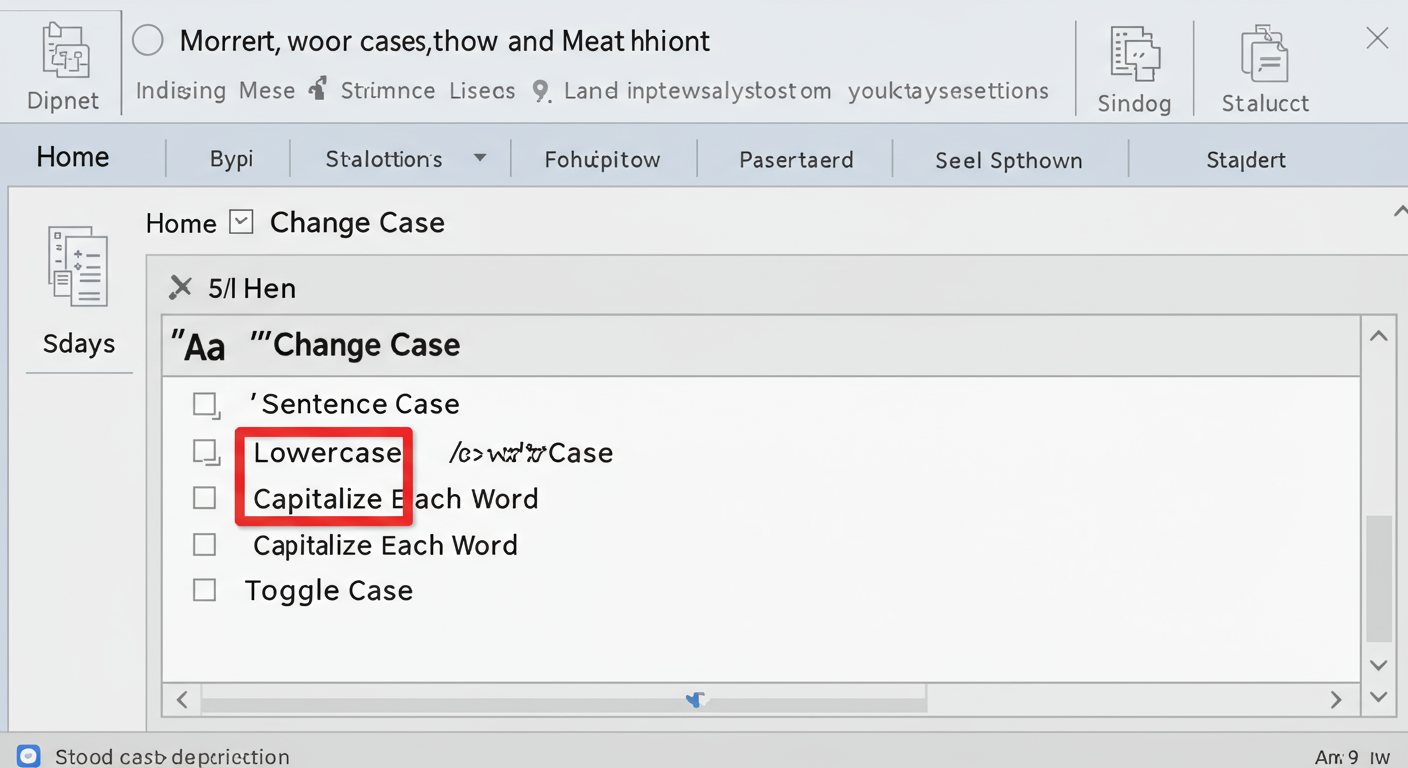
This dropdown gives you five powerful options. Here’s a breakdown of what they do and, more importantly, when to use them.
| Option | Example | Best Use Case |
|---|---|---|
| Sentence case. | this is a sentence. → This is a sentence. | Fixing entire paragraphs typed without initial caps. This is the standard for body text. |
| lowercase. | THIS WAS A MISTAKE. → this was a mistake. | The ultimate fix for the accidental “Caps Lock On” disaster. |
| UPPERCASE. | For emphasis! → FOR EMPHASIS! | Creating section headers, acronyms (e.g., NASA), or for deliberate stylistic emphasis. |
| Capitalize Each Word. | a tale of two cities → A Tale Of Two Cities | The go-to for formatting document titles and main headings (also known as Title Case). |
| tOGGLE cASE. | hELLO, wORLD! → Hello, World! | The niche but life-saving fix for when you typed with Caps Lock on AND held the Shift key. |
⚠️ Watch Out
While “Capitalize Each Word” (Title Case) is great for formal document headings, be careful using it for web articles or blog post titles. Industry best practices and readability studies often favor “Sentence case” for online headlines as it feels more natural and less formal to the reader.
Why This Matters: The Science of Productivity and Flow
Learning a keyboard shortcut seems small. Trivial, even. But it’s not about saving two seconds. It’s about eliminating the tiny interruptions that kill your momentum.
Psychologists refer to this state of deep focus as “flow,” a concept popularized by Mihaly Csikszentmihalyi. According to extensive research on the topic, achieving a flow state is the key to peak performance and satisfaction. Every time you switch from keyboard to mouse, you’re creating a “context switch” that chips away at that focus. It’s a micro-distraction, but they add up.
In our experience managing large-scale content projects, the teams that are fastest and produce the highest quality work are invariably masters of their tools. They don’t fight the software; they make it an extension of their thoughts. Keyboard shortcuts are the language they use to do it.
By keeping your hands on the keyboard, you maintain a fluid connection between your brain and the document. The idea flows from your mind, through your fingers, and onto the page without the jarring stop-and-start of navigating a graphical interface. It’s the difference between a smooth highway drive and being stuck in city traffic.
Pro-Level Customization: Creating Your Own Shortcuts
Love the “Sentence case” option but hate clicking for it? You can assign it—or any other case style—its own unique keyboard shortcut. This is where you truly tailor Word to your personal workflow.
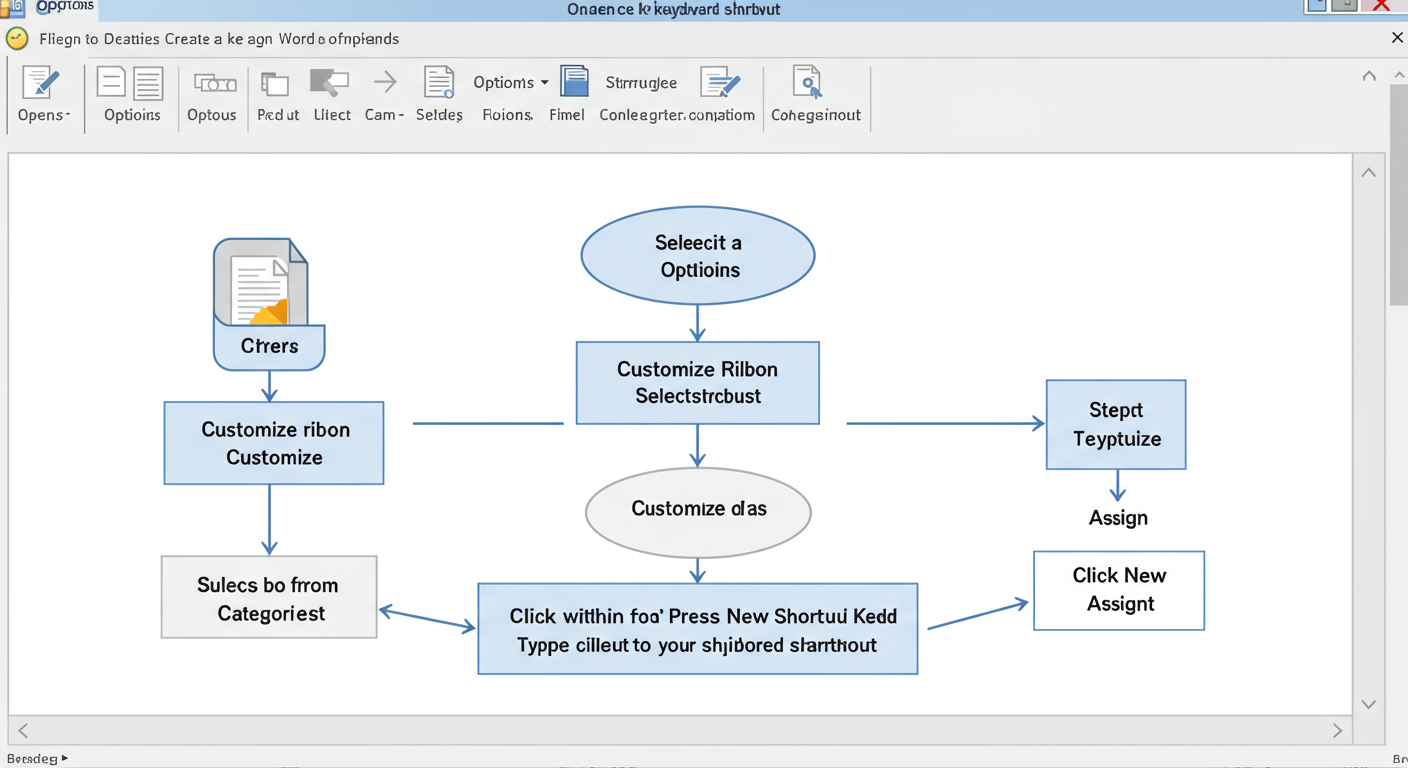
Here’s a step-by-step guide to becoming a shortcut creator:
- Open Word Options: Go to File > Options.
- Navigate to Shortcut Customization: In the pop-up window, click Customize Ribbon on the left, then look for the Keyboard shortcuts: Customize… button at the bottom.
- Find the Command: In the new window, scroll the ‘Categories’ box down and select All Commands. Now, in the ‘Commands’ box on the right, scroll until you find the specific command you want. They’re named logically, like
ChangeCaseSentenceorChangeCaseToggle. - Assign Your Shortcut: Click inside the ‘Press new shortcut key’ box. Now, press the key combination you want to use (e.g., Alt + S for Sentence case). Word will tell you below if that shortcut is currently assigned to another function. Try to find one that is [unassigned].
- Save and Close: Once you’ve found a combination you like, click the Assign button, then Close, and finally OK.
You’ve just created a custom command! For more granular details, the official Microsoft Support page is an excellent, authoritative reference.
💡 Pro Tip
When creating custom shortcuts, try using mnemonic combinations like Alt + T for Toggle Case or Alt + C for Capitalize Each Word. This makes them much easier to remember. Just be sure they don’t conflict with other essential commands you use.
Troubleshooting: When Your Shortcut Fails
So you press Shift + F3 and… nothing happens. It’s a common and incredibly frustrating problem, but the fix is usually simple. From real-world experience across dozens of different PC and laptop brands, here are the top culprits.
1. The Infamous “Fn” Key Lock
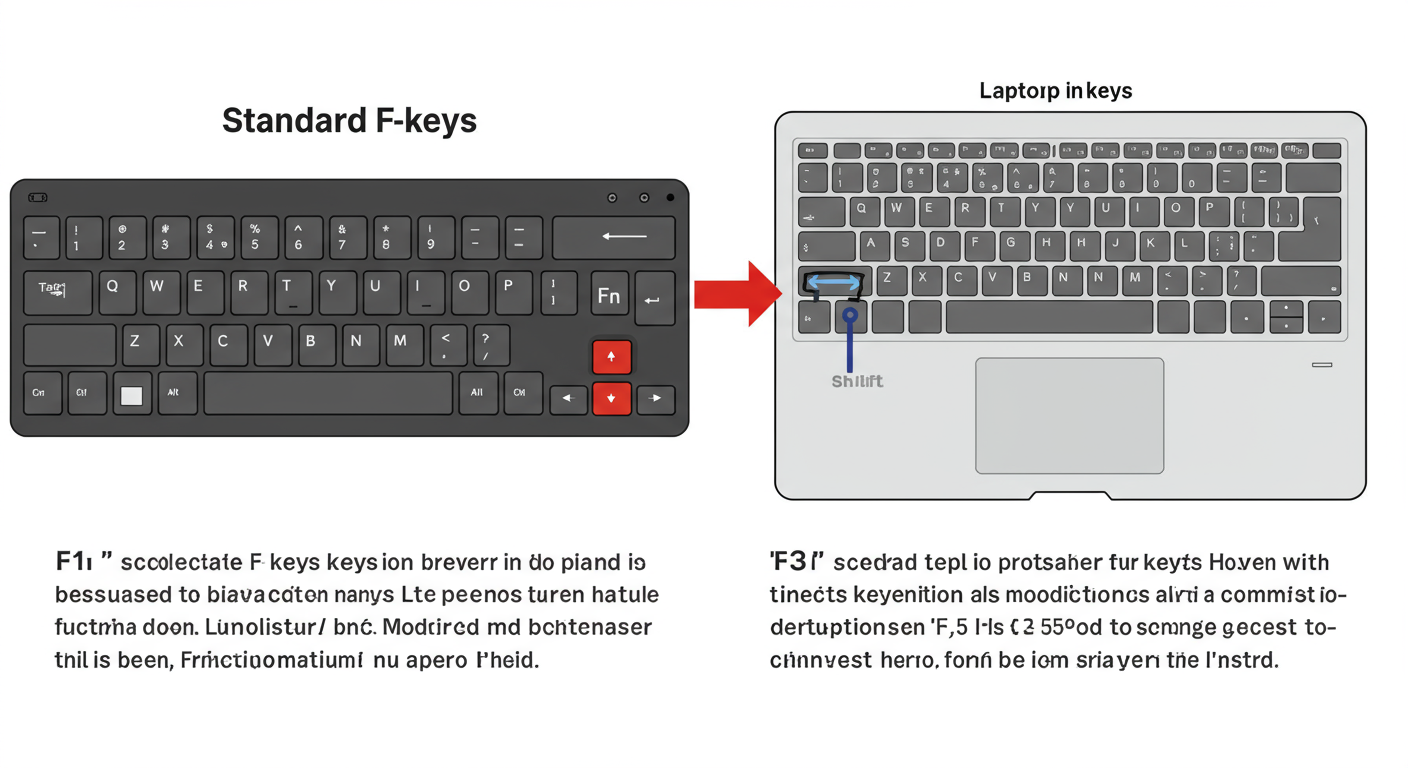
This is the #1 issue on laptops. Most compact keyboards have function keys (F1-F12) that do double duty, controlling things like screen brightness, volume, or keyboard backlights. To use the actual F3 key, you likely need to hold down the Fn key (usually in the bottom-left of your keyboard) at the same time.
The Fix: Try pressing Fn + Shift + F3.
Look for an “Fn Lock” key, often on the `Esc` key. Pressing `Fn + Esc` can toggle the mode, so you no longer need to press the Fn key for F-key functions.
2. Conflicting Software Hotkeys
Some applications run in the background and “steal” keyboard shortcuts. The most common offenders are screen recording software (like OBS), graphics card utilities (like NVIDIA GeForce Experience or AMD Adrenalin), and screenshot tools. If another program has reserved Shift + F3 for its own use, it won’t work in Word.
The Fix: Temporarily close background applications one by one and test the shortcut after each. Once you find the culprit, go into that program’s settings and change or disable its hotkeys.
⚠️ Watch Out
NVIDIA’s in-game overlay is a notorious source of shortcut conflicts. Even if you’re not in a game, it can be running. By default, it uses many Alt and Shift combinations. If you’re a gamer, this is the first place you should check.
3. Corrupted Add-ins or Settings
In rare cases, a faulty Word add-in or a corrupted user profile can disable default shortcuts.
The Fix: Start Word in Safe Mode by holding the Ctrl key while you click the Word icon to launch it. If Shift + F3 works in Safe Mode, the problem is almost certainly an add-in. You can manage your add-ins via File > Options > Add-ins.
❓ Frequently Asked Questions
What is the main Word change case shortcut?
The primary shortcut is Shift + F3. Pressing it repeatedly cycles your selected text through Sentence case, UPPERCASE, and lowercase, making it the fastest way to fix common capitalization errors.
Why isn’t Shift + F3 working on my laptop?
It’s almost always the Function (Fn) key. Your laptop requires you to press Fn + Shift + F3. You can often change this behavior by enabling “Fn Lock” on your keyboard (usually by pressing Fn + Esc).
How do I change text to Title Case in Word?
While Shift + F3 sometimes cycles to a version of Title Case, the most reliable method is to use the Ribbon. Select your text, go to the Home tab, click the ‘Aa’ icon, and choose Capitalize Each Word. According to style guides like The Chicago Manual of Style, this is the correct format for most headlines.
Can I make a shortcut for Sentence case?
Yes, absolutely! There isn’t one by default, but you can create a custom shortcut. Go to File > Options > Customize Ribbon > Keyboard shortcuts: Customize. Find the ‘ChangeCaseSentence’ command and assign a key combination you’ll remember, like Alt + S.
Is there a shortcut for tOGGLE cASE?
No, there is no default shortcut for this niche but useful function. You must create a custom one using the same method described above. Find the ‘ChangeCaseToggle’ command and assign it a shortcut.
Conclusion: Your New Editing Superpower
The Word change case shortcut isn’t just a feature; it’s a philosophy. It’s about choosing efficiency over friction, focus over distraction, and professionalism over sloppiness. By moving beyond the mouse and integrating Shift + F3 into your muscle memory, you’re not just editing a document—you’re mastering your craft.
We’ve journeyed from the simple key press to advanced customization and troubleshooting. You now have the complete toolkit to handle any capitalization catastrophe Word can throw at you.
So here’s your challenge: for the next week, forbid yourself from using the mouse to change text case. Use Shift + F3. Create a custom shortcut if you need to. The initial effort will quickly transform into an automatic, indispensable skill that will pay dividends for the rest of your career. Go on, give it a try.

