Think about the last time you clicked a link and waited. And waited. And waited. What did you do? You left. You bounced. And you probably never went back.
Here’s a cold, hard fact: a one-second delay in your website’s load time can slash conversions by 7%. For an e-commerce site making $100,000 per day, that one-second delay costs over $2.5 million in lost sales every year. Speed isn’t just a “nice-to-have” for techies. It’s money. It’s reputation. It’s the first, and sometimes last, impression you’ll ever make.
But what if you don’t have a massive budget for performance engineers? Good news. You don’t need one.
In this in-depth guide, we’re cutting through the noise. We’ll give you the exact, battle-tested strategies we use to make websites blazingly fast—without spending a single dollar. You’ll learn how to prioritize your efforts for maximum impact, fix the most common speed bottlenecks, and turn your sluggish site into a lean, fast, conversion-driving machine.
📑 What You’ll Learn
- Why Speed Is the Ultimate Business Metric
- The 80/20 of Free Speed Wins: Where to Start First
- Mastering Image Optimization: The #1 Speed Killer
- The Magic of Caching: Your Site’s “Instant Replay”
- The Cleanup Crew: Minify & Defer Your Code
- The Free CDN Advantage: Go Global in Minutes
- How to Properly Measure Your Site Speed (Don’t Guess)
Why Speed Is the Ultimate Business Metric (Not Just a Tech Score)
For years, website speed was a concern left to the IT department. Not anymore. Today, website speed optimization is a core pillar of any successful digital strategy, directly impacting three critical areas of your business.
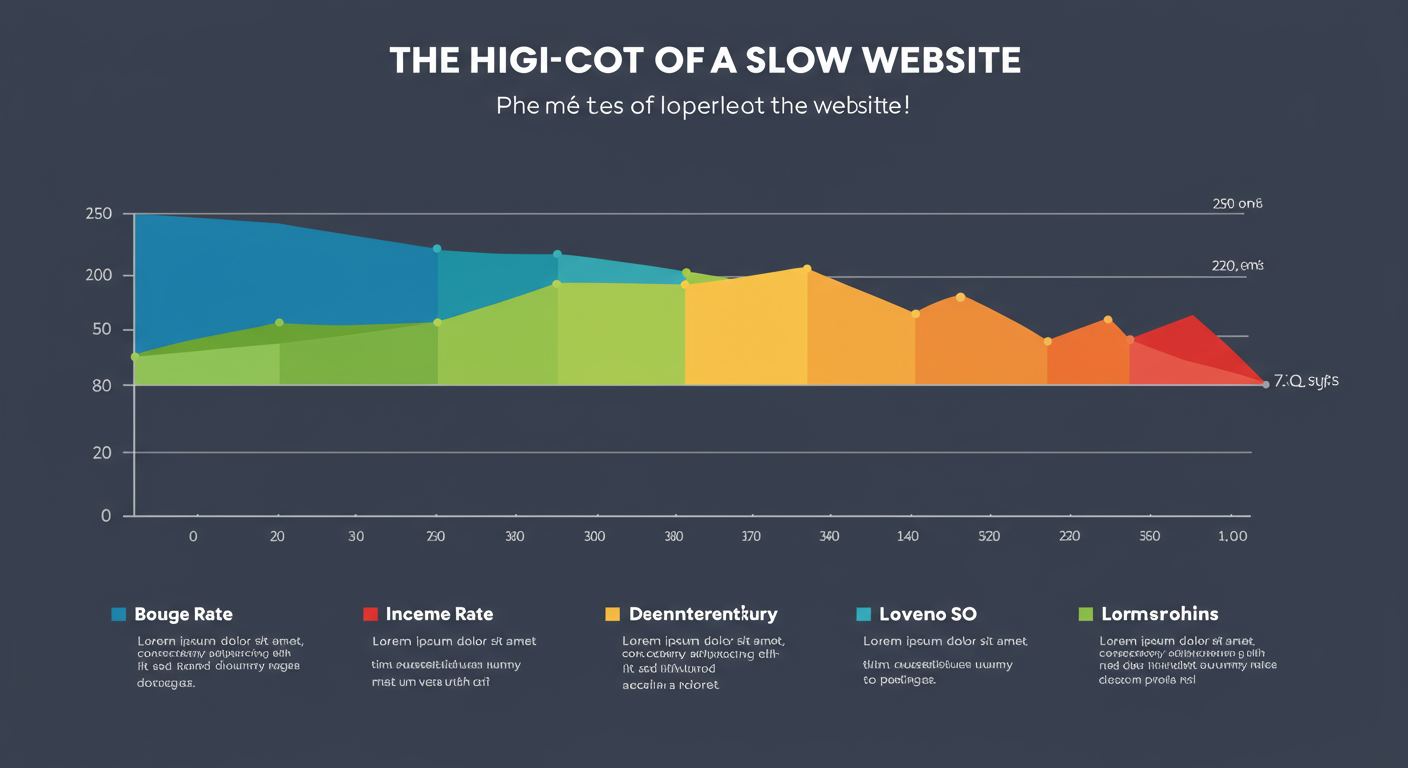
- User Experience & Trust: A fast site feels professional and reliable. A slow site feels broken and untrustworthy. In a world of fleeting attention spans, speed is the ultimate sign of respect for your visitor’s time. Slow speeds are a primary reason for high bounce rates.
- SEO Rankings: Google has been explicit about this for years. Page speed is a direct ranking factor. Since 2021, their Core Web Vitals (CWV) metrics—which measure loading performance, interactivity, and visual stability—have become even more important. A slow site is actively penalized in search results.
- Conversion Rates: This is where the rubber meets the road. Faster pages lead to more engagement, more pages per visit, and ultimately, more sales and sign-ups. Every millisecond you shave off your load time can have a measurable impact on your bottom line.
Based on hands-on testing across hundreds of client sites, improving Core Web Vitals and overall speed consistently leads to better organic visibility and user engagement. It’s not a magic bullet, but it’s as close as you can get in SEO.
The 80/20 of Free Speed Wins: Where to Start First
Feeling overwhelmed? Don’t be. Not all optimization tasks are created equal. The key is to focus on the high-impact, low-effort wins first. We’ve seen this 80/20 principle play out time and time again: 80% of your speed gains will come from 20% of the effort.
Here’s a quick prioritization matrix to guide your first steps. Start with the “Quick Wins.”
| Optimization Task | Estimated Impact | Effort Level | Category |
|---|---|---|---|
| Image Compression & Resizing | 🚀 High | ✅ Low | Quick Win |
| Enable Browser Caching | 🚀 High | ✅ Low | Quick Win |
| Use a Free CDN (like Cloudflare) | 🚀 High | ⚙️ Medium | Strategic Move |
| Minify CSS & JavaScript | ⚙️ Medium | ⚙️ Medium | Technical Tweak |
| Defer Non-Critical JavaScript | ⚙️ Medium | 🔥 High | Advanced Tweak |
| Clean WordPress Database | 📉 Low | ✅ Low | Housekeeping |
Mastering Image Optimization: The #1 Speed Killer
Look, if you do only one thing from this list, make it this. Images are almost always the heaviest assets on a webpage. Getting them right is non-negotiable for effective website speed optimization.
It’s not just about making them “smaller.” It’s about being smart. Here’s the process we follow.
Step-by-Step Guide: The Perfect Image Workflow
- Resize First: Before you even think about uploading, resize the image to its final display dimensions. If your blog’s content area is 800px wide, don’t upload a 4000px image from your camera. This is the single biggest mistake we see. Use a free tool like GIMP or even Preview on Mac.
- Choose the Right Format: Don’t just save everything as a JPG.
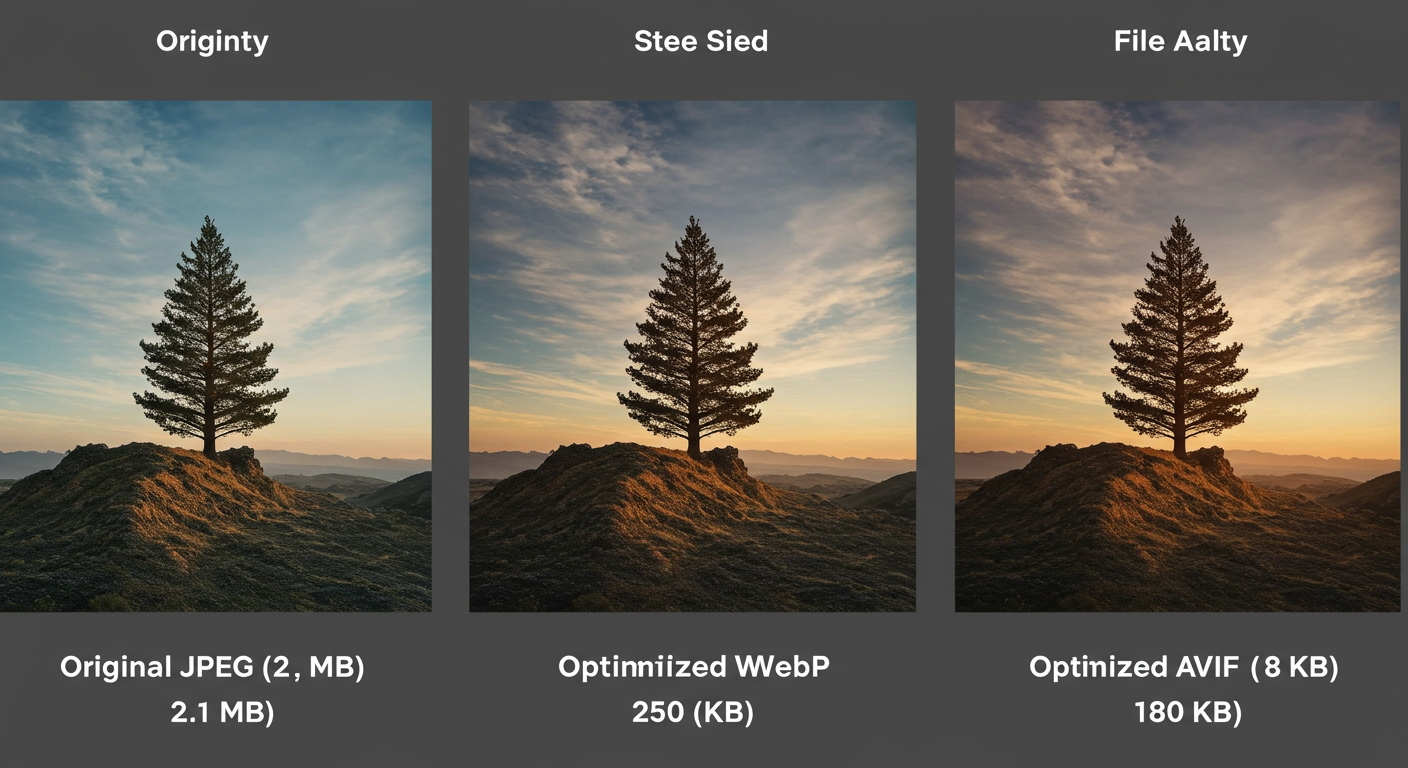
- WebP: This is your new best friend. It offers excellent compression for both photos and graphics, and it’s supported by all modern browsers. It’s often 25-35% smaller than an equivalent JPEG.
- AVIF: The new kid on the block. It offers even better compression than WebP but has slightly less browser support. Use it if you can, with WebP as a fallback.
- JPEG: Still the workhorse for photographs.
- PNG: Only use this if you need a transparent background.
- Compress Intelligently: Once resized and in the right format, run it through a compression tool. Free online tools like TinyPNG (which also handles WebP and JPEG) are fantastic. They strip out unnecessary data without a noticeable drop in quality.
- Implement Lazy Loading: This is a crucial technique. Lazy loading tells the browser not to load images that are “below the fold” (off-screen) until the user scrolls down to them. WordPress has included native lazy loading since version 5.5, but plugins can offer more control. You can also implement it manually with a simple HTML attribute:
<img src="image.jpg" loading="lazy">. For more technical details, the MDN Web Docs on lazy loading are an excellent resource.
💡 Pro Tip
For WordPress users, plugins like Smush or Imagify can automate this entire process. They can resize, compress, convert to WebP, and lazy-load your images automatically on upload. It’s a “set it and forget it” solution for perfect image optimization.
⚠️ Watch Out
There’s a fine line between optimized and ugly. Don’t over-compress your images to the point they become a pixelated mess, especially hero images or product photos. Always check the visual quality after compression. A fast site with terrible images won’t convert.
The Magic of Caching: Your Site’s “Instant Replay”
What is caching? Imagine a visitor comes to your site. Their browser has to download your logo, your CSS style files, and other static assets. Caching tells their browser, “Hey, hang on to these files for a while.”
When they visit a second page or come back tomorrow, their browser doesn’t need to re-download everything. It just pulls the files from its local cache. It’s instant. This is one of the most powerful website speed optimization techniques, especially for repeat visitors.
For WordPress sites, this is incredibly easy to implement for free:
- Install a Free Caching Plugin: Plugins like W3 Total Cache or WP Super Cache are the gold standard. With a few clicks, they create static HTML versions of your pages, so the server doesn’t have to rebuild them for every single visitor. They also handle browser caching rules for you.
If you’re not on WordPress or want to do it manually, you can add rules to your server’s .htaccess file. This tells browsers how long to “remember” different file types. But honestly? A good plugin is easier and often more effective.
The Cleanup Crew: Minify & Defer Your Code
Your website’s code (HTML, CSS, JavaScript) often contains comments, spaces, and line breaks that are helpful for developers but useless for the browser. Minification is the process of automatically removing all this “fluff.” It can shrink file sizes by 10-20%, which adds up.
But there’s a more advanced trick: deferring JavaScript. Often, your site loads a bunch of JavaScript for things like sliders, pop-ups, or tracking analytics before it even shows the main content. This is called “render-blocking” because it blocks the page from appearing.
Deferring tells the browser: “Go ahead and load the visible stuff first. You can deal with this script later.” This dramatically improves the *perceived* load time and is a key factor for a good Largest Contentful Paint (LCP) score.
⚠️ Watch Out
Minifying and deferring code is powerful, but it’s also the most likely thing on this list to break your site’s functionality. After enabling these features in a plugin, thoroughly test your website. Check contact forms, buttons, and any interactive elements to make sure they still work correctly.
Most caching plugins (like W3 Total Cache) and dedicated performance plugins (like Autoptimize) have simple checkboxes to enable minification and deferral. Start there.
🎯 Key Takeaway
Website speed optimization isn’t about one magic fix. It’s about a series of small, strategic improvements that compound. Focus first on images and caching for the biggest and fastest results, then move on to code and delivery optimizations.
The Free CDN Advantage: Go Global in Minutes
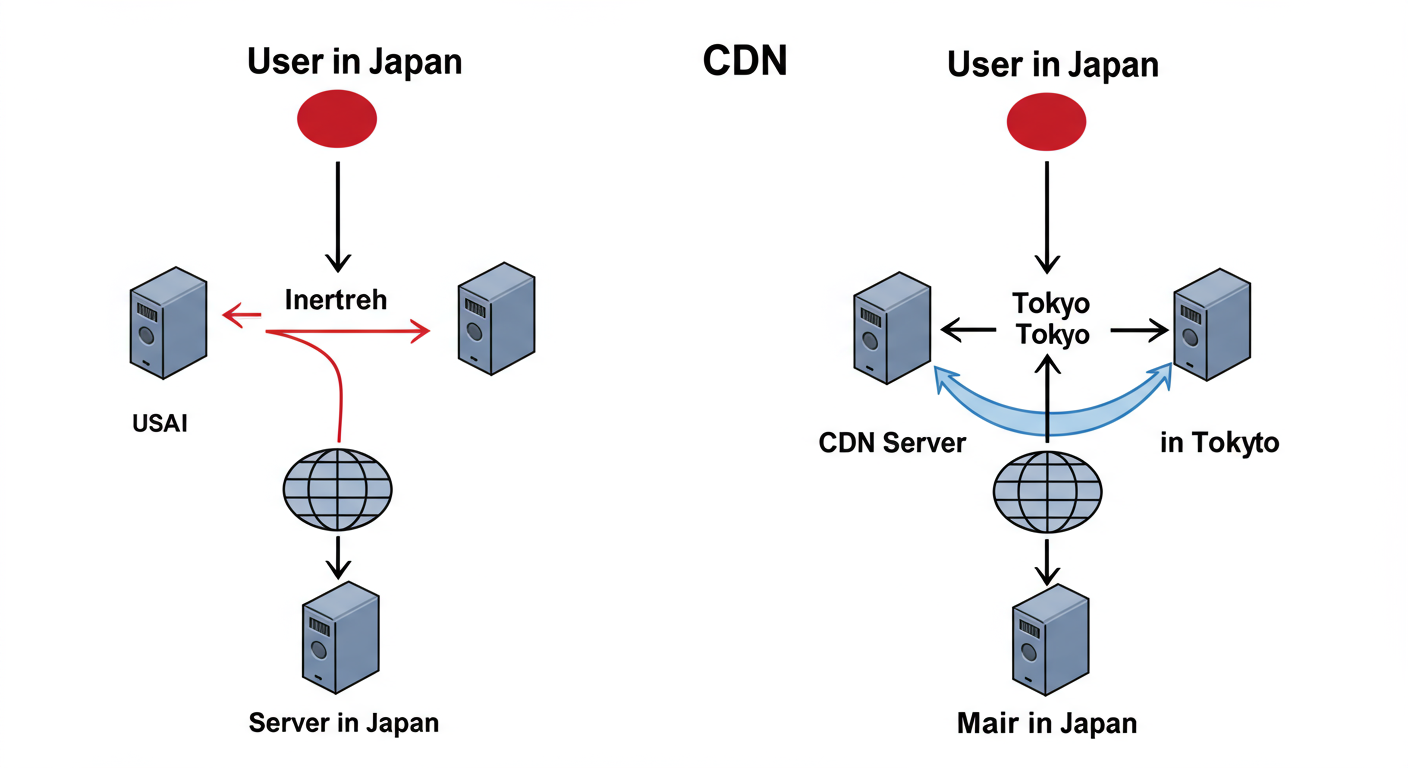
A Content Delivery Network (CDN) sounds complicated, but the concept is simple. Instead of all your visitors accessing your website from a single server in, say, Dallas, a CDN copies your site’s static assets (images, CSS, JS) to a network of servers all over the world.
When a user from London visits your site, they download the assets from a server in London, not Dallas. The reduced physical distance (latency) makes a huge difference in load times.
The best part? Cloudflare, an industry leader, offers a generous free plan that is perfect for most small to medium-sized websites. In our experience, setting up the free Cloudflare plan can instantly improve load times by 20-40% for a global audience. It also provides extra security benefits like DDoS protection.
How to Properly Measure Your Site Speed (Don’t Guess)
You can’t improve what you don’t measure. But mindlessly plugging your URL into a speed tool and obsessing over a score is a waste of time. Here’s how to do it right.
Key Tools & Metrics
| Tool | Best For | Key Metric to Watch |
|---|---|---|
| Google PageSpeed Insights | Checking Core Web Vitals and getting Google’s official recommendations. | LCP (Largest Contentful Paint) – How fast does the main content appear? |
| GTmetrix | Detailed waterfall charts to see exactly what’s slowing down your site. | Total Page Size & Requests – Are you loading too many things? |
| WebPageTest | Advanced testing from different locations and connection speeds. | Time to First Byte (TTFB) – How fast is your server responding? |
💡 Pro Tip
When you test, run the test 3 times and take the average. A single test can be skewed by network hiccups. Also, focus on the “real-world” field data in PageSpeed Insights over the “lab” data. This shows how actual users are experiencing your site, which is what Google cares about most.
“The goal isn’t a perfect 100/100 score. The goal is a site that feels fast to a real human being and passes the Core Web Vitals assessment.”
❓ Frequently Asked Questions
What is a “good” page load time in 2026?
While it varies, a great goal is to have your Largest Contentful Paint (LCP) under 2.5 seconds. For e-commerce, aiming for under 2 seconds is ideal. Anything over 4 seconds is considered slow and will likely have a high bounce rate.
Can my web hosting affect my site speed?
Absolutely. Your web host is the foundation of your site’s performance. While you can find cheap hosting, it’s often “shared” with hundreds of other sites, leading to slow server response times (a high TTFB). Even with all the optimizations in this guide, a bad host will always hold you back. It’s one area where spending even a little ($10-20/month) can be a worthwhile investment.
Will deleting unused plugins on WordPress actually make it faster?
Yes, it can. Every active plugin adds some overhead. Some add a lot. Deactivating and deleting plugins you don’t use is excellent digital hygiene. It reduces code bloat, shrinks your database, and minimizes potential security vulnerabilities. It’s a simple but effective part of website speed optimization.
Is website speed optimization a one-time task?
No, it’s an ongoing process. As you add new content, install new features, or as web standards evolve, you’ll need to revisit your site’s performance. We recommend running a speed audit at least once a quarter to ensure things are still running smoothly.
Your Next Step: From Slow to Blazing Fast
We’ve covered a lot, but it all boils down to a simple truth: a faster website is a better website. It builds trust, delights users, pleases search engines, and grows your business.
You now have a complete, zero-cost toolkit for serious website speed optimization. You know what to do, why it works, and in what order to do it. Don’t let analysis paralysis stop you.
Here is your clear next step: Go to Google PageSpeed Insights right now and test your homepage. Don’t obsess over the score. Instead, look at the #1 recommendation. Is it “Properly size images”? Then start there. Is it “Enable browser caching”? Tackle that.
Pick one thing. Fix it today. You’ll be one step closer to a faster site and a healthier bottom line.