
It’s 4:55 PM. You’ve just received the final contract or a critical research paper. You open it to make one tiny edit or copy a specific paragraph, and then—bam. Everything is grayed out. You can’t type, you can’t copy, and you certainly can’t print.
The frustration is real. We’ve all been there.
While PDF security is essential for protecting intellectual property, it often becomes a massive bottleneck in legitimate workflows. You don’t have time to email the original author and wait three days for a reply. You need access now. This is where a reliable PDF unlocker becomes the most valuable tool in your digital arsenal.
But here is the thing: not all unlocking tools are created equal. Some are magic wands that fix your problem in seconds; others are security nightmares waiting to happen. In this guide, we’re going to strip away the jargon and show you exactly how to regain control of your documents safely, legally, and efficiently.
📑 What You’ll Learn
- The Two Types of PDF Locks (And Why It Matters)
- How a PDF Unlocker Actually Works
- 7 Steps to Unlock Your PDF Instantly
- Comparison: Online Tools vs. Offline Software
- Security: Is It Safe to Upload Your Files?
- Troubleshooting: When the Unlocker Fails
- Legal and Ethical Boundaries
- Frequently Asked Questions
The Two Types of PDF Locks (And Why It Matters)
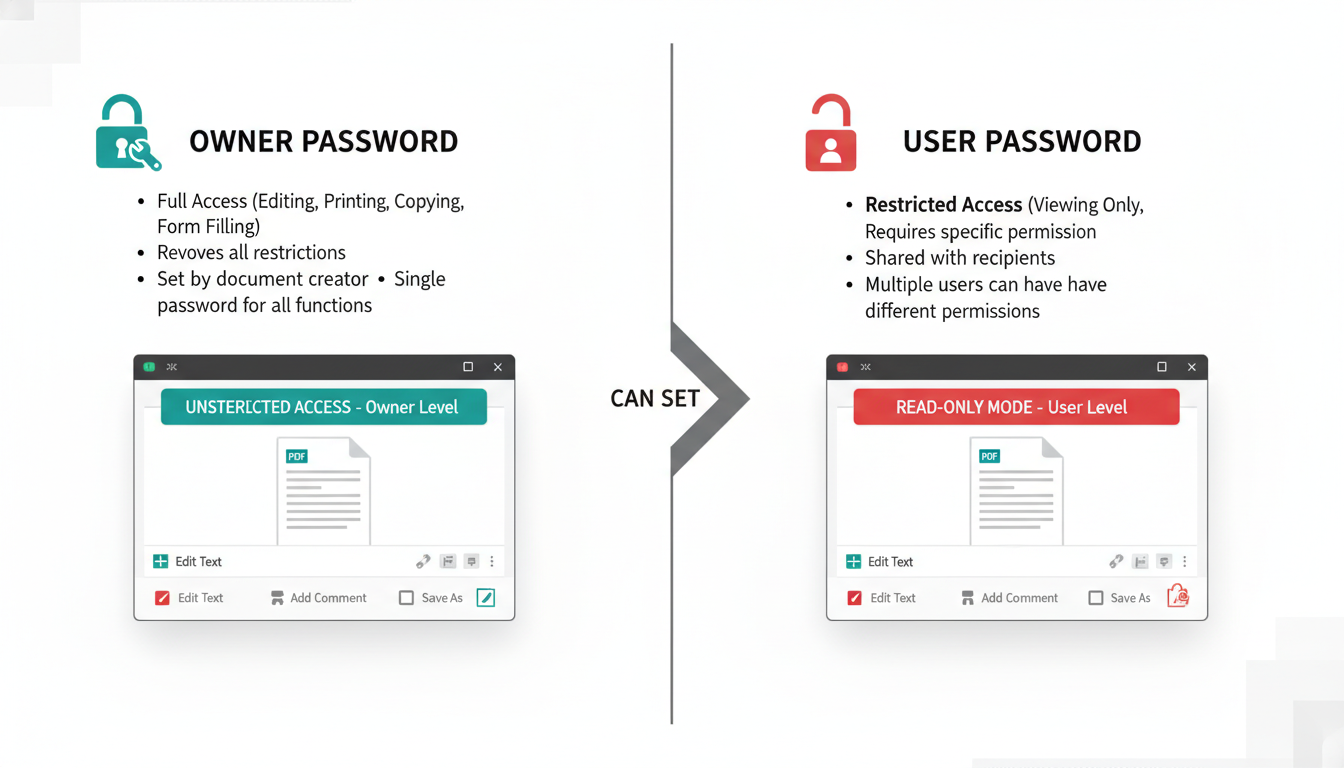
Before you try to brute-force your way into a file, you need to know what you are up against. In our experience testing hundreds of documents, most users confuse the two main types of PDF security. Knowing the difference saves you time and prevents you from trying to do the impossible.
Think of it like a house. One lock stops you from entering the front door; the other lets you in but stops you from rearranging the furniture.
| Feature | Owner Password (Permissions) | User Password (Open) |
|---|---|---|
| The Barrier | You can open and read the file, but features are disabled. | You cannot open the file at all without a password. |
| Restrictions | Prevents printing, editing, copying text, or extracting pages. | Prevents viewing the content entirely. |
| Unlock Difficulty | Easy. Most PDF unlockers remove this instantly without a password. | Hard. You usually need the original password to remove it permanently. |
| Encryption | Metadata flags restrict the software interface. | The entire file content is scrambled (encrypted). |
If you can open the file but can’t print it, you are dealing with an Owner Password. A standard PDF unlocker handles this easily. If you can’t even see the first page, that’s a User Password, and the game changes completely.
How a PDF Unlocker Actually Works
You might wonder, “How can a free online tool bypass security that a billion-dollar company like Adobe created?”
It comes down to how the PDF standard is written. When a document has “Owner” restrictions (no printing/editing), the actual content of the file isn’t necessarily encrypted—it’s just flagged. The PDF reader (like Acrobat or Preview) reads a line of code that says, “Hey, don’t let the user print this.”
A PDF unlocker doesn’t “hack” the file in the Hollywood sense. Instead, it acts like a translator that ignores the rules. It reads the file, strips out the lines of code that dictate permissions, and saves a fresh copy of the document. The data remains untouched; only the digital “handcuffs” are removed.
💡 Pro Tip
If you have a User Password (the file won’t open), a standard unlocker usually cannot help unless you know the password. However, if you do know the password but are tired of typing it every time, you can use an unlocker to decrypt the file once and save a permanent, password-free version.
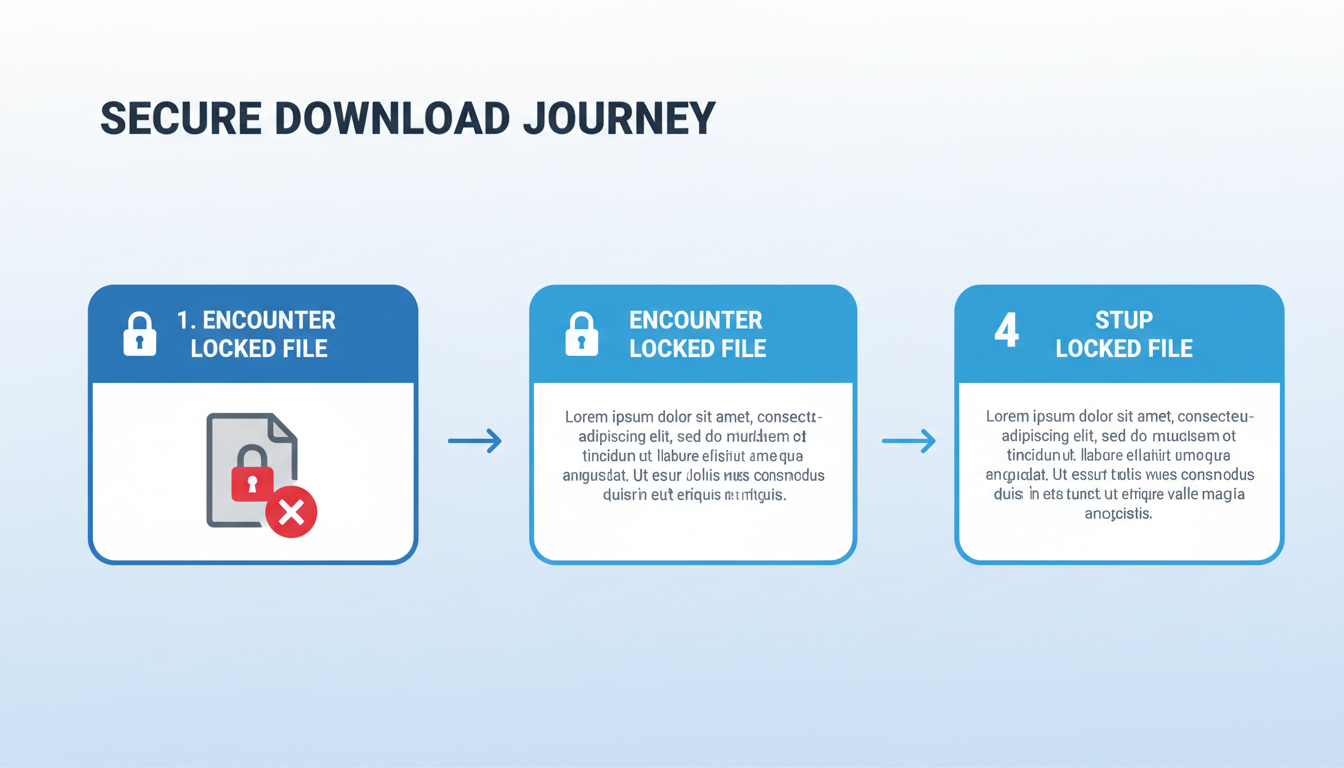
7 Steps to Unlock Your PDF Instantly
Ready to free your data? We have broken this down into a foolproof process. We have used this exact workflow for years to handle client assets without compromising security.
- Assess the Sensitivity: Before you do anything, look at the content. Is it a public menu or a bank statement? If it contains Social Security numbers or sensitive financial data, skip to the “Offline Software” section below.
- Choose a Reputable Tool: Look for a PDF unlocker that explicitly states they use SSL encryption (HTTPS) and—this is critical—automatically deletes files after 1 hour.
- Prepare Your File: If your file is massive (over 50MB), you might need to compress it first, as many online tools have size limits.
- Upload Securely: Drag and drop your file. Watch for the padlock icon in your browser address bar to ensure the connection is encrypted.
- Handle the Prompt:
- For Permission Locks: The tool will likely process it immediately.
- For Open Passwords: You will be asked to type the current password once to authorize the decryption.
- Process and Download: Click “Unlock” or “Decrypt.” The server will rewrite the file headers. Once finished, download the new file immediately.
- Verify and Delete: Open the new file to ensure you can edit or print. Then, if the tool offers a “Delete Now” button on the download page, click it to wipe your data from their server instantly rather than waiting for the auto-timer.
Comparison: Online Tools vs. Offline Software
This is the most common question we get: “Should I use a website or download a program?”
The answer depends entirely on your risk tolerance and frequency of use. Online tools are convenient, but offline software is a fortress. Here is how they stack up.
| Criteria | Online PDF Unlocker (Cloud) | Offline Software (Desktop) |
|---|---|---|
| Speed | Fast (Instant for small files). | Fast (Depends on your CPU). |
| Privacy | Moderate. File leaves your computer. | High. File never leaves your device. |
| Cost | Usually Free (Freemium). | Usually Paid ($20-$50+). |
| Convenience | Accessible from any device/phone. | Requires installation/updates. |
| Best For… | Quick, non-sensitive documents. | Legal, medical, or financial data. |
⚠️ Watch Out
Never use a free online PDF unlocker for documents containing Personally Identifiable Information (PII) like tax returns, medical records, or password lists. Even with “secure deletion” promises, uploading sensitive data to a third-party server is a security risk you shouldn’t take.
Security: Is It Safe to Upload Your Files?
Let’s be real about cloud security. When you upload a file to a free service, you are trusting that company’s server configuration. In our analysis of the industry, most reputable tools are safe for general business documents. They make money through ads or premium subscriptions, not by stealing your data.
However, you should always verify these three trust signals before uploading:
- HTTPS Protocol: If the site says “Not Secure” in the browser bar, run away.
- Data Retention Policy: Check their FAQ or Privacy Policy. It should explicitly say, “Files are deleted after X hours.”
- Server Location: Ideally, the service hosts data in regions with strict privacy laws, like the EU (GDPR compliant) or the US.
Just as you would use a website SSL certificate checker to verify a shopping site, take ten seconds to verify your unlocker tool.
Troubleshooting: When the Unlocker Fails
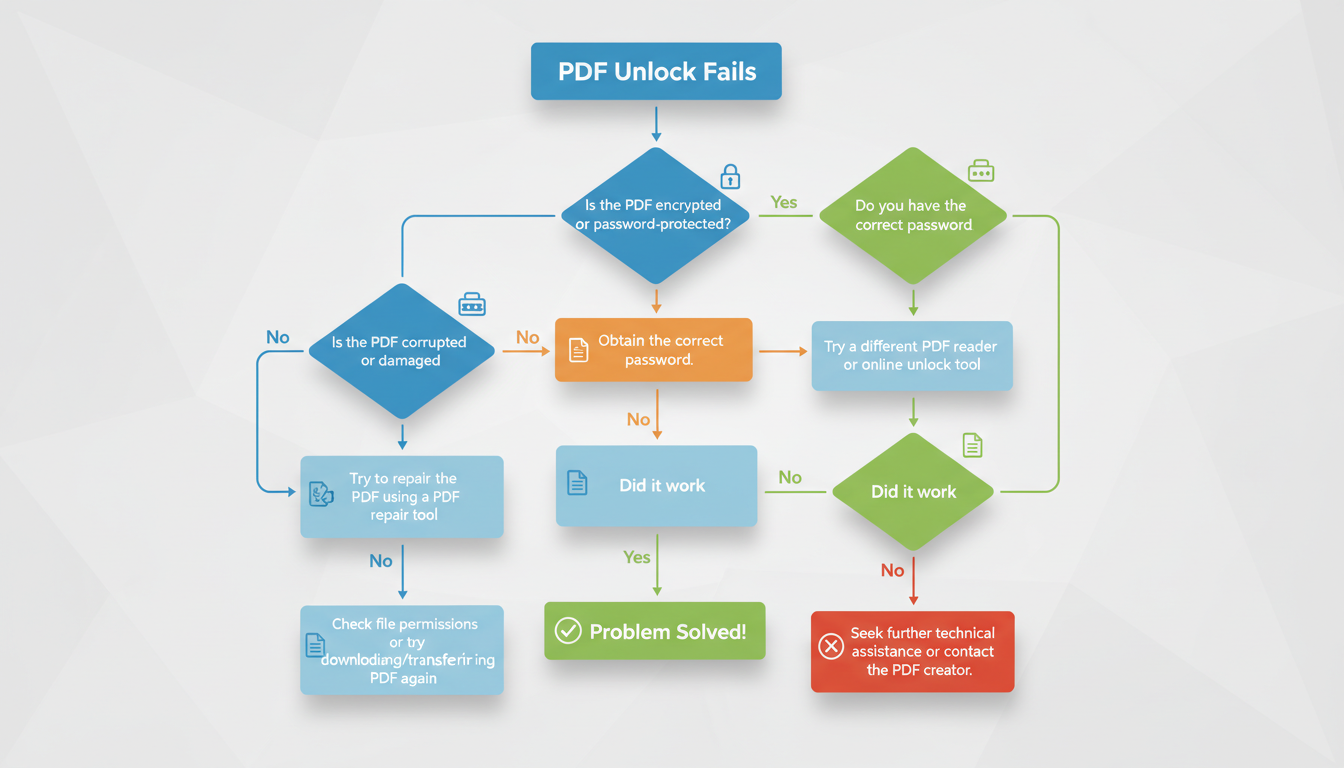
Sometimes, you hit the “Unlock” button and get an error. It happens. Based on hands-on testing with difficult files, here are the most common reasons a PDF unlocker might fail:
1. 256-Bit AES Encryption
Older or simpler unlockers can handle standard encryption easily. However, modern PDF software often uses 128-bit or 256-bit AES encryption. This is military-grade stuff. If a tool fails, it likely lacks the computational power to handle this protocol. Solution: Try a premium or desktop-based tool.
2. Corrupted Metadata
If the file was created by a buggy PDF generator, the header information might be messy. The unlocker tries to find the “lock” code, can’t find it, and errors out. Solution: Try opening the PDF in a browser (like Chrome) and “Print to PDF” to create a fresh version, then try unlocking that new version.
3. File Size Limits
Most free tools cap you at 50MB or 100MB. Solution: Compress the PDF first or split it into smaller pages.
Legal and Ethical Boundaries
We need to have a serious talk about legality. Just because you can unlock a door doesn’t mean you should.
Using a PDF unlocker is generally legal when:
- You created the file and lost the password.
- You have explicit permission from the author to edit the file.
- The file is in the public domain, but someone slapped a restriction on it.
It crosses the line into illegal territory (and copyright infringement) if you are removing protections from:
- Commercial eBooks (DRM removal).
- Academic journals you haven’t paid for.
- Confidential corporate documents you aren’t authorized to view.
According to Adobe’s guidelines, security features are intellectual property protections. As professionals, we use these tools to facilitate workflow, not to commit piracy.
🎯 Key Takeaway
A PDF unlocker is a productivity savior for removing editing restrictions (Owner Passwords) from files you legally access. For high-security documents (User Passwords) or sensitive data, always prioritize offline software over cloud-based tools to ensure your information remains private.
Conclusion
Restricted documents don’t have to derail your day. Whether you are a student trying to annotate a lecture note or a manager trying to sign a contract, a PDF unlocker bridges the gap between a locked file and a finished task.
Remember the golden rule: Use online tools for speed and convenience on non-sensitive files, but stick to offline software for anything confidential. You now have the knowledge to navigate these locks safely. Go reclaim your documents.
❓ Frequently Asked Questions
Is it safe to use an online PDF unlocker for bank statements?
We do not recommend it. While many services are secure, bank statements contain sensitive financial data. It is safer to use offline desktop software that processes the file locally on your computer, ensuring the data never touches the internet.
Can a PDF unlocker remove a password I don’t know?
It depends. If it is an “Owner Password” (restricting printing/editing), yes—most tools remove this instantly without the password. If it is a “User Password” (prevents opening), you generally cannot remove it without knowing the original password first.
Will unlocking a PDF ruin the formatting?
No. A high-quality PDF unlocker only modifies the metadata headers related to security. It does not touch the text, images, or layout. Your document will look exactly the same, just without the restrictions.
Why do some PDFs refuse to unlock?
This usually happens if the file is protected by strong 256-bit AES encryption or if the file itself is corrupted. In these cases, free online tools may fail, and you might need professional desktop software.
Is using a PDF unlocker free?
Many robust online tools operate on a “freemium” model, allowing you to unlock a certain number of files per day for free. Desktop software usually requires a one-time purchase or subscription.
Read Also:
- How to Convert Square Yards into Tons: The 2026 Landscaping Guide
- Your Text, Real Handwriting: The 2026 Trick
- Skyrocket Your SEO Rank in 2026
- X Card Validator: The Ultimate Guide to Perfect Previews (2026)
- Word Combiner Generator: Find Your Perfect Name in 2026
- PAK to BIN Dangers: Your 2026 Safety Plan

