

Here’s a hard truth: Ranking #1 on Google isn’t enough anymore.
You can hold the top spot, but if your listing is just a boring blue link while the guy at #3 has star ratings, a price tag, and an FAQ section right there in the search results, guess who gets the click?
They do. Every single time.
This is the power of structured data. But let’s be real—most of us aren’t developers. Looking at raw JSON-LD code feels like trying to read the Matrix. One missing comma, and the whole thing breaks. That’s where a schema generator becomes your secret weapon.
In this guide, I’m going to show you exactly how to use these tools to translate your content into the language Google loves. No computer science degree required. We’re going to turn your standard search listings into eye-catching “billboards” that demand attention.
📑 What You’ll Learn
The “Invisible” SEO Layer You’re Missing
Before we open the toolbox, you need to understand what we’re actually building. Schema markup is essentially a vocabulary of tags (or microdata) that you add to your HTML.
Think of it this way: Your website text is for humans. Schema is for robots.
When Google crawls your site, it reads the text, but it has to guess the context. Is “Apple” a fruit or a tech giant? Is “555-0199” a phone number or a product SKU? A schema generator helps you create a script that explicitly tells search engines: “This is a recipe. This is the cook time. This is the calorie count.”
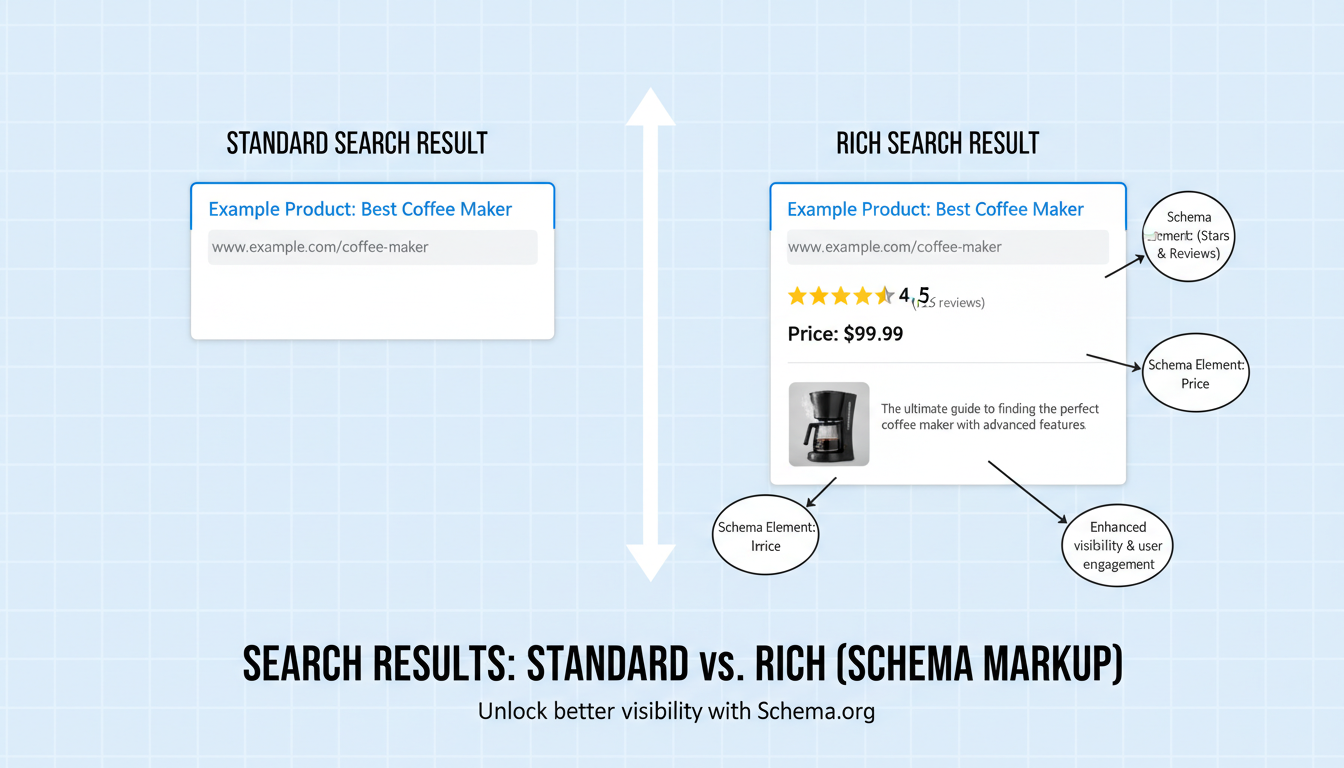
According to documentation from Google Search Central, structured data is the primary method for enabling rich results. It doesn’t directly boost your rankings, but it dramatically improves how you look in the rankings.
🎯 Key Takeaway
Schema doesn’t change what your content says; it changes how search engines understand it. By using a generator, you are handing Google a cheat sheet for your website, which rewards you with higher visibility and click-through rates (CTR).
Why Manual Coding is a Trap
I’ve been in SEO for over a decade, and I’ve seen brilliant campaigns fail because of bad code. Writing JSON-LD (JavaScript Object Notation for Linked Data) from scratch is tedious. It’s prone to syntax errors that can render your efforts useless.
A schema generator acts as a bridge. You input simple data—like a URL or a headline—and the tool spits out perfect, validated code. It handles the nesting, the brackets, and the commas for you.
The ROI of Using a Generator
Why bother? Because the data supports it. Pages with rich results often see a significant uplift in user engagement. Here is a breakdown of what happens when you move from standard text to generated schema:
| Feature | Standard Listing (No Schema) | Rich Result (With Schema) |
|---|---|---|
| Visual Appeal | Text only (Title + Meta Desc) | Images, Stars, Prices, FAQs |
| Screen Real Estate | Minimal vertical space | Can occupy 2x more pixel height |
| Click-Through Rate | Average | Typically 20-30% higher |
| Voice Search | Hard for assistants to parse | Read aloud by Siri/Alexa |
High-Impact Schema Types to Generate
Not all schema is created equal. A generic “WebPage” schema won’t move the needle much. You need to use your schema generator to target specific rich result opportunities based on your content.
In our experience testing various markups, these are the heavy hitters:
- Review Schema: The holy grail for e-commerce. Those yellow stars build instant trust before a user even clicks.
- FAQ Schema: My personal favorite for service pages. It allows you to answer questions directly on the SERP, pushing competitors further down the page.
- LocalBusiness Schema: Non-negotiable for brick-and-mortar stores. It feeds data directly into Google Maps and the Local Pack.
- Article/NewsArticle: Essential for publishers wanting to appear in the “Top Stories” carousel or Google Discover.
- Product Schema: Displays price, availability (In Stock), and shipping details.
💡 Pro Tip
Don’t just stop at one type. You can nest schemas! For example, a Product page can also have FAQ schema and Review schema embedded within it. Just make sure your generator supports nesting or “graph” structures to connect the entities properly.
Step-by-Step: Generating Your First Code
Ready to get your hands dirty? Don’t worry, it’s cleaner than you think. Follow this workflow to generate error-free markup.
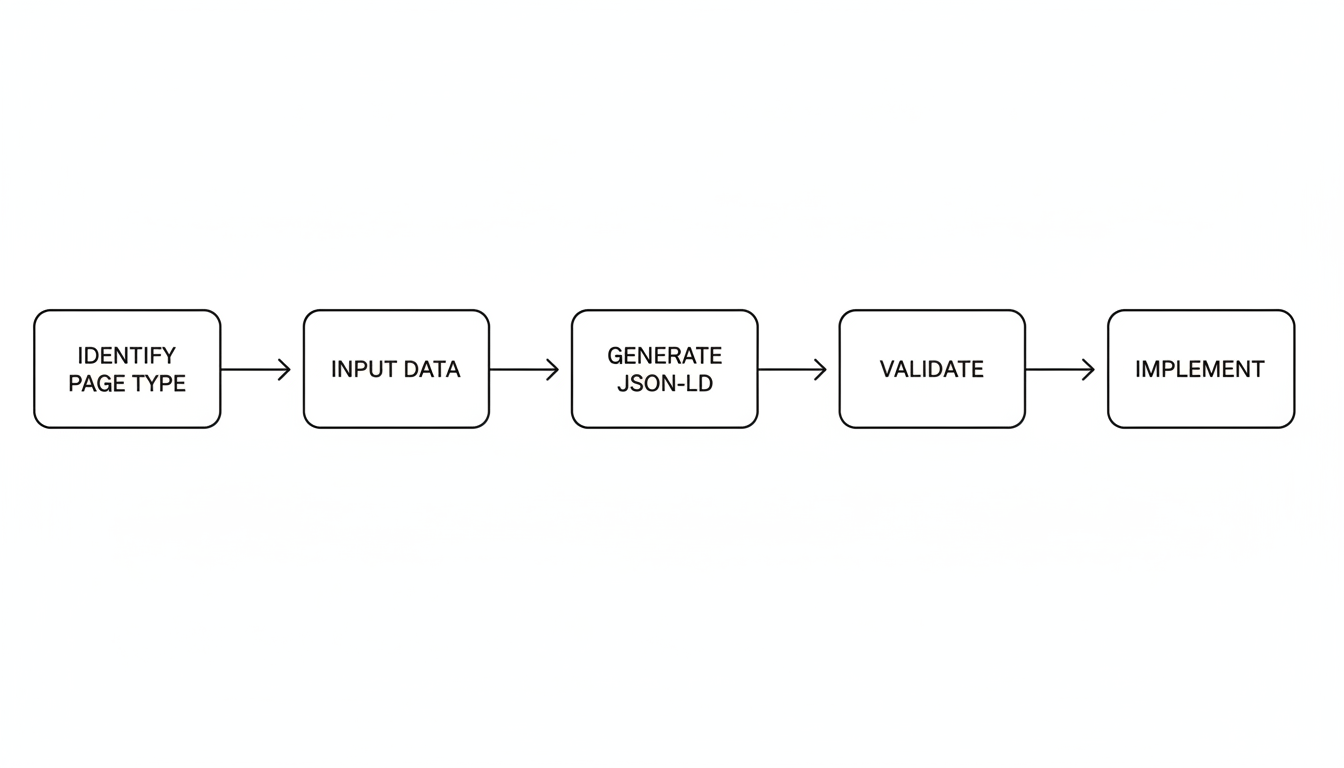
1. Choose Your Weapon (The Tool)
There are plenty of free web-based generators (like the ones from Merkle or technicalseo.com). Open one up in a new tab.
2. Select the Correct Data Type
Look at your page. What is it really? If it’s a blog post with a recipe in it, use Recipe schema, not just Article schema. Specificity wins. Select the corresponding option in the generator.
3. Fill in the Blanks
Copy and paste your data.
Title: Use your exact H1.
URL: The canonical URL of the page.
Image: Use the URL of your featured image.
Description: Paste your meta description or a short summary.
4. The “SameAs” Secret Sauce
Most generators have a field called sameAs. This is crucial for E-E-A-T (Experience, Expertise, Authoritativeness, Trustworthiness). Link this to your Wikipedia page, Crunchbase profile, or official social media handles. It tells Google, “This website is the same entity as the one listed on Wikipedia.”
5. Generate and Validate
Hit the button. Copy the code. STOP. Do not paste it into your site yet.
Go to the Schema.org Validator. Paste your code there. If you see red errors, fix them in the generator. If you see green, you’re good to go.
6. Implementation
Paste the JSON-LD script into the <head> section of your specific page. If you are on WordPress, you can use a “Header and Footer Scripts” plugin to inject it on a per-page basis.
Static Generators vs. Dynamic Plugins
This is where many site owners get confused. Should you use a manual schema generator tool, or rely on a WordPress plugin like Yoast or RankMath?
Here is the thing: Plugins are great for the basics. They automate the “Article” and “Organization” schema globally. However, they often lack the nuance for specific pages.
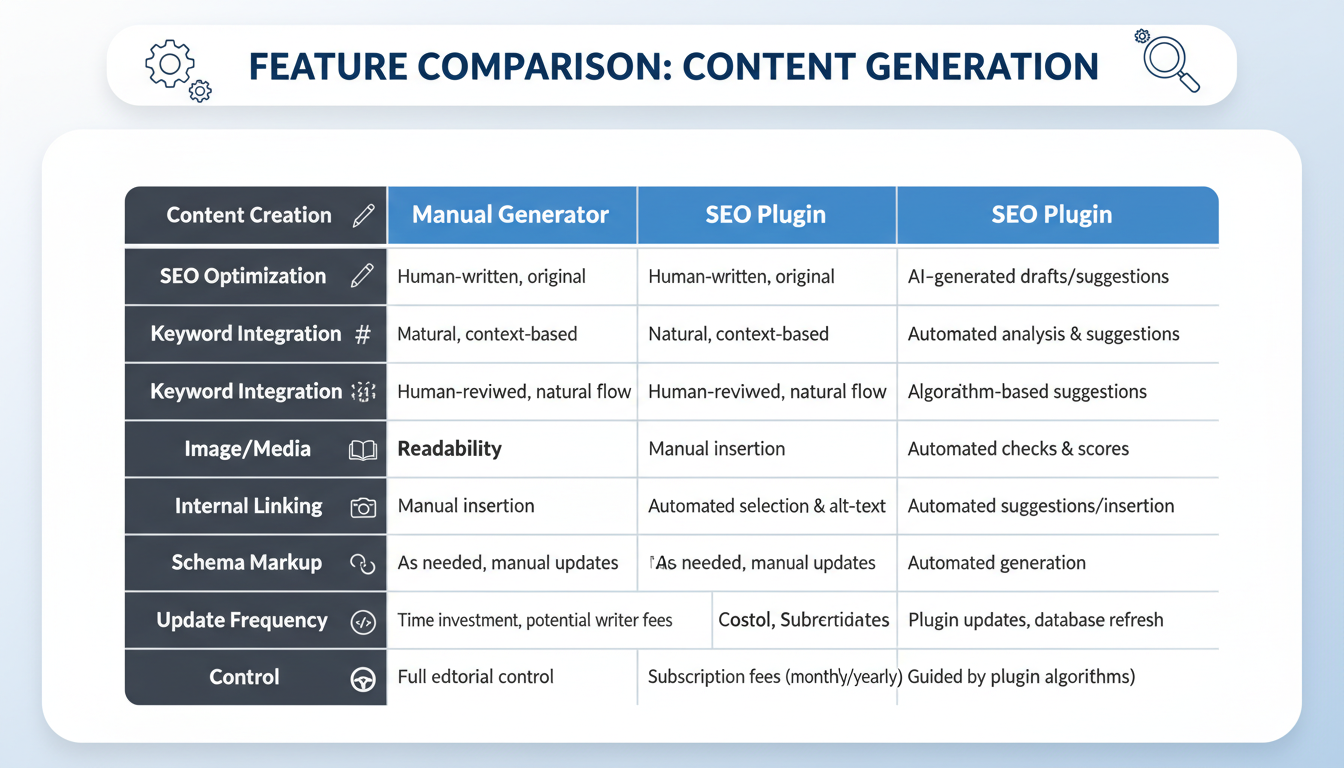
| Feature | Manual Schema Generator | SEO Plugin (Automated) |
|---|---|---|
| Control | 100% Custom Control | Limited to plugin settings |
| Maintenance | High (Must update if content changes) | Low (Updates automatically) |
| Complexity | Can handle complex nesting | Usually handles basic types only |
| Best For | Specific landing pages, unique products | Global site settings, blog posts |
My recommendation? Use a plugin for your baseline global settings (Organization, Website, Breadcrumbs). Use a manual schema generator for your “money pages”—your core services, main product pages, or detailed reviews where you need that extra visual pop in the search results.
Avoid These Ranking-Killing Mistakes
I have cleaned up enough messy sites to know that bad schema is worse than no schema. If you try to trick Google, you risk a Manual Action penalty. That means your site gets de-indexed. Game over.
⚠️ Watch Out
Never mark up hidden content. If you add FAQ schema to your code, those questions and answers MUST be visible to the human reader on the page. Hiding keywords in schema code that users can’t see is a violation of Google’s guidelines.
The “Drift” Problem
If you use a manual generator, remember that the code is static. If you change your product price from $50 to $40 on the visible page but forget to update the schema code, you have a data mismatch. Google hates this. It erodes trust. If you change the content, you must regenerate the schema.
Irrelevant Types
Don’t tag a blog post as a “Recipe” just to get a photo snippet if there is no food being cooked. Google’s algorithms are smart enough to detect the mismatch between the page content and the structured data.
Conclusion: Your Next Move
Incorporating a schema generator into your workflow isn’t just a “nice-to-have” technical task. It’s a fundamental part of modern communication with search engines. You are essentially handing Google the keys to understand your content’s context, authority, and value.
Start small. Pick your top 5 traffic-driving pages. Use a generator to create custom, detailed schema for them. Validate it, implement it, and then watch your Google Search Console data. When you see those click-through rates climb, you’ll wonder why you didn’t start sooner.
The tools are free. The barrier to entry is low. The potential reward? Massive.
❓ Frequently Asked Questions
Is a schema generator free to use?
Yes, most web-based schema generators are completely free. Tools like the Merkle Schema Markup Generator or TechnicalSEO.com offer robust features at no cost. There are paid enterprise solutions, but for 99% of users, the free tools are sufficient.
Does schema markup improve rankings directly?
Officially, no. Google has stated that structured data is not a direct ranking signal. However, because it creates rich snippets that improve Click-Through Rate (CTR), it sends positive user engagement signals to Google, which can indirectly boost your rankings over time.
How long does it take for rich snippets to appear?
It varies. After implementing code from a schema generator, it can take anywhere from a few days to a few weeks. You can speed this up by using the “Request Indexing” feature in Google Search Console to alert Google to the changes.
Can I use multiple schema types on one page?
Absolutely. In fact, it’s encouraged. A single page might have Article, Breadcrumb, and VideoObject schema all running simultaneously. Just ensure the code is valid and doesn’t provide conflicting information.
What is JSON-LD and why is it preferred?
JSON-LD stands for JavaScript Object Notation for Linked Data. It is Google’s preferred format because it is easier to read and debug than older formats like Microdata. It keeps the data separate from the HTML structure, making it cleaner to implement.

