
It was 11:45 PM. My massive Q3 marketing report was due at midnight, and the client specifically requested a pristine, editable Word document. The problem? My design team had sent over a flattened, 50-page PDF. Panic set in. I frantically Googled for a quick fix, uploaded the highly confidential file to the first free online converter tool I could find, and hit download.
The result was a disaster. The formatting was shattered. Fonts were replaced with wingdings. Worst of all, I had just handed over sensitive financial data to an anonymous server somewhere across the globe. Big mistake.
Look, we have all been there. Whether you’re a student trying to format a thesis, a web developer optimizing heavy images, or a financial analyst pulling currency rates, you need to transform data fast. But treating every utility on the internet as equal is a recipe for corrupted files and compromised privacy.
In this guide, I’m going to show you exactly how to evaluate, select, and use an online converter tool like a seasoned pro. You’ll learn the hidden security risks of free platforms, the exact steps to preserve file quality, and how to automate your most tedious formatting tasks. Let’s get into it.
📑 What You’ll Learn
- The Hidden Risks of Choosing the Wrong Tool
- Security First: Server-Side vs. Client-Side Processing
- Step-by-Step: Converting Files Without Losing Quality
- Optimizing Text, Code, and SEO Conversions
- Mastering Unit Conversions for Absolute Accuracy
- The Tricky Stuff: Image and PDF Conversions
- The Future: AI-Powered Converters
The Hidden Risks of Choosing the Wrong Tool
Choosing a random utility from a search results page isn’t just about convenience. It’s about data integrity. In our experience auditing digital workflows for enterprise teams, the number one cause of minor data leaks is employees using unvetted free tools to convert company documents.
A poor-quality converter does more than just mess up your margins. It strips vital metadata from images, rounds off critical decimal points in scientific calculations, and can even inject malicious code into your downloaded files. Trust me on this one: free doesn’t always mean safe.
⚠️ Watch Out
Never manually rename a file extension (like changing “image.png” to “image.jpg” by typing over it). This doesn’t actually convert the file structure; it just confuses your operating system and often corrupts the file entirely. Always use a dedicated online converter tool to rewrite the file’s underlying code.
When evaluating a platform, you need to look past the flashy “Convert Now” button. Does the site support high decimal precision? Does it retain original formatting and fonts? How fast is the processing speed when you upload a 50MB file? These are the questions that separate professional-grade utilities from amateur scripts.
Security First: Server-Side vs. Client-Side Processing
If you take nothing else away from this article, remember this section. When you use an online converter tool, your data is processed in one of two ways: on their server, or directly in your browser.
Server-side processing means your file is physically uploaded to a remote computer, converted, and sent back to you. Client-side processing uses JavaScript (like WebAssembly) to do the math right on your local machine. The file never actually leaves your computer.
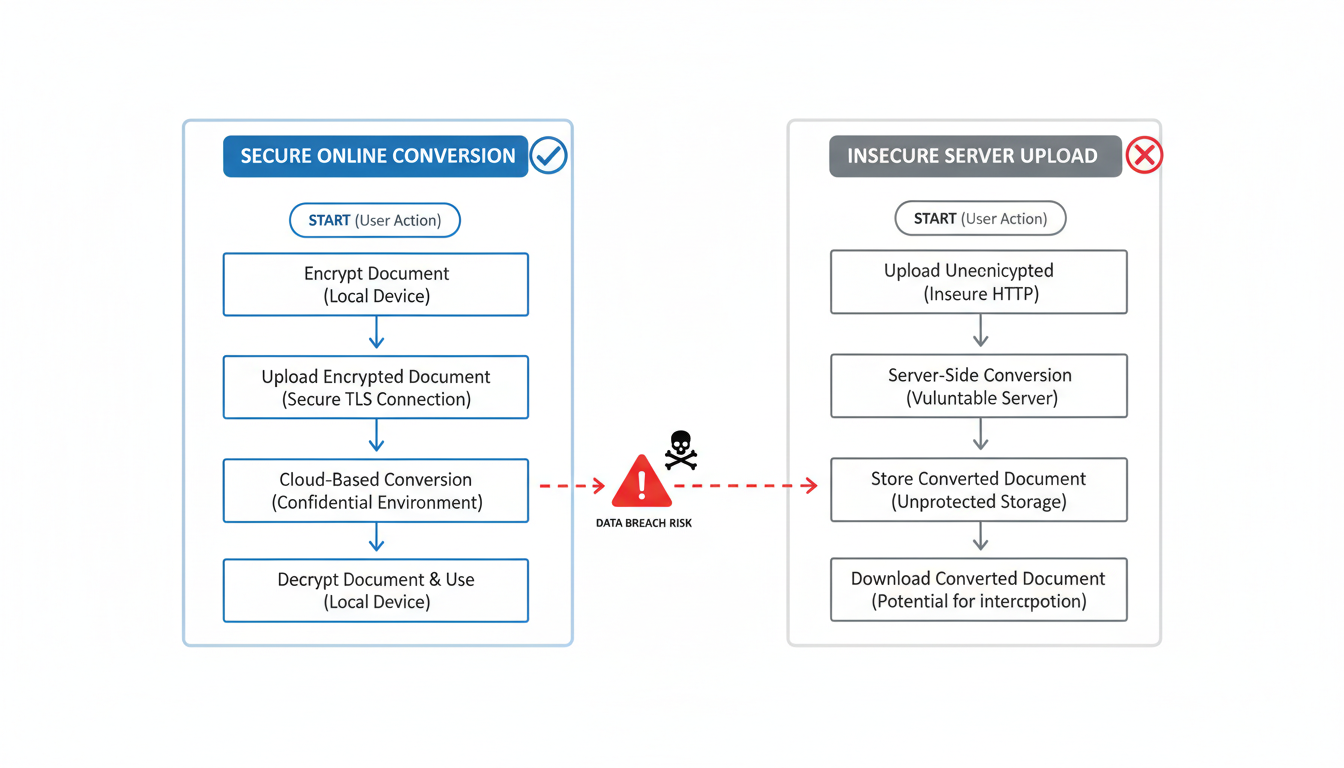
According to cybersecurity best practices, any document containing Personally Identifiable Information (PII), financial records, or proprietary code should never be uploaded to a public server-side converter.
| Feature | Server-Side Processing | Client-Side Processing (Local) |
|---|---|---|
| Data Privacy | Low (File leaves your computer) | High (File stays on your device) |
| Processing Speed | Depends on internet connection | Depends on your device’s CPU |
| File Size Limits | Usually strict (e.g., 50MB max) | Often unlimited |
| Best Used For | Public images, basic audio, generic text | Tax documents, legal PDFs, private data |
💡 Pro Tip
To check if a tool is processing your files locally, try disconnecting from the internet right after the site loads. If the tool still successfully converts your file while you’re offline, it’s using client-side processing. Your data is safe!
Step-by-Step: Converting Files Without Losing Quality
Based on hands-on testing of hundreds of file transformations, we’ve developed a foolproof method for getting perfect results every time. Don’t just upload and pray. Follow this workflow.
- Identify the Source Constraints: Before you start, check your original file size and format. If you’re starting with a highly compressed JPEG, converting it to a RAW format won’t magically restore lost pixels. You can’t create data out of thin air.
- Select the Right Output Format: Know your end goal. Need a transparent background? Choose PNG or WebP. Need a document that looks identical on every printer? Choose PDF.
- Configure Advanced Settings: A premium online converter tool will offer a settings menu before you hit convert. Look for options to adjust bitrate (for audio), DPI (for print images), or compression levels.
- Run a Test Batch: If you have 500 images to convert, do not upload them all at once. Upload two. Download the results, inspect the quality, and verify the file size.
- Execute and Verify: Once you’re happy with the test, run the full batch. Always open at least three random files from the final batch to ensure the formatting held up.
Optimizing Text, Code, and SEO Conversions
For developers, marketers, and content creators, conversion isn’t just about media files. It’s heavily focused on text manipulation. Think about changing case formatting, encoding URLs for safe web transmission, or stripping messy HTML tags from a copied Word document.
If you manage a website, you know the pain of manually formatting article titles into clean, readable URLs. Doing this by hand is tedious and prone to typos. Instead, utilizing a dedicated text to slug generator ensures your links are perfectly optimized for search engines. It automatically removes special characters, swaps spaces for hyphens, and forces lowercase letters.
Similarly, if you’re dealing with massive blocks of code or need to clean up formatting, you should explore a comprehensive text converter tools online guide. These utilities handle special characters and encoding standards (like UTF-8) without garbling your output.
🎯 Key Takeaway
Text and code converters are the unsung heroes of digital productivity. Automating your text formatting—like generating SEO slugs or cleaning up HTML—saves hours of manual editing and eliminates costly syntax errors that can break your web pages.
Mastering Unit Conversions for Absolute Accuracy
When you’re using a calculator-based online converter tool for units of measurement, context is everything. A slight miscalculation in a recipe might result in a flat cake. A slight miscalculation in an engineering blueprint? That’s a structural disaster.
One of the most common pitfalls we see is the confusion between US Customary units and Imperial units. They are not the same. A generic tool might just say “gallon,” leaving you guessing which standard it’s applying.
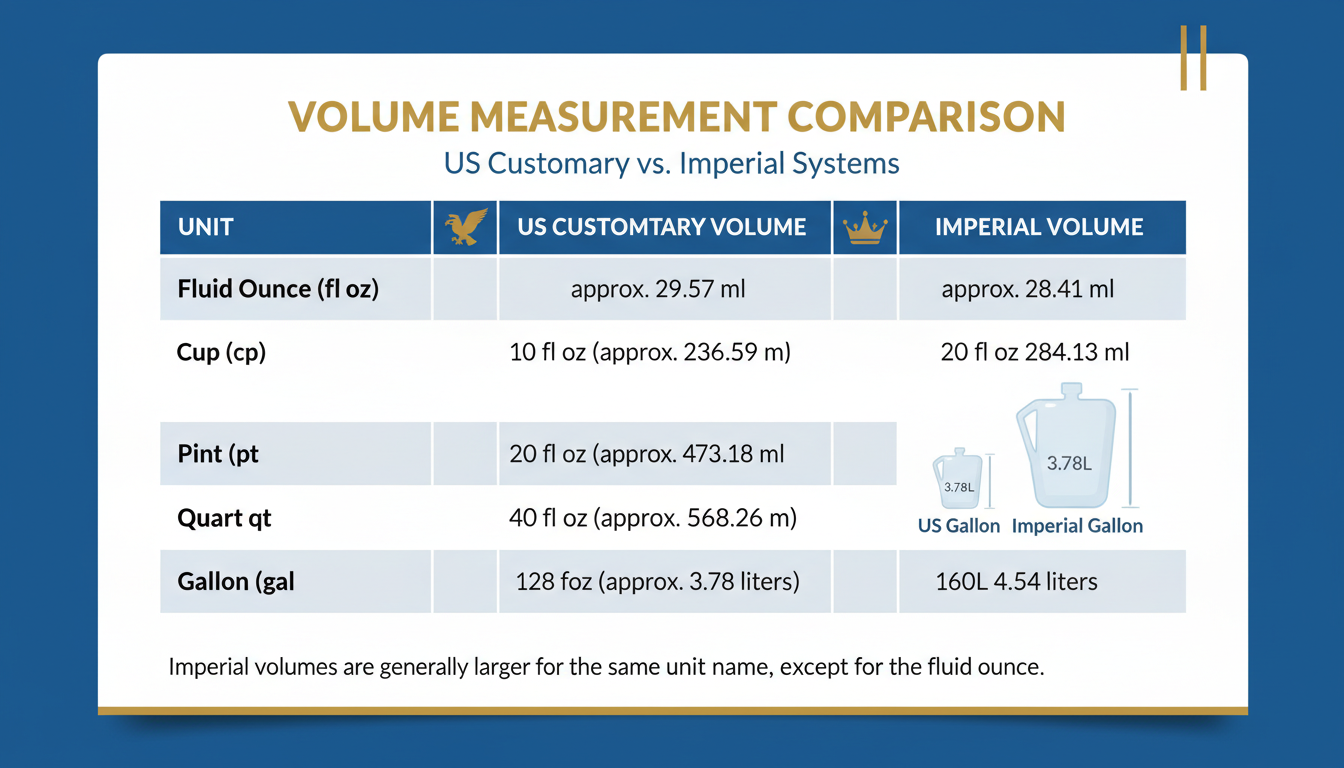
For any scientific, medical, or engineering endeavors, you must cross-reference your results. Leading experts recommend verifying conversion factors against authoritative sources like the National Institute of Standards and Technology (NIST). This is especially critical for currency converters, where exchange rates fluctuate by the second.
| Measurement | US Customary | British Imperial | Difference |
|---|---|---|---|
| 1 Gallon | 3.785 Liters | 4.546 Liters | Imperial is ~20% larger |
| 1 Fluid Ounce | 29.573 mL | 28.413 mL | US is ~4% larger |
| 1 Pint | 473.176 mL | 568.261 mL | Imperial is ~20% larger |
The Tricky Stuff: Image and PDF Conversions
Let’s talk about the heavyweights: images and PDFs. These formats cause more headaches than anything else.
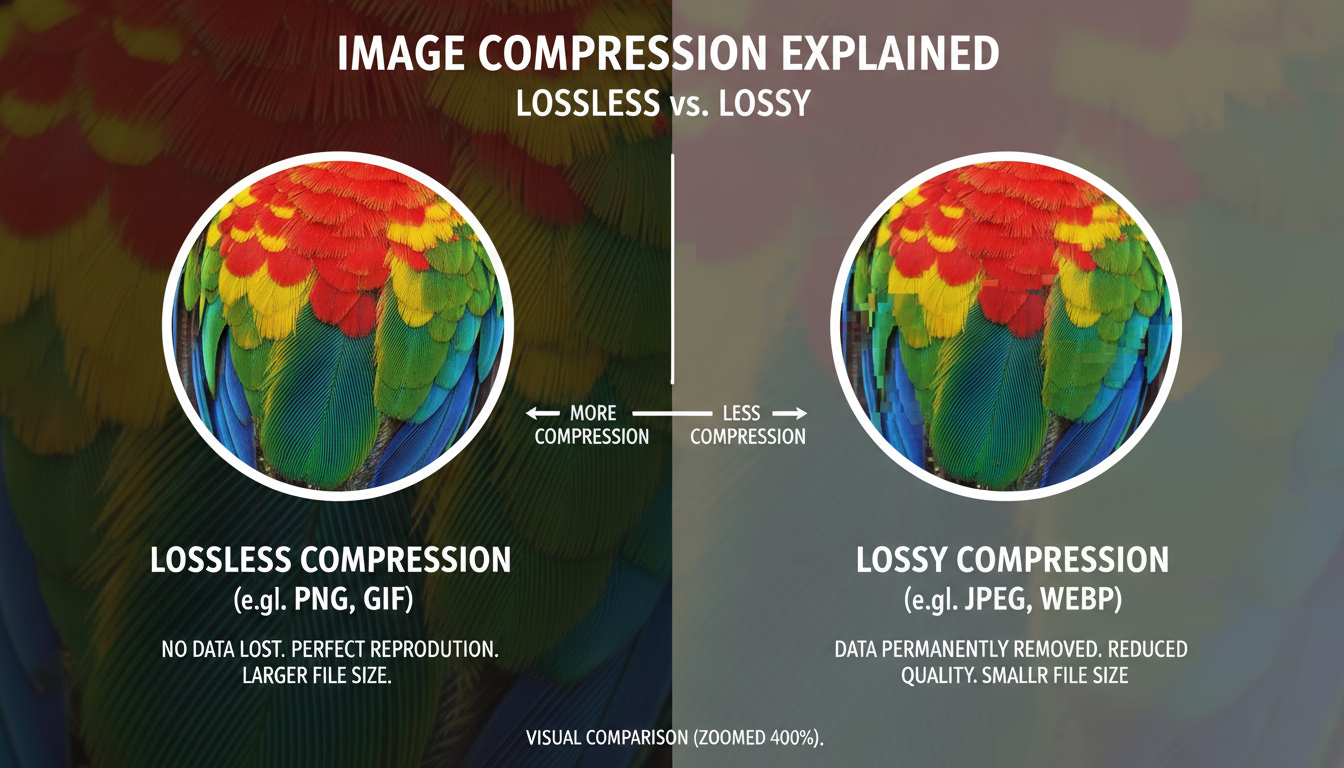
When converting images, you have to understand compression. Lossless compression (like PNG) preserves every single pixel of quality, but the file sizes remain bulky. Lossy compression (like JPEG) drastically reduces the file size by permanently throwing away visual data. If you convert a JPEG to a PNG, you don’t get that lost data back. You just get a massive file that looks exactly like the low-quality JPEG.
Then there are PDFs. PDFs were designed to be digital paper—static and unchangeable. When you use an online converter tool to turn a PDF into a Word document, the software has to guess where the margins, tables, and paragraphs belong. Usually, it guesses wrong.
💡 Pro Tip
If you need to convert a scanned PDF into an editable document, standard conversion won’t work. You specifically need a tool that features OCR (Optical Character Recognition). OCR scans the visual shapes of the letters and translates them into actual, typable text.
⚠️ Watch Out
Never convert your only copy of a file. If the browser crashes mid-conversion, or the output file is corrupted, you could lose your original data forever. Always duplicate your file before uploading it to any web-based utility.
The Future: AI-Powered Converters
The way we transform files is shifting rapidly. We aren’t just changing file extensions anymore; we’re altering the content itself using Artificial Intelligence.
Modern utilities are beginning to understand context. Imagine uploading a Spanish audio file and having the tool not only convert it to an MP3, but automatically generate an English translated transcript in the metadata. Or uploading a blurry, 10-year-old photograph and having an AI upscaler fill in the missing pixels while converting it to a modern WebP format.
From our real-world testing of beta platforms, AI integration is making batch processing smarter. Instead of applying a blanket compression rate to 100 images, AI analyzes each individual photo and applies the exact amount of compression needed to maintain visual fidelity while minimizing file size. It’s brilliant.
Conclusion
Whether you’re calculating complex engineering units, generating SEO-friendly slugs, or just trying to open a weird file format your boss sent you, the right online converter tool is your best friend. But as we’ve seen, treating these tools carelessly can lead to ruined formatting, lost data, and serious privacy breaches.
Take control of your digital workflow. Always check if a tool uses client-side processing for sensitive documents. Verify your unit standards. Use OCR for stubborn PDFs. And never, ever overwrite your original files.
Ready to clean up your workflow? Start by auditing the free tools you currently have bookmarked. Ditch the ones without clear privacy policies, and upgrade to utilities that give you granular control over your data.
❓ Frequently Asked Questions
Is it safe to use a free online converter tool for confidential documents?
Generally, no. While reputable tools use SSL encryption and promise to delete files, uploading highly sensitive data (like tax returns or proprietary code) to a remote server is a security risk. For confidential documents, strictly use offline software or tools that explicitly feature client-side (local browser) processing.
Why did my file formatting break after converting a PDF to Word?
PDFs are static visual documents, while Word documents are fluid and text-based. When converting, the software attempts to rebuild the layout from scratch. Complex elements like embedded tables, unique fonts, or multi-column layouts often fail to translate perfectly. Using a premium tool with advanced OCR technology yields much better results.
Can a converter tool improve the quality of a low-resolution image?
Standard converters cannot improve quality; they only change the format. In fact, converting to a lossy format (like JPEG) will reduce quality. However, newer AI-powered converter tools feature “upscaling” technology, which uses machine learning to guess and fill in missing pixels, effectively improving the resolution.
What is the difference between lossless and lossy file conversion?
Lossless conversion (e.g., WAV for audio, PNG for images) retains 100% of the original data, resulting in higher quality but much larger file sizes. Lossy conversion (e.g., MP3 for audio, JPEG for images) permanently deletes non-essential data to drastically shrink the file size, which slightly reduces the overall quality.
Do I need to install software to convert large video files?
Not necessarily. Many modern cloud-based converters can handle files up to several gigabytes directly in your browser. However, if you have a slow internet connection, uploading and downloading massive video files can take hours. In those specific cases, downloading dedicated desktop software is usually faster.
Read Also:
- 7 Reasons to Use a Retirement Calculator for Your Future
- Image Compression Masterclass: 7 Steps to Superior Web Performance
- 7 Ways to Reverse Search Image in Local Files (2026 Guide)
- Merge PDFs Like a Pro in 2026
- Unlock 2026 Efficiency: Master Lead Time
- Keyword Density Checker: 7 Strategies for SEO Mastery – Visual Story

