
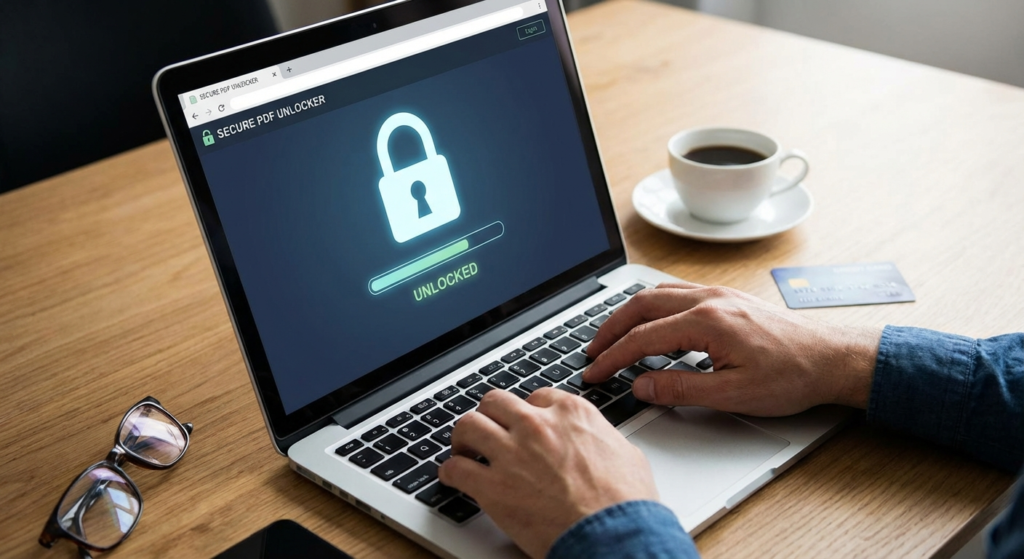
We have all been there. You receive an urgent document, double-click to open it, and see a prompt demanding a password. Or perhaps you locked an old tax return years ago and forgot the combination. This is where a reliable PDF unlocker becomes an essential tool. Whether you are a student or a business professional, the inability to edit a PDF can stop your productivity cold.
In this guide, we will explore how to unlock PDF documents online. We will look at how a PDF unlocker works, the difference between owner and user passwords, and safety tips to keep your data secure. By the end of this article, you will be an expert on managing document security.
The Mechanics Behind a PDF Unlocker
To open a locked file, we must first understand the lock itself. A PDF unlocker is a tool designed to bypass security restrictions on a Portable Document Format (PDF) file. These restrictions usually include encryption that prevents opening the file or settings that block editing, printing, and copying.
When you use a PDF unlocker, the tool interacts with the file metadata. For simple restrictions, the software removes the flag that disables the print or edit buttons. For complex “User Passwords,” the tool may require you to provide the password once to strip the security permanently. Some advanced tools use decryption algorithms to recover the content.
Owner Password
This security allows anyone to open the file but restricts actions like printing or editing. A PDF unlocker can usually remove this instantly without the original password.
User Password
This is a stricter measure. It prevents the file from being opened without the correct key. To remove this, you typically need the password first or use specialized recovery tools.
Why You Need a Reliable PDF Unlocker for Work
PDFs are the gold standard for sharing documents. However, mismanaged security settings cause friction. A robust PDF unlocker solves common workflow bottlenecks instantly.
Imagine a colleague sends a report with default security settings. These settings might prevent you from highlighting text or adding comments. Instead of waiting hours for a new file, a PDF unlocker lets you strip these restrictions in seconds. This efficiency is vital for fast-paced business environments.
When to Use a PDF Unlocker Tool
It is important to use these tools ethically. You should use a PDF unlocker when you have the legal right to the content but lack technical access. For example, if you are archiving financial records but cannot merge PDF files because they are locked, unlocking them is a practical necessity.
Many government forms or academic papers also have print restrictions. If you need a hard copy for a meeting, an unlocker tool helps without altering the original content.
Step-by-Step: 7 Steps to Unlock PDF Documents Online
Unlocking a document does not require coding skills. Most online tools are very simple. Here is how you can use a standard PDF unlocker effectively:
- Identify the Lock Type: Check if you need to remove an open password or just editing restrictions.
- Select a Secure Tool: Choose a reputable online platform with SSL encryption.
- Upload Your Document: Drag your file into the upload area of the PDF unlocker.
- Enter the Password (If Prompted): If the file is encrypted against opening, you may need to enter the password one last time.
- Process the File: Click the “Unlock” button. The tool will analyze the metadata and strip the restrictions.
- Download the Unlocked Copy: Once finished, save the new version to your device.
- Verify and Rename: Open the file to ensure it works. Rename it (e.g., “Report_Unlocked.pdf”) to distinguish it from the original.
If you want to create a new, secure password after unlocking your file, consider using a random number generator to create a strong numeric key.
PDF Unlocker Security: Is Your Data Safe?
Privacy is a major concern. When you upload a sensitive contract, where does it go? Reputable PDF unlocker services prioritize security, but you must choose carefully.
Top services use 256-bit SSL encryption during file transfers. This prevents anyone from intercepting your document. Trustworthy platforms also have strict data retention policies. Usually, they delete your file from the server within one or two hours of processing.
“Security is about how data is handled during its entire lifecycle,” says expert Bruce Schneier. Always check the privacy policy. If a tool does not promise to delete files, do not upload sensitive data.
Comparing Solutions: Online vs. Offline PDF Unlocker
Online Unlockers
- Pros: No installation, works on mobile and desktop, usually free.
- Cons: Requires internet, file size limits, potential privacy risks.
Offline Software
- Pros: No internet needed, maximum privacy, handles bulk files.
- Cons: Requires installation, takes storage space, often costs money.
Advanced Tips for Managing PDF Security
Once you master the PDF unlocker, manage your security proactively. Use a password manager for your files. Never reuse the same password for high-security documents like bank statements. If you need to reduce file size after unlocking a large document, you can compress PDF files using online tools.
Understanding Encryption Standards
Not all PDFs use the same encryption. Older files use weak 40-bit RC4 encryption. Modern files use 128-bit or 256-bit AES. According to Adobe, 256-bit AES is the industry standard. When you re-save a file, ensure you use the latest standards.
Common Myths About PDF Unlockers
Myth 1: Using a PDF Unlocker is illegal.
Reality: These tools are legal if you own the file or have permission to edit it. Do not use them to pirate content.
Myth 2: It damages the file quality.
Reality: A quality PDF unlocker only changes the security header. The text, images, and formatting remain the same.
Conclusion
A PDF unlocker is a vital tool for digital productivity. It ensures you maintain control over your documents, whether you are dealing with forgotten passwords or restrictive permissions. Always prioritize security by choosing reputable platforms and understanding encryption.
Ready to take control of your documents? Use our secure tools to manage your files efficiently. If you have questions, you can contact us for expert assistance today.
Frequently Asked Questions
It can remove “Owner Passwords” (editing/printing) easily. For “User Passwords” (opening the file), you usually need the password or advanced recovery software.
Yes, if the site uses SSL encryption and deletes files after processing. Avoid unknown sites for sensitive personal data.
No. A high-quality tool only modifies security settings. Your layout and fonts will remain exactly the same.
The file might be a scanned image. You may need an OCR tool to convert the image into editable text.
Yes. Online tools work in any web browser, making them compatible with all operating systems.
Read Also:
- 7 Essential Uses of a Temperature Converter: A Complete Guide to Celsius, Fahrenheit, and Kelvin
- Best PDF to Word Converter Guide: 7 Expert Tips for Flawless Edits
- Master Local Image Reverse Search in 2026
- How to Download from Hurawatch in 2026 (3 Methods & Risks)
- Text to Handwriting in 2026: The Ultimate AI & Font Guide
- Stop Wasting Material in 2026
- Your 2026 Guide to Website Safety
- Unlock Growth: Percent Change Secrets for 2026
- Unlock Rich Snippets in 2026

