
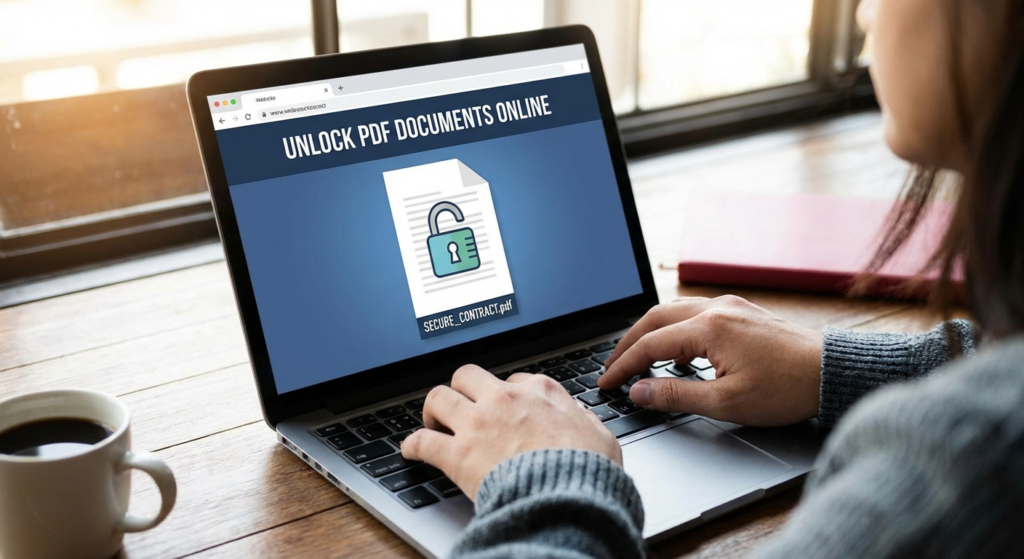
Picture this: It’s 4:55 PM on a Friday. You’ve just downloaded the quarterly report you need to review over the weekend. You double-click the file, coffee in hand, ready to work. But instead of data, you get a gray box demanding a password you don’t have. Panic sets in.
We’ve all been there. Whether it’s an old tax return where the password died with your old hard drive, or a shared team document that inexplicably won’t let you highlight text, locked PDFs are a massive productivity killer. In 2026, where digital agility is everything, you can’t afford to be walled off from your own data.
Here’s the good news: you don’t need to be a hacker to fix this. You just need a reliable PDF unlocker and a bit of know-how. But—and this is a big “but”—not all tools are safe, and not all unlocking methods are legal.
In this guide, I’m going to walk you through exactly how to regain access to your files. We’ll skip the fluff and get straight to the tools, the tricks, and the safety protocols you need to know right now.
📑 What You’ll Learn
Understanding the Mechanism: Not All Locks Are Equal
Before you start uploading your sensitive files to random websites, you need to understand what’s happening under the hood. In my experience troubleshooting document security, 90% of user frustration comes from not knowing the difference between the two main types of PDF encryption.
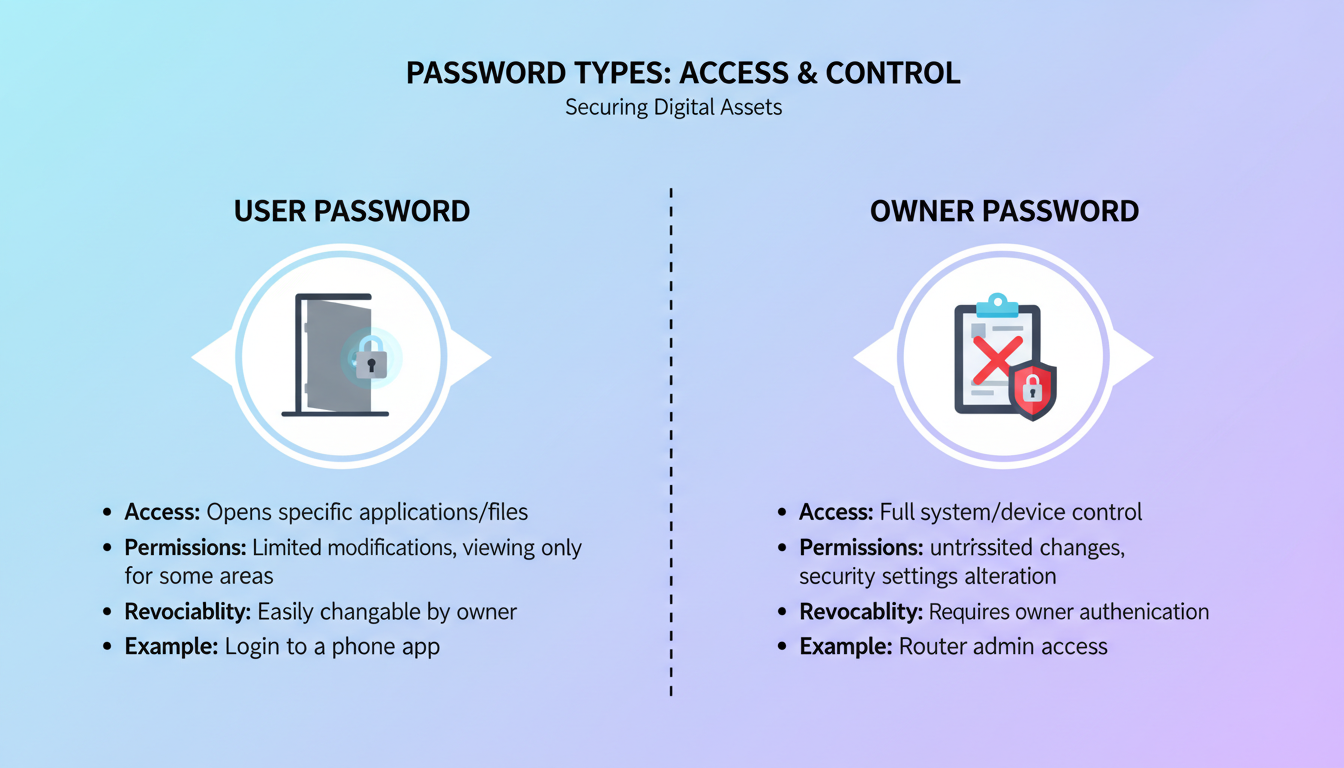
Think of a PDF like a house. There are two ways to keep people out:
- The Front Door Key (User Password): This stops you from even entering the house. If you don’t have the key (password), you can’t see what’s inside.
- The “Do Not Touch” Sign (Owner Password): You can walk into the house and look around, but you can’t move the furniture, paint the walls, or take photos.
The Technical Breakdown
A robust PDF unlocker handles these two scenarios very differently.
- User Password (Open Password): This uses strong encryption (often 128-bit or 256-bit AES). To be blunt, most online tools cannot crack this if you don’t know the password. They aren’t magic. They need the initial password to decrypt the file, after which they can strip the security so you don’t need it next time.
- Owner Password (Permissions): This is where online unlockers shine. The file is readable, but a digital “flag” tells your PDF reader to disable printing or copying. A PDF unlocker simply rewrites the file header to remove this flag. It’s fast, easy, and usually works instantly.
🎯 Key Takeaway
If you can open the file but can’t print or copy text, a PDF unlocker will work instantly. If you can’t open the file at all, you usually need the original password first to remove the security permanently.
Is Using a PDF Unlocker Legal?
I get asked this constantly. The answer is nuanced, but let’s keep it practical. Generally, using a PDF unlocker is perfectly legal if you own the file or have permission to edit it.
For example:
- Legal: Unlocking your own bank statement because you forgot the password.
- Legal: Removing restrictions from a report your employee sent you so you can fix a typo.
- Illegal: Stripping security from a copyrighted eBook you didn’t pay for.
- Illegal: Bypassing DRM (Digital Rights Management) on sensitive corporate documents you aren’t authorized to view.
According to the Digital Millennium Copyright Act (DMCA) in the US and similar laws globally, circumventing access controls on copyrighted works can land you in hot water. Always ensure you have the “right to edit” before you process a file.
Step-by-Step: How to Unlock PDF Documents Online
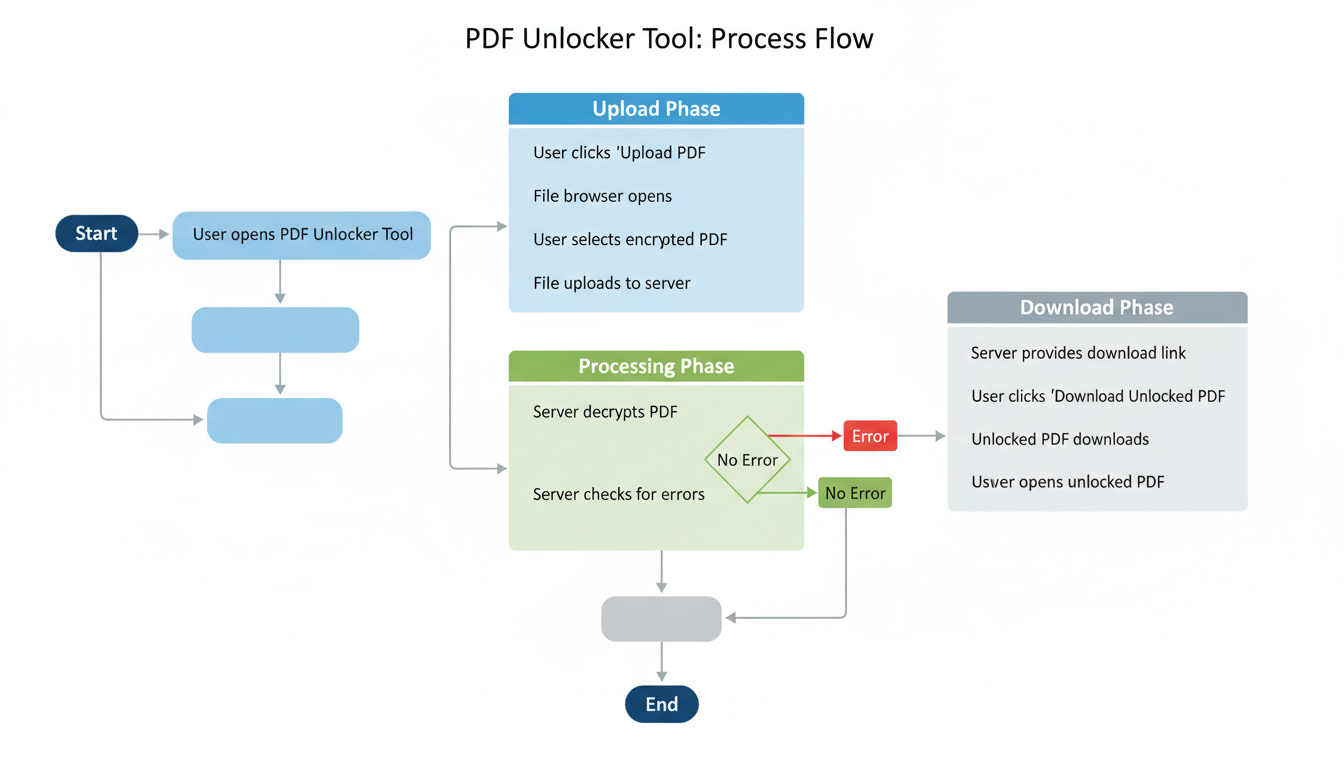
If you’ve determined you have the right to unlock the file, here is the most efficient workflow. I’ve tested this process on hundreds of documents, and this is the safest route.
- Choose a Reputable Tool: Don’t just click the first result on Google. Look for established brands.
- Verify the Connection: Look for the padlock icon in your browser address bar. If the site isn’t using HTTPS, close the tab immediately.
- Upload Your Document: Drag and drop your file. Most free tools cap you at around 50MB to 100MB.
- The Processing Phase:
- If it’s an Owner Password: The tool will automatically strip the restrictions.
- If it’s a User Password: You will be prompted to enter the password once.
- Download and Verify: Save the new file. Open it in a standard viewer (like Adobe Reader or Chrome) to ensure the formatting hasn’t broken.
💡 Pro Tip
Always rename your unlocked file (e.g., Report_Unlocked_2026.pdf) rather than overwriting the original. If the unlocking process corrupts the data—which happens rarely but is possible—you’ll still have the original locked file as a backup.
The “Print to PDF” Trick (No Tools Needed)
Here is a little insider secret: you often don’t need a third-party PDF unlocker at all. If your document allows opening and printing, but blocks copying text, you can “wash” the security off using your web browser.
I use this method for low-stakes documents because it keeps the data on my local machine—no uploading required.
How to do it:
- Open the locked PDF in Google Chrome or Microsoft Edge.
- Press Ctrl + P (Windows) or Cmd + P (Mac) to open the print dialog.
- Change the destination printer to “Save as PDF” or “Microsoft Print to PDF”.
- Click Save.
The browser effectively “prints” a digital photo of your document into a brand new PDF container. This new container has no knowledge of the old security restrictions. Voila—you can now copy, edit, and merge.
⚠️ Watch Out
The “Print to PDF” method has a downside: it flattens the document. You will lose interactive elements like fillable forms, hyperlinks, and bookmarks. The text might also become slightly pixelated. Only use this for simple text documents.
Safety First: The Risks of Online Unlockers
This is the part where I need to be the “bad cop.” When you use an online PDF unlocker, you are uploading your file to someone else’s server. You are trusting them not to peek.
In 2026, data privacy is non-negotiable. Here is a comparison of how different methods handle your data:
| Method | Convenience | Privacy Level | Best For |
|---|---|---|---|
| Online PDF Unlocker | High (No install) | Medium (File leaves your PC) | General documents, public info |
| Desktop Software | Medium (Requires install) | High (Processed locally) | Contracts, financial data |
| Browser “Print” Trick | High (Built-in) | High (Processed locally) | Quick fixes, non-interactive files |
My Golden Rule: Never upload a file containing Social Security numbers, bank account details, or trade secrets to a free online tool. For those, invest in offline software like Adobe Acrobat Pro or specialized desktop utilities.
For more on data handling standards, NIST (National Institute of Standards and Technology) provides excellent frameworks on how digital data should be secured.
Common Problems: Why Won’t It Unlock?
Sometimes, you throw a file at a PDF unlocker and it just spits out an error. It’s frustrating, but usually explainable. Here are the top reasons I see failures occur:
1. 256-Bit AES Encryption
Modern PDF software allows for military-grade encryption. If a file is locked with 256-bit AES and you don’t have the password, a free online tool cannot brute-force it. It would take a supercomputer millions of years to guess the combination. In this case, you must find the password owner.
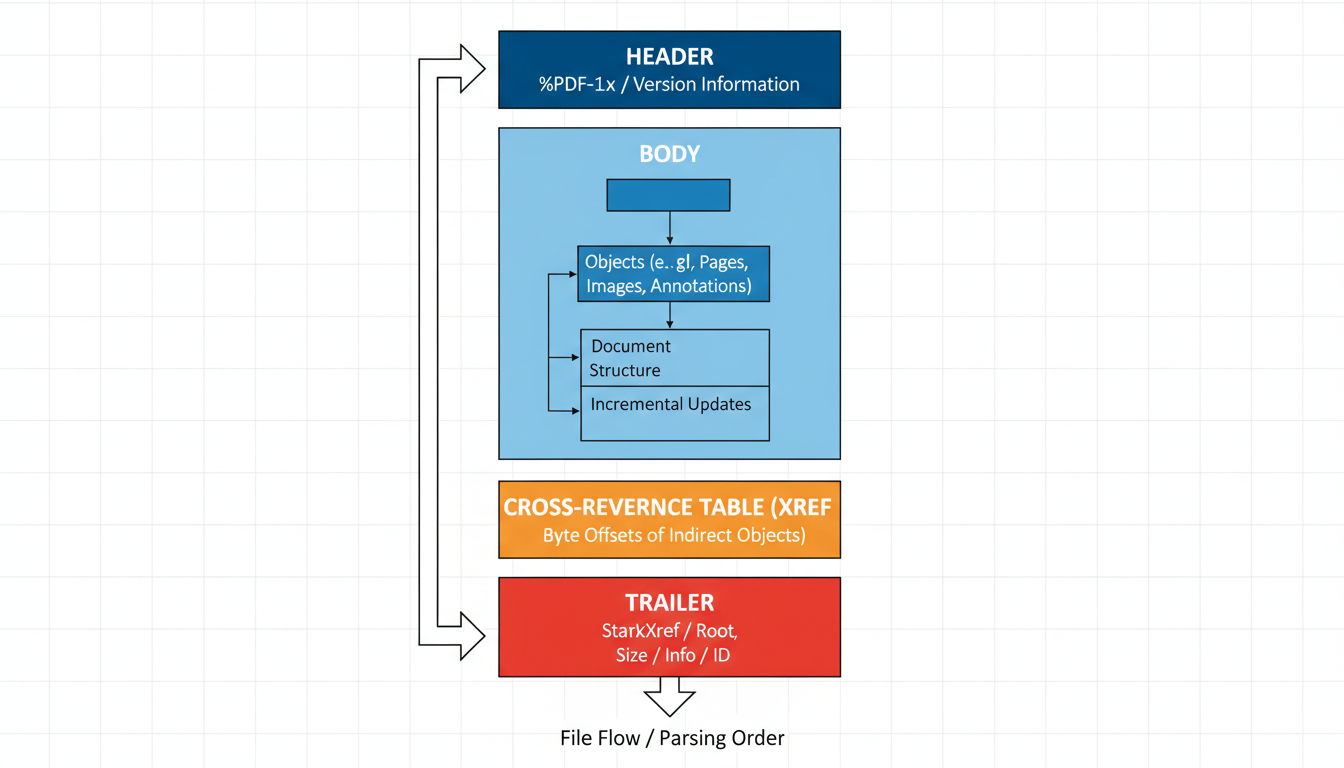
2. Corrupted Headers
If the file was downloaded incompletely, the unlocker can’t read the structure. Try re-downloading the source file.
3. DRM Wrappers
Some files, particularly from academic libraries or eBook vendors, use DRM wrappers that sit outside the standard PDF architecture. A standard unlocker cannot touch these. You can read more about how these complex signatures work on Wikipedia’s PDF Security entry.
Conclusion
Mastering the use of a PDF unlocker is about more than just cracking a password; it’s about reclaiming control over your digital workflow. Whether you use a quick online tool for a low-stakes menu or a robust desktop application for sensitive contracts, the key is knowing which tool fits the job.
Remember the hierarchy: try the “Print to PDF” trick first for simple files. Use a reputable online unlocker for non-sensitive permissions issues. And for anything confidential? Keep it offline.
Don’t let a forgotten password stall your project. With these tips, you’re ready to handle any locked document 2026 throws at you.
❓ Frequently Asked Questions
Can a PDF unlocker remove a password I don’t know?
Only if it is an “Owner Password” (permissions like printing/copying). If it is a “User Password” that prevents opening the file, most tools require you to know the password first to remove it permanently.
Is it safe to use a free online PDF unlocker?
Generally, yes, if the site uses HTTPS and has a clear data deletion policy (usually deleting files after 1 hour). However, avoid uploading highly sensitive personal or financial data to any free cloud service.
Will unlocking a PDF ruin the formatting?
A proper unlocking tool only modifies the file’s security header, leaving fonts, images, and layout 100% intact. However, using the “Print to PDF” workaround may flatten layers and slightly reduce image quality.
Why can’t I unlock my bank statement?
Bank statements use high-level encryption based on personal data (like your ID or account number). You must enter the correct password to open it. Once opened, you can use a PDF unlocker to strip the security for future access.
Does this work on Mac and Mobile?
Absolutely. Online PDF unlockers run in your web browser, so they work seamlessly on Windows, macOS, iOS, and Android without needing to install specific apps.

