
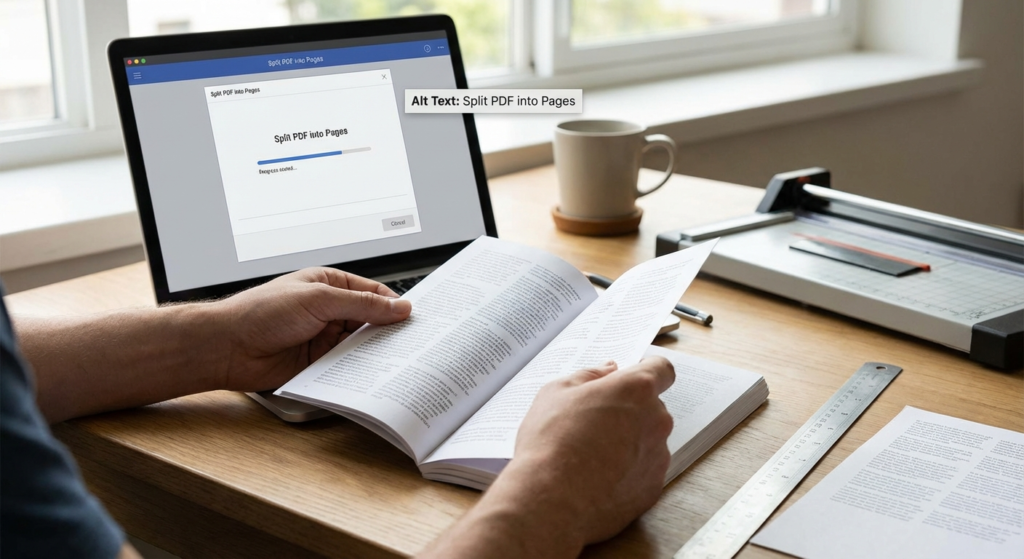
In the digital age, the Portable Document Format (PDF) stands as the universal standard for sharing documents. However, we have all encountered that one massive file containing hundreds of pages when we only need a specific section. This is where a robust PDF splitter becomes an essential tool in your digital arsenal. Whether you are a student submitting a specific chapter of a thesis, a lawyer extracting a single case file, or a business professional organizing invoices, knowing how to split PDF into pages is a critical skill.
Dealing with bulky files not only clutters your storage but also makes sharing via email impossible due to attachment size limits. Fortunately, technology has evolved to offer seamless solutions. From browser-based tools to sophisticated desktop software, a PDF splitter can extract, separate, and organize your documents in seconds. In this comprehensive guide, we will explore the mechanisms, benefits, and step-by-step methods to manage your PDFs effectively.
Why You Need a Reliable PDF Splitter for Document Management
The need to split PDF documents goes beyond simple convenience; it is about efficiency and data security. A high-quality PDF splitter empowers users to take control of their information flow. Imagine receiving a 50-page contract but only needing to send the signature page to a client. Sending the entire document is unprofessional and exposes irrelevant data. Using a splitter allows you to isolate exactly what is needed.
Furthermore, large files can slow down systems and fail to upload on various portals. By breaking a document down, you ensure compatibility and speed. Below are the core benefits of integrating splitting tools into your workflow:
Enhanced Privacy
Remove sensitive information by extracting only the necessary pages before sharing a document with third parties.
Email Optimization
Bypass attachment size limits by splitting large reports into smaller, manageable chunks that send instantly.
Better Organization
Categorize your digital filing system by separating merged scans into individual, properly named files.
How a PDF Splitter Works: The Technical Breakdown
At its core, a PDF splitter does not ‘cut’ the file like a pair of scissors. Instead, it reads the metadata and the object structure of the original PDF. It identifies the page boundaries defined in the file’s code and creates new file headers for the selected pages. This ensures that the quality of the text, images, and formatting remains 100% intact during the extraction process.
For developers or those working with raw data streams, managing these files can sometimes involve complex encoding. Occasionally, after splitting a file for web transmission, you might need to utilize tools like a Base64 encoder decoder to ensure the binary data of the PDF is safely transmitted over text-based protocols. However, for the average user, the interface of modern splitters hides this complexity behind simple ‘Drag and Drop’ features.
Top Methods to Split PDF into Pages
There is no single way to perform this task. The best method depends on your frequency of use, security needs, and internet connectivity. Here are the most effective ways to utilize a PDF splitter.
1. Using Online PDF Splitter Tools
For quick, one-off tasks, online splitters are the most popular choice. These cloud-based platforms allow you to upload a file, select the page ranges (e.g., 1-5, 10), and download the separated files. They are platform-independent, meaning they work on Windows, Mac, Linux, and mobile devices.
2. Desktop PDF Splitter Software
If you handle sensitive legal or financial documents, uploading files to a cloud server might violate your data policy. Desktop software processes files locally on your machine. This ensures that your data never leaves your computer. Industry leaders like Adobe Acrobat provide robust offline capabilities for this exact purpose.
3. The “Print to PDF” Hack
Did you know you already have a basic PDF splitter installed on your computer? Both Google Chrome and Microsoft Word allow you to “Print” a document. By selecting “Save as PDF” as the printer and specifying a page range (e.g., pages 2-3), you effectively create a new split document without needing third-party software.
Choosing the Best PDF Splitter for Your Needs
With hundreds of tools available, selecting the right one can be overwhelming. When evaluating a PDF splitter, consider the following criteria to ensure you are getting the best performance.
Security Protocols: Does the tool delete your files after processing? Reputable online tools will automatically wipe your data from their servers after an hour.
Batch Processing: Can the tool handle multiple files at once? If you need to split 50 different invoices, you need a tool that supports batch actions to save hours of manual work.
Preview Features: A good splitter should offer a visual interface where you can see thumbnails of the pages. This prevents errors, such as accidentally extracting the wrong page because you forgot the page number.
Step-by-Step Guide: How to Use a PDF Splitter
While interfaces vary, the general process for splitting documents remains consistent across most platforms. Follow these steps to split PDF into pages effortlessly:
- Upload Your Document: Open your chosen PDF splitter and upload the file. Most support drag-and-drop functionality.
- Select Split Mode: You will usually see options like “Split by Range,” “Extract Pages,” or “Split Every X Pages.” Choose the one that fits your goal.
- Define Ranges: specific the page numbers you want to keep. For example, entering “1, 5-7” will create a new PDF containing page 1 and pages 5 through 7.
- Process and Download: Click the “Split” or “Convert” button. Once processed, download your new files.
Advanced Tips for Managing Split Files
Once you have used your PDF splitter, you are often left with multiple files. Managing these requires a system. Always rename your split files immediately. A file named “Document_Split_1.pdf” is unhelpful. Instead, use descriptive names like “Contract_Signature_Page.pdf.”
Additionally, verify the integrity of the split files. Ensure that fonts are rendering correctly and that no images were cut off. For more technical insights on file formats and document standards, resources like Wikipedia’s entry on PDF offer deep dives into the architecture of these files.
PDF Splitter vs. PDF Cutter: Is There a Difference?
You may hear the terms “splitter” and “cutter” used interchangeably, but there is a nuance. A PDF splitter generally refers to dividing a document into multiple parts or extracting pages. A PDF cutter might imply cropping the actual dimensions of a page (changing the visual size), though in casual search terms, users often mean the same thing. Always check the tool’s description to ensure it performs the action you intend.
Conclusion
Mastering the ability to split PDF into pages is a fundamental skill for modern digital productivity. Whether you opt for a browser-based solution for quick tasks or a dedicated desktop PDF splitter for secure, heavy-duty processing, the result is a more organized and efficient workflow. By reducing file sizes, enhancing security, and isolating critical information, you take full command of your documentation. Start exploring these tools today and stop letting massive PDF files slow you down.
FAQs
Yes, there are many reputable online tools that allow you to split PDF files for free. However, free versions often have limitations on file size or the number of tasks per day.
Generally, yes. Legitimate PDF tools use SSL encryption to transfer your files and automatically delete them from their servers after a short period (usually 1-2 hours). Always check the privacy policy before uploading sensitive data.
No. A good PDF splitter extracts the pages without re-encoding the content, meaning the text sharpness and image quality remain exactly the same as the original document.
Most splitters require you to enter the password to unlock the document before you can split it. You cannot split an encrypted file without the permission password.
Mac users can use the built-in ‘Preview’ app. Open the PDF in Preview, drag the thumbnail of the page you want to the desktop, and it will automatically create a new PDF file of just that page.

