
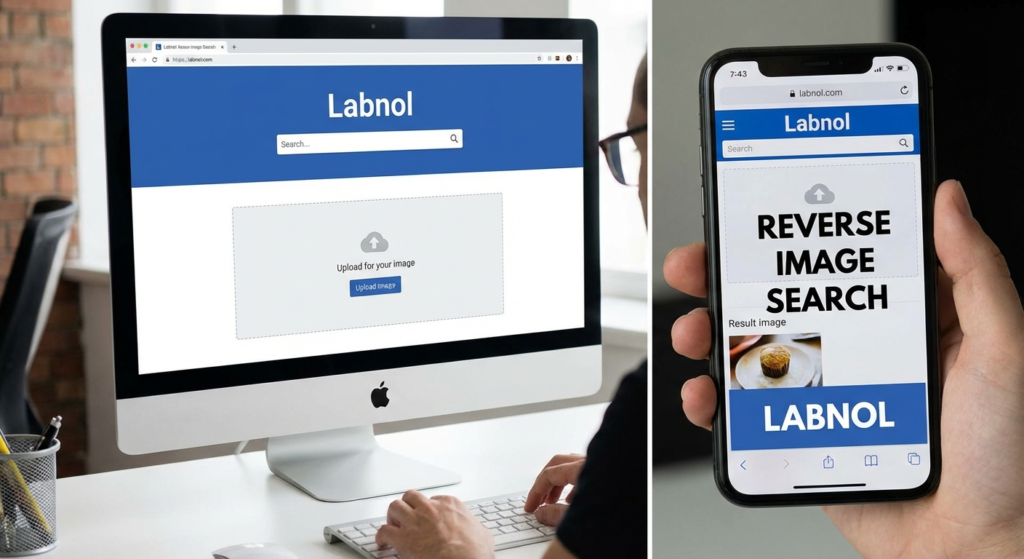
You’re scrolling through your feed, and you stop. That photo. Is it real? Is that “limited edition” sneaker actually a cheap knockoff from a dropshipper? Or maybe you’ve just matched with someone on a dating app who looks a little too much like a celebrity.
On a desktop, the solution is a two-second drag-and-drop into Google. But on mobile? It’s historically been a nightmare of tapping, long-pressing, and requesting “desktop versions” of sites just to find an upload button.
That’s where reverse image search labnol changed the game.
Even in 2026, with AI integrated into everything, this simple, elegant tool remains the Swiss Army Knife for digital detectives. It bridges the frustrating gap between mobile browsers and Google’s powerful image indexing. In this guide, I’m going to walk you through exactly how to use it, why it often beats modern AI tools for specific tasks, and how to use it to protect yourself online.
📑 What You’ll Learn
The Genius Behind Reverse Image Search Labnol
Let’s give credit where it’s due. This tool wasn’t built by a massive corporation; it was crafted by Amit Agarwal, a tech visionary often called the “father of Indian blogging” and the brain behind Digital Inspiration.
Here’s the problem he solved: Mobile browsers (Safari, Chrome on Android) didn’t natively support the “upload image” feature for Google Search. Google wanted you to use their app. Users just wanted to check a photo quickly.
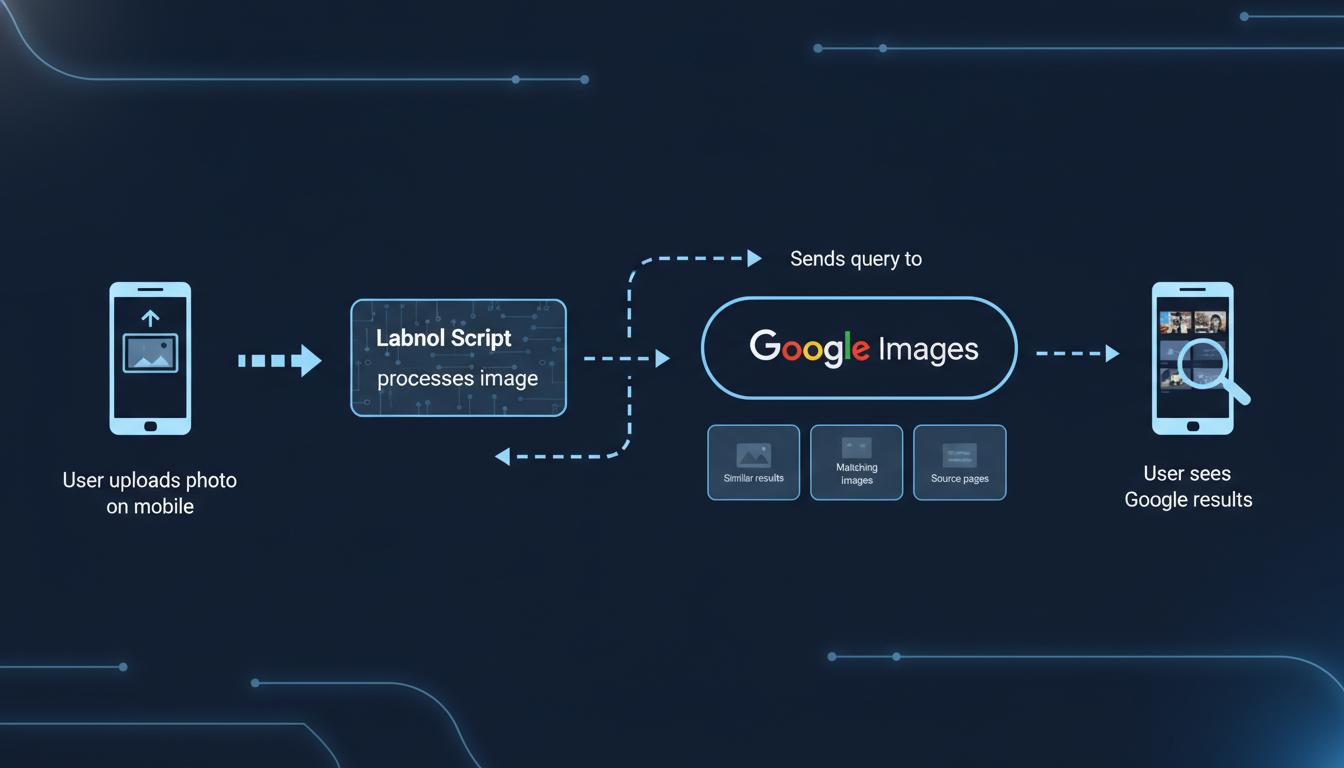
The reverse image search labnol tool acts as a secure “wrapper.” It takes your mobile upload, hosts it temporarily, and feeds it directly into Google’s desktop-class search engine. It’s a brilliant workaround that prioritizes speed and privacy.
🎯 Key Takeaway
Labnol isn’t a search engine itself; it’s a bridge. It forces Google to treat your mobile device like a desktop computer, unlocking the full power of image verification without requiring you to download heavy apps or navigate complex menus.
Step-by-Step: Using Labnol on iOS & Android
I’ve used this tool thousands of times. Whether you are an investigative journalist or just trying to find the source of a meme, the process is refreshingly simple. Here is the foolproof workflow for 2026.
The Workflow
- Open Your Browser: Launch Safari (iOS) or Chrome (Android).
- Go to the Source: Navigate to the Labnol reverse image search page.
- The Upload: Tap the “Upload Image” button. You’ll get a prompt.
- Select Your Source:
- Photo Library: For screenshots or saved memes.
- Take Photo: If you are looking at a physical object or magazine.
- Choose File: For PDFs or other documents.
- The Handshake: Wait for the “Uploading…” bar to finish.
- The Reveal: Tap “Show Matching Images.”
Boom. You are now looking at Google’s native desktop results on your phone.
💡 Pro Tip
Don’t upload the whole screenshot! If you screenshot an Instagram post, your phone captures the battery icon, the time, and the app interface. This confuses Google. Always crop the image tightly around the subject before uploading it to Labnol for 90% better accuracy.
Comparison: Labnol vs. Google Lens
This is the question I get asked most often: “Why not just use Google Lens?”
Look, Google Lens is incredible. It uses AI to “read” an image. It can tell you that the flower in your garden is a Hibiscus syriacus. But sometimes, AI is too smart for its own good.
If you want to find where an image came from (the source), Lens often fails because it focuses on what is in the picture, not the file itself. Reverse image search labnol forces a traditional pixel-match search, which is superior for verification.
| Feature | Google Lens (AI) | Reverse Image Search Labnol (Classic) |
|---|---|---|
| Primary Goal | Identify objects & text | Find source & duplicates |
| Best For | Shopping, Translation, Nature ID | Fake news, Catfish detection, Copyright |
| Search Method | Object Recognition (AI) | Pixel & Pattern Matching |
| Privacy | Linked to Google Account history | Anonymous upload (No account needed) |
| Result Type | “Similar products” | “Pages that include this image” |
In my experience, if you are trying to spot a fake profile, Labnol wins every time. Lens will just tell you “This is a person.” Labnol will tell you, “This photo appears on a stock photography site from 2019.”
3 Detective Strategies for 2026
We are living in the age of synthetic media. Deepfakes are getting scary good. Here is how I use reverse image search labnol to stay safe and informed.
1. The “Catfish” Filter
Meeting someone from a dating app? Take their profile photo and run it through Labnol. If that photo appears on a modeling agency website, a stock photo repository, or a completely different person’s Instagram under a different name, run. I’ve saved friends from serious scams using this exact method.
2. The Dropshipping Detector
You see an ad on TikTok for a “revolutionary” kitchen gadget priced at $50. It looks cool. But before you buy, screenshot it and search via Labnol.
Nine times out of ten, you will find the exact same image on AliExpress or Temu for $4. The “brand” is just a middleman marking up the price by 1000%. Buy it from the source and save your money.
3. Fact-Checking Viral News
A shocking photo of a protest or disaster goes viral on X (formerly Twitter). Is it real? Or is it a photo from a movie set in 2015? Upload it. If the results show the image existed five years ago, you know the current caption is a lie. This is a fundamental skill in digital literacy.
⚠️ Watch Out
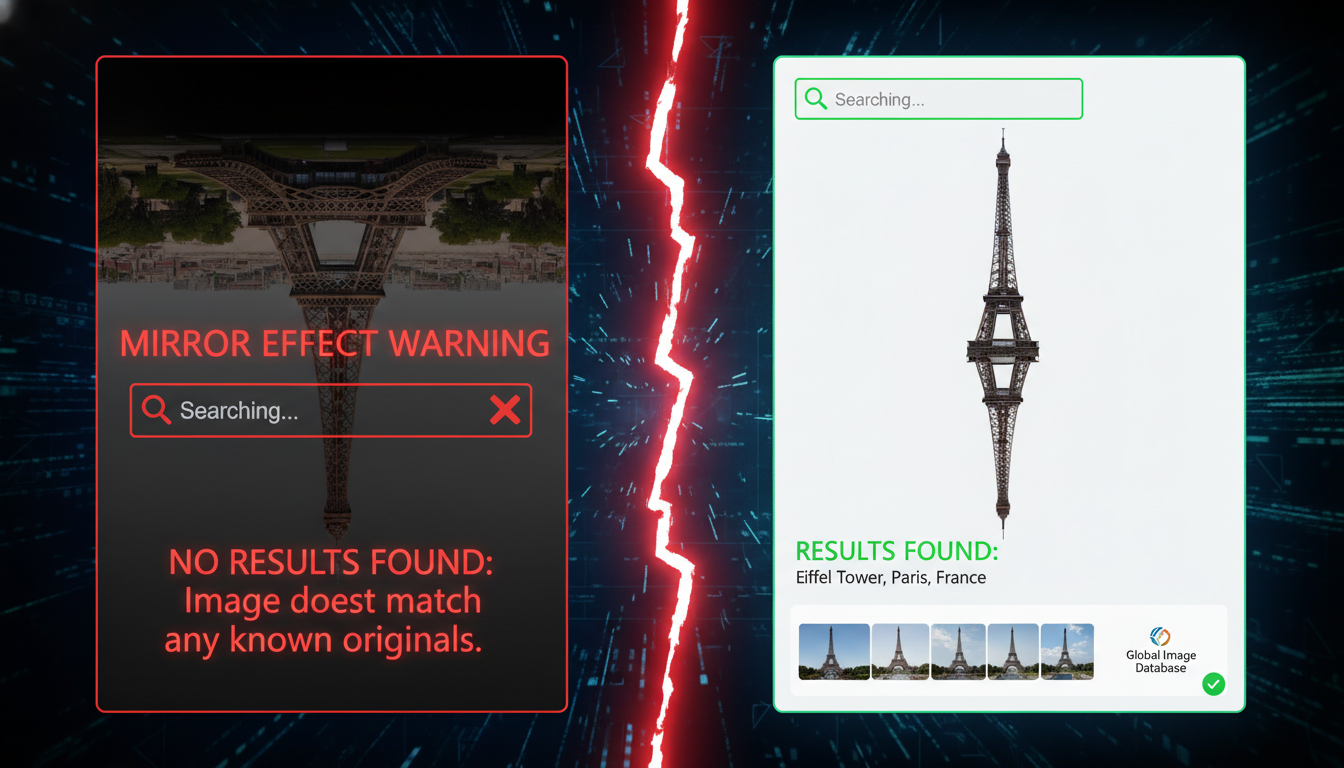
The “Mirror” Effect. Sometimes scammers flip an image horizontally to fool search engines. If you get zero results on a suspicious image, try flipping it in your phone’s editor and searching again. It’s a common trick that Labnol can bypass if you prep the image first.
Top Alternatives Compared
While Labnol is my go-to for its lightweight interface, it’s not the only sheriff in town. Depending on what you are hunting for, you might need a different weapon.
I’ve tested these extensively over the last year. Here is how they stack up against the Labnol wrapper.
| Tool | Best Use Case | The “Secret Sauce” |
|---|---|---|
| Labnol (Google Wrapper) | General verification & Source finding | Accesses Google’s massive index without the app bloat. |
| TinEye | Copyright & Modification tracking | Can tell if an image has been cropped, edited, or resized. |
| Yandex Images | Facial Recognition (Russia/Europe) | Scarily accurate at finding people, even with different angles. |
| Bing Visual Search | Product finding within images | Allows you to crop a specific part of an image after upload. |
For a deeper dive into how these indexing algorithms actually crawl the web, Wikipedia’s overview of reverse image search provides excellent technical context on the fingerprinting technology used.
Advanced Power User Tips
Want to use reverse image search labnol like a pro? Here are two techniques that separate the amateurs from the experts.
Combine Images with Text
Sometimes the image alone returns generic results (e.g., “sky” or “dog”). Once Labnol redirects you to Google, tap the search bar and add a text keyword.
Example: Upload a photo of a car + add the text “2026 model”. This hybrid search narrows down the results massively, filtering out older models that look similar.
The “Before” Trick
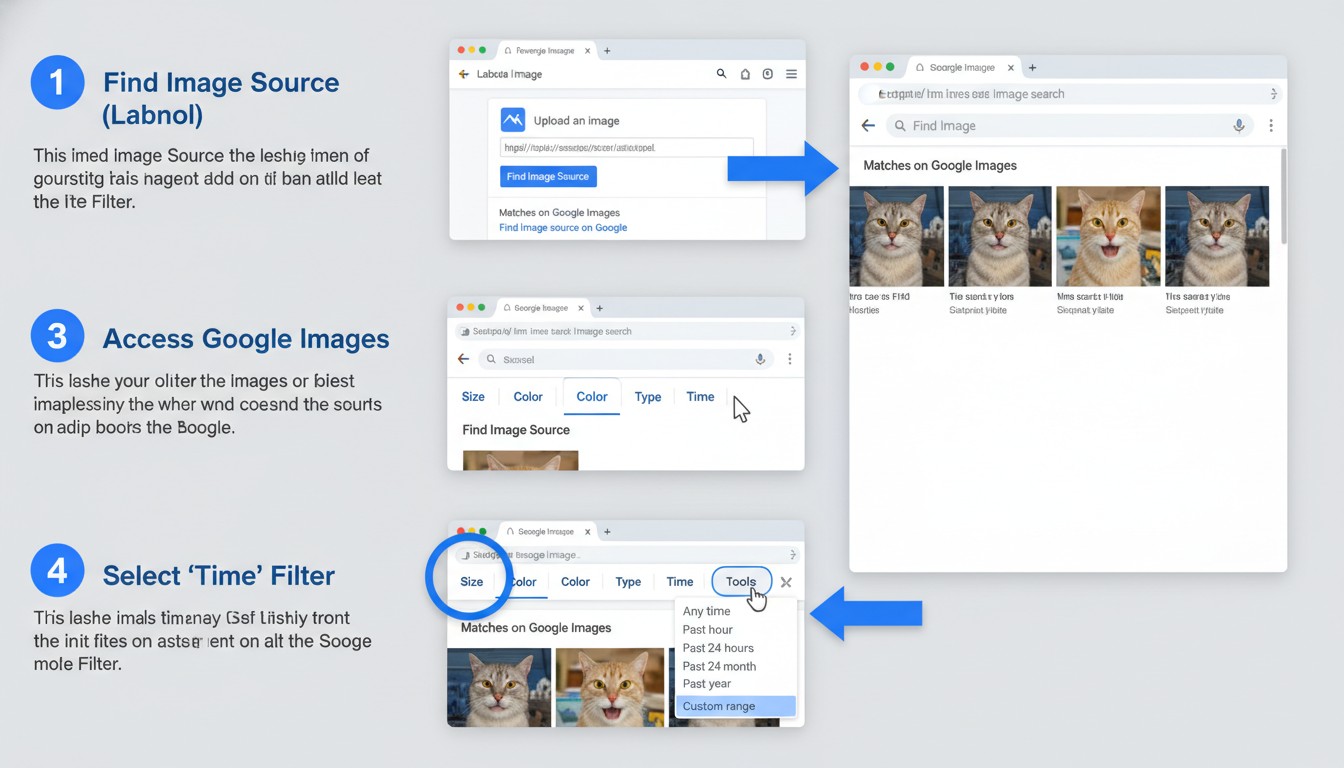
Trying to find the original creator of art or a meme? Once you are on the Google results page, use the “Tools” > “Time” filter. Set a custom date range ending a few years ago. The earliest result is usually the original source. This is crucial for giving credit where it’s due.
For more on digital verification standards, the Poynter Institute offers incredible resources on media literacy that align perfectly with these techniques.
Conclusion
The internet of 2026 is a visual place, but it’s also a deceptive one. Tools like reverse image search labnol are no longer just “nice to have”—they are essential for navigating the web safely.
By keeping this tool in your bookmarks, you aren’t just looking at pictures; you’re interrogating them. You’re verifying truth, saving money on products, and protecting your digital identity. Don’t let the simplicity of the interface fool you; it is one of the most powerful assets on your smartphone.
Next time you see something that makes you pause, don’t just scroll past. Upload it. Verify it. Know the truth.
❓ Frequently Asked Questions
Is Reverse Image Search Labnol safe to use?
Yes. The tool is a client-side script that uploads your image to a temporary server solely to pass it to Google. The images are not stored permanently, indexed, or sold. It is generally considered safe for standard use, though I always recommend avoiding uploading sensitive personal documents to any third-party web tool.
Why am I getting “No Results Found”?
This usually happens for three reasons: 1) The image is original and has never been posted online before. 2) The image is from a private social media account (like a private Instagram) which Google cannot index. 3) The image quality is too low or blurry for the algorithm to detect features.
Does this work on the latest iPhone iOS 19?
Absolutely. Because Labnol is a web-based tool (accessed via Safari or Chrome), it is independent of your operating system updates. As long as you have a working browser and an internet connection, it works on iOS 19, Android 16, and everything in between.
Can I find a person’s name from their photo?
Potentially, but with caveats. If the photo appears on a LinkedIn profile, a company “About Us” page, or a public news article, the search will link you to those pages. However, Google has strict privacy safeguards and generally avoids using facial recognition for identity search in the same aggressive way that engines like Yandex or PimEyes do.
Is there a dedicated app for this?
Labnol is a website, not an app store download. This is actually a benefit—it doesn’t take up storage space, doesn’t require constant updates, and doesn’t track your location like many “free” utility apps do.
For further reading on how search algorithms handle visual data, check out Google’s official documentation on visual search.

