
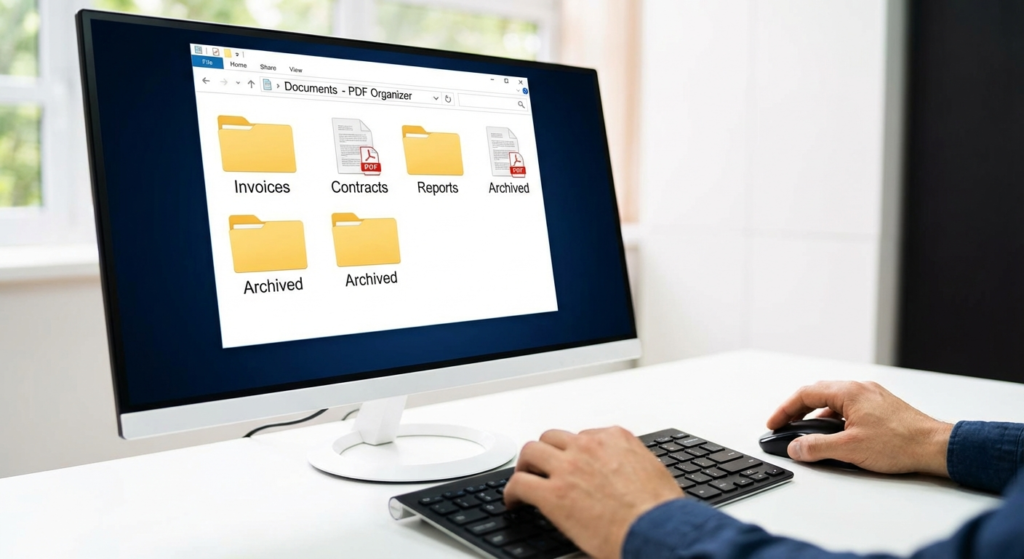
Picture this: It’s 4:55 PM on a Friday. You need to send a crucial contract to a client to close the quarter. You know you scanned it. You know it’s somewhere on your hard drive. But instead of a clean, single file, you’re staring at a folder containing “Scan_001.jpg,” “Contract_Page2_Final.pdf,” and “Addendum_v3.docx.”
Panic sets in. You start dragging files, trying to email five different attachments. It looks messy. It feels unprofessional. And frankly, it’s a waste of your mental energy.
If this scenario raises your blood pressure, you aren’t alone. In 2026, digital hoarding is a real productivity killer. We generate more data than ever, yet few of us have a system to manage it. That’s where a robust PDF organizer comes in. It’s not just software; it’s the difference between a chaotic desktop and a streamlined digital headquarters.
In this guide, we’re going to strip away the jargon and show you exactly how to reclaim your digital life. We’ll cover the tools, the strategies, and the insider tricks that document management pros use every day.
📑 What You’ll Learn
What is a PDF Organizer (And Why You Need One)
Let’s get one thing straight: A PDF reader and a PDF organizer are not the same thing. A reader is passive; it lets you consume content. An organizer is active; it gives you god-mode control over the structure of your documents.
Think of a PDF organizer as a digital three-ring binder. But unlike a physical binder, you can instantly shuffle 500 pages, rip out the ones you don’t need, merge three different binders into one, and slap a password on the cover—all in seconds.
Why is this necessary? Because the Portable Document Format (PDF) was designed by Adobe to be a “digital print.” It’s static by nature. That rigidity preserves fonts and formatting across devices, which is great for reading but terrible for editing. An organizer breaks those chains, allowing you to manipulate the pages without breaking the document’s integrity.
🎯 Key Takeaway
A PDF organizer bridges the gap between static content and dynamic workflow. It transforms isolated pages into cohesive, professional document packets that are easier to store, share, and secure.
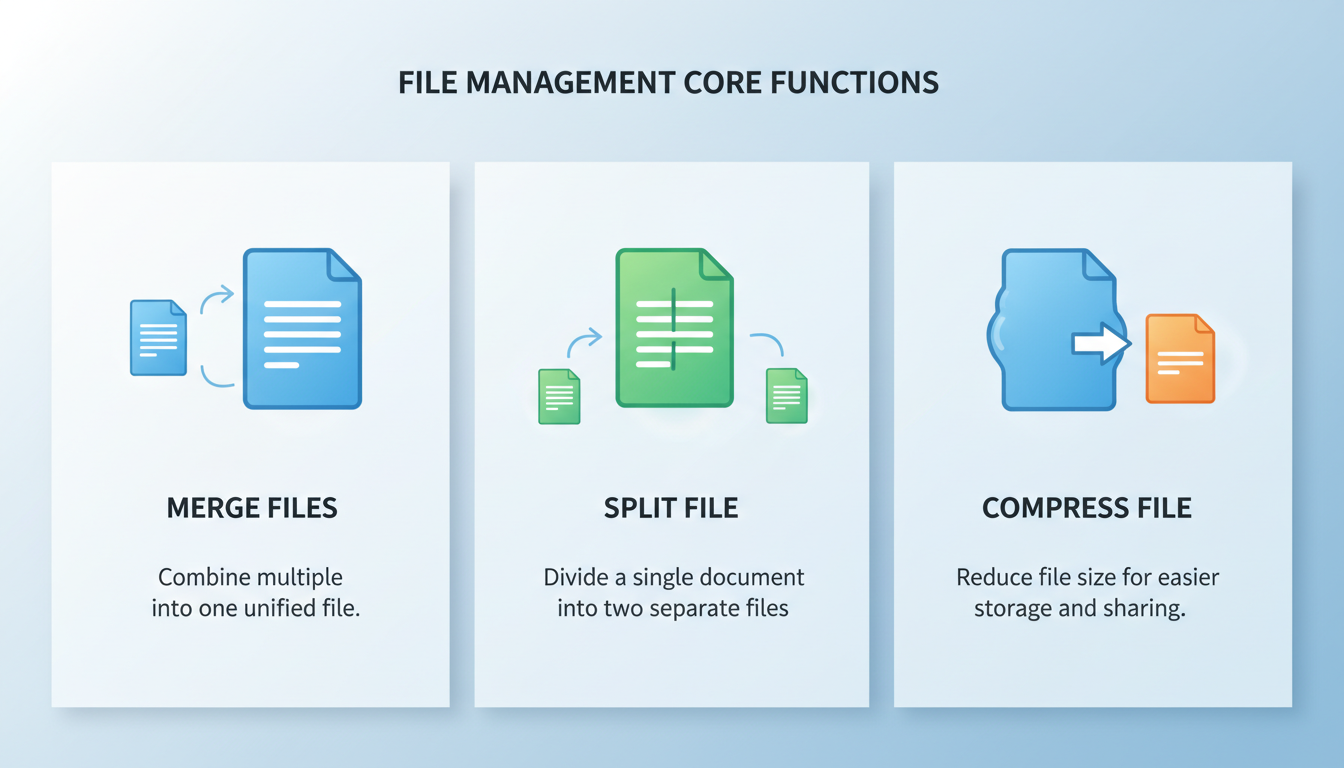
The “Big Three” Features That Matter
I’ve tested dozens of tools over the last decade, from expensive enterprise suites to free browser-based utilities. While bells and whistles are nice, 90% of your productivity will come from just three core functions. If your software can’t do these well, ditch it.
1. The Merge (The Binder)
This is the bread and butter of organization. Merging allows you to take that scattershot of invoices, receipts, and bank statements and combine them into a single file named “2025_Financial_Report.pdf.” It’s cleaner for your archives and much more professional when sending attachments to a CPA or client.
2. The Split (The Scissors)
Ever download a 100-page ebook but only need chapter four? Or maybe you scanned a large packet but need to email just the signature page to a lawyer. Splitting lets you extract specific pages to create a new, smaller document. This is crucial for data privacy—you shouldn’t send a 50-page tax return to a landlord when they only asked for the first two pages of income verification.
3. Compression (The Trash Compactor)
High-quality scans are heavy. A 10-page color scan can easily exceed 25MB, which is the attachment limit for many email providers (like Gmail). A good PDF organizer uses advanced algorithms to shrink file size by up to 80% without making the text unreadable.
Comparison: Desktop vs. Cloud Solutions
Here is the debate that trips up most users. Should you use a web-based tool (convenient) or installed software (powerful)? In 2026, the gap has narrowed, but the distinction still matters for security and speed.
| Feature | Cloud-Based Tools (Browser) | Desktop Software (Installed) |
|---|---|---|
| Accessibility | Any device, anywhere. Great for mobile. | Restricted to the machine it’s installed on. |
| Speed | Dependent on internet upload/download speeds. | Instant processing, uses local CPU/RAM. |
| Privacy | Files are uploaded to a third-party server. | Files never leave your computer. |
| File Size Limits | Often capped (e.g., max 50MB). | Unlimited (handle gigabytes easily). |
| Cost | Often free (ad-supported) or subscription. | Usually a one-time purchase or annual license. |
⚠️ Watch Out
Never upload PII (Personally Identifiable Information) to a free online converter. If you are organizing medical records, tax forms, or legal contracts, use offline desktop software. “Free” services often monetize data or lack enterprise-grade encryption.
Step-by-Step: The 5-Minute Digital Declutter
You have the tools; now you need a system. Without a workflow, you’re just moving mess from one folder to another. Here is the exact “Digital Declutter” method I use to keep my drive spotless.
- The “Inbox” Dump: Create a folder on your desktop named “To_Organize.” Drag every loose PDF, stray scan, and download into this folder. Clear your desktop completely.
- The Triage: Open your PDF organizer. Group related files. For example, select all twelve utility bills from last year.
- The Merge & Order: Combine them. Crucial step: Before hitting “save,” arrange them chronologically (January to December). Most organizers have a drag-and-drop interface for this.
- The Rename: Save the new file with a standardized name. (See the Pro Tip below).
- The Archive: Move the finished file to your permanent storage (Google Drive, Dropbox, or local server) and delete the original loose files.
💡 Pro Tip
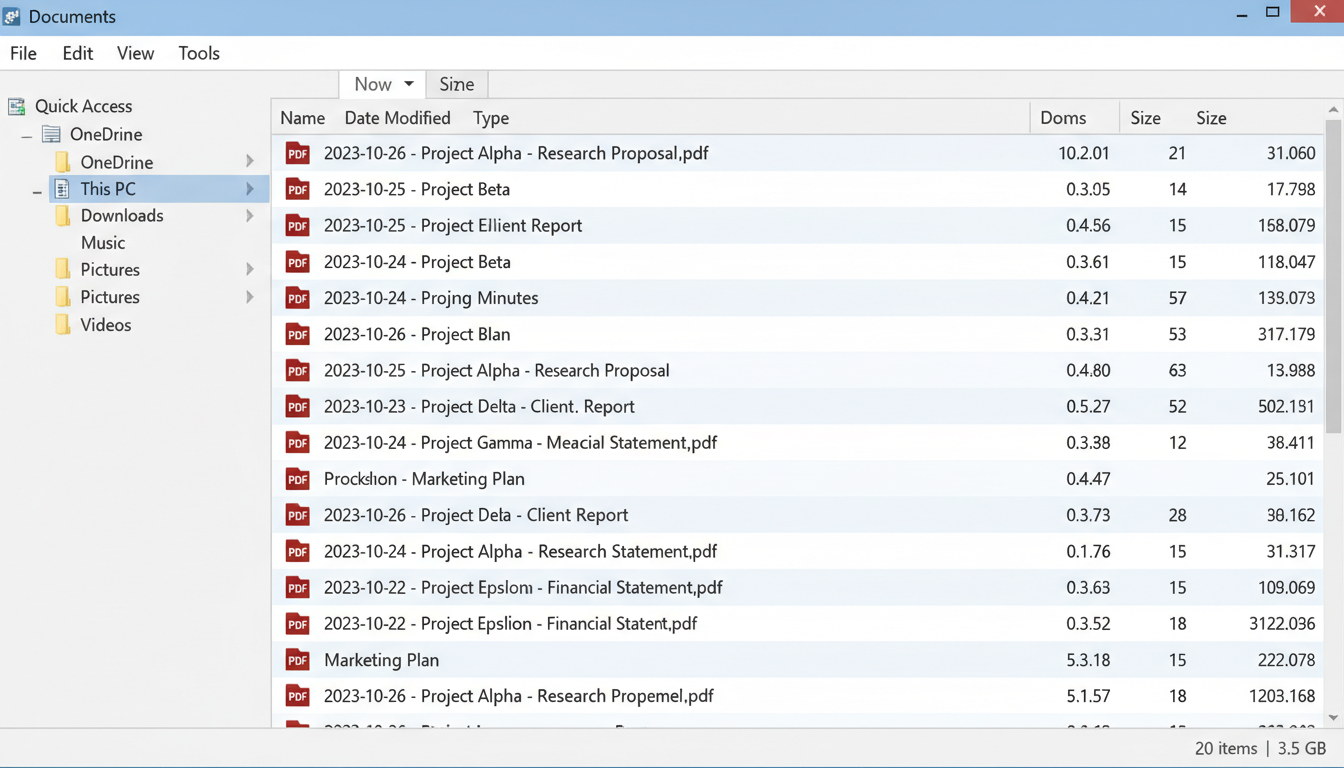
Adopt the ISO 8601 Naming Convention. Always start your filenames with the date in YYYY-MM-DD format (e.g., 2026-03-15_Invoice_Consulting.pdf). This ensures that your computer automatically sorts your files in chronological order, regardless of when you modified them.
Industry-Specific Workflows
Different jobs require different organization strategies. Here is how power users in various sectors leverage these tools.
For Real Estate Agents
You are juggling disclosures, inspection reports, and offers. Sending a client 15 separate attachments is a recipe for confusion.
The Fix: Create a “Closing Packet.” Merge the signed contract, the inspection summary, and the warranty deed into one file. Use the “Bookmark” feature in your organizer to create a clickable table of contents so the client can jump straight to the inspection report.
For HR Professionals
Onboarding is paperwork heavy.
The Fix: Instead of emailing a zip file of 10 blank forms, merge them into a single “New Hire Onboarding” PDF. Use a tool that allows form field creation so the employee can type their info once, and it populates across the document (if your software supports advanced forms).
For Students & Researchers
Research involves downloading dozens of academic papers.
The Fix: Don’t keep 50 tabs open. Download the PDFs. Merge them into a single “Thesis Source Material” file. Use OCR (Optical Character Recognition) to make the entire packet searchable. Now, you can “Ctrl+F” to find a specific keyword across 500 pages of research instantly.
Security: Protecting Sensitive Data
In 2026, data breaches are commonplace. A PDF organizer is your first line of defense. Beyond just organizing, you should be using these tools to sanitize your documents.
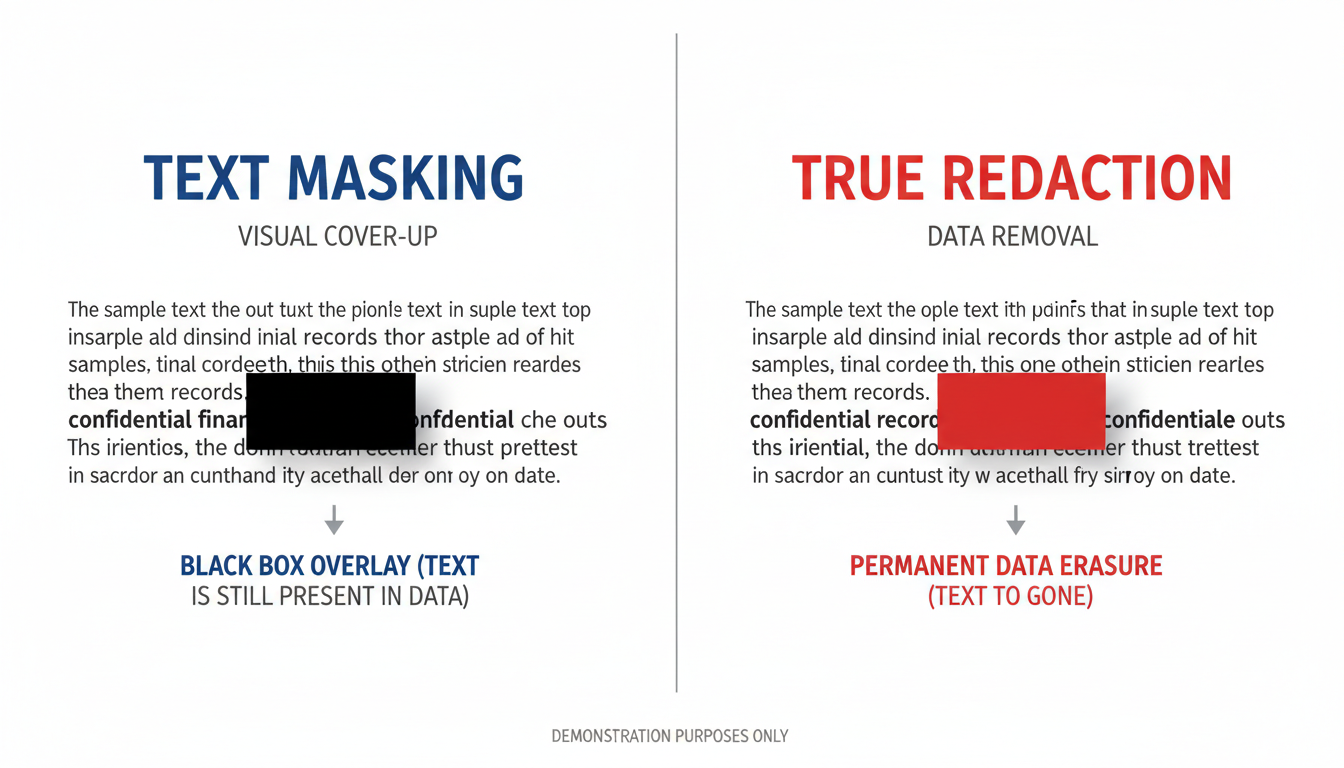
Redaction is not just black boxes.
A common mistake is drawing a black rectangle over sensitive text using a drawing tool. This does not hide the data. Anyone can delete that rectangle and see the text underneath. A true PDF organizer has a “Redact” function that permanently removes the underlying code and text from the file.
According to the National Archives, ensuring the integrity of electronic records includes proper metadata management. When you merge files, check the document properties. Ensure you aren’t accidentally passing along the author name or edit history from a previous draft that you don’t want the recipient to see.
⚠️ Watch Out
Metadata leakage. When you merge files, the new PDF often retains the metadata (title, author, keywords) of the first file in the list. Always go to File > Properties and clean this up before sending a professional document.
Advanced Features: Going Beyond Basics
Once you’ve mastered the merge, look for these advanced capabilities in premium software:
| Feature | What It Does | Best Use Case |
|---|---|---|
| OCR (Optical Character Recognition) | Turns scanned images into selectable, searchable text. | Digitizing old paper receipts or contracts. |
| Bates Numbering | Adds sequential numbering (e.g., 0001, 0002) to pages. | Legal discovery and medical records. |
| Watermarking | Overlays text like “DRAFT” or “CONFIDENTIAL”. | Protecting intellectual property before payment. |
| PDF/A Conversion | Converts files to an archival standard. | Long-term storage (10+ years) preservation. |
💡 Pro Tip
Use Batch Processing. If you have 500 invoices that all need to be OCR’d and watermarked, don’t do them one by one. Look for the “Batch” or “Action Wizard” feature in your organizer to apply these changes to an entire folder while you go grab a coffee.
Conclusion: Reclaim Your Time
Mastering your digital documents isn’t just about being “neat.” It’s about speed, professionalism, and security. By implementing a solid PDF organizer into your workflow, you stop fighting with your computer and start making it work for you.
Whether you are a student compiling notes or a CEO managing contracts, the strategy remains the same: Audit, Merge, Rename, and Secure. Don’t let digital clutter slow you down in 2026. Download a reliable tool today, grab that “Downloads” folder that you’ve been avoiding, and spend 10 minutes organizing it. Trust me, your future self will thank you.
❓ Frequently Asked Questions
Can a PDF Organizer edit the actual text inside the document?
Usually, no. An “organizer” focuses on page structure (merging, splitting, rotating). To change the actual words on the page, you need a full PDF Editor. However, many premium tools (like Adobe Acrobat Pro or PDFelement) combine both functions in one suite.
Is it safe to use free online PDF organizers?
It depends on the data. For generic documents (like a flyer or a blank form), they are fine. For sensitive data (bank statements, tax forms, medical records), avoid them. You cannot verify what happens to your file once it hits their server. Stick to offline, desktop software for sensitive info.
Does merging PDFs reduce their quality?
Simply merging or rearranging pages does not reduce quality. However, if you use the “Compress” or “Optimize” feature to save space, image resolution may be lowered. Always check your compression settings to find the right balance between file size and clarity.
How do I organize password-protected PDF files?
You must have the password to open the file first. Most organizers will prompt you to enter the password before allowing you to merge or split the document. Once unlocked, you can save a new version without the password if you choose.
What is the difference between PDF and PDF/A?
PDF is for general use. PDF/A (Archive) is a special version ISO-standardized for long-term preservation. It forbids features that might not work in the future (like encryption or external font linking). Use PDF/A if you are storing documents for legal or historical reasons, as recommended by the Library of Congress.

