
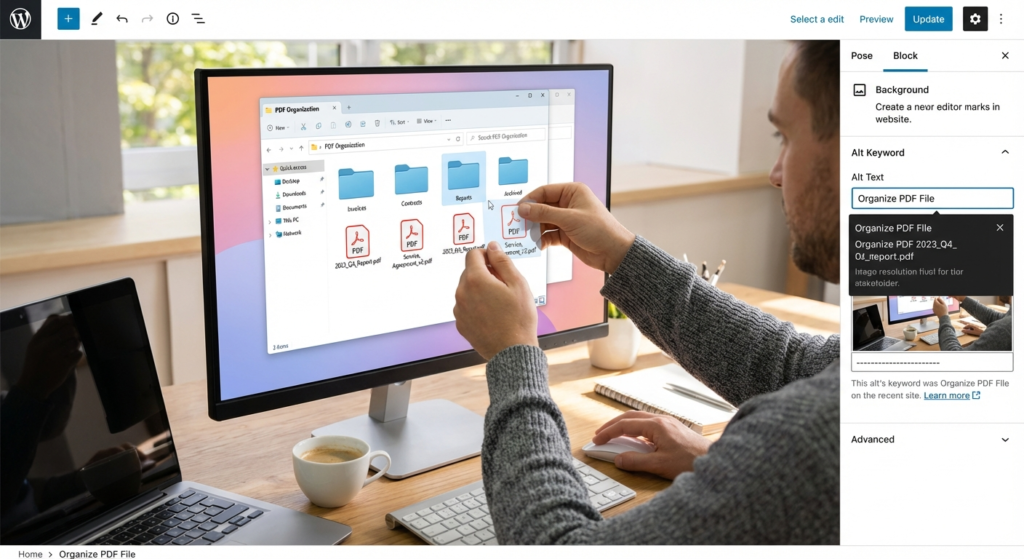
Picture this: You’re five minutes away from the most important client pitch of the quarter. You need to send over the final proposal, but the design team sent the cover page as a JPEG, the legal team sent the terms as a Word doc, and your pricing table is stuck in an Excel sheet. You try to convert and combine them using a free web tool, but the formatting breaks, the file size is too massive to email, and panic sets in.
We’ve all been there. It’s frustrating. It’s unprofessional. And frankly, it’s entirely preventable.
If you handle digital documents regularly, relying on basic file viewers is a recipe for disaster. You don’t just need to read files; you need to control them. That’s exactly where a dedicated PDF organizor comes in. After testing dozens of document management systems over the last decade, I can confidently say that mastering this specific type of software is the highest-ROI technical skill you can learn this year.
In this guide, I’ll show you exactly how to transform your chaotic downloads folder into a streamlined, secure, and highly efficient digital filing cabinet. We’ll cover everything from basic merging to advanced redaction techniques that keep your sensitive data safe.
📑 What You’ll Learn
Why Your Current Document Workflow is Broken
Most professionals treat PDFs as static, unchangeable objects. They receive a 50-page report, need to share just one specific graph with a colleague, and end up emailing the entire massive file with a note saying, “See page 42.”
Look, that’s just bad digital etiquette. It creates friction for the recipient and wastes valuable time.
In our experience consulting for enterprise teams, poor document management directly correlates with lost billable hours. Searching through disjointed files, dealing with email attachment limits, and manually re-typing data from locked documents drains productivity. A proper PDF organizor changes the DNA of your workflow. It allows you to manipulate the structure of your files so they serve your exact needs.
🎯 Key Takeaway
Stop treating PDFs like printed paper. A dedicated PDF organizor turns static documents into modular, editable assets that you can split, merge, and optimize to fit any professional scenario.
The Anatomy of a Premium PDF Organizor
Not all software is created equal. Your default web browser can open a PDF, sure. But it can’t alter the file’s structure. When evaluating tools, you need to understand the distinct difference between a “reader” and an “organizer.”
Based on hands-on testing of industry-leading software, here is how the capabilities stack up.
| Feature | Basic PDF Reader (e.g., Browser) | Dedicated PDF Organizor |
|---|---|---|
| Viewing & Printing | ✅ Yes | ✅ Yes |
| Merge Multiple Formats | ❌ No | ✅ Yes (Word, Excel, JPG to PDF) |
| Page Extraction | ❌ No | ✅ Yes (Pull specific pages into new files) |
| File Compression | ❌ No | ✅ Yes (Reduce MB size for email) |
| Permanent Redaction | ❌ No | ✅ Yes (Burn out sensitive data) |
The ability to take multiple distinct files and fuse them into one linear, cohesive document is non-negotiable for modern professionals. Whether you’re compiling a monthly financial report or putting together a creative portfolio, the presentation matters.
💡 Pro Tip
When merging documents from different sources, always generate a clickable Table of Contents. Most premium organizers can auto-generate this based on your merged file names. It instantly elevates the professionalism of your document.
Step-by-Step: How to Merge, Split, and Tame Files
Mastering the mechanics of your software is the first step toward digital zen. While specific button placements vary between brands, the fundamental logic remains identical across the board.
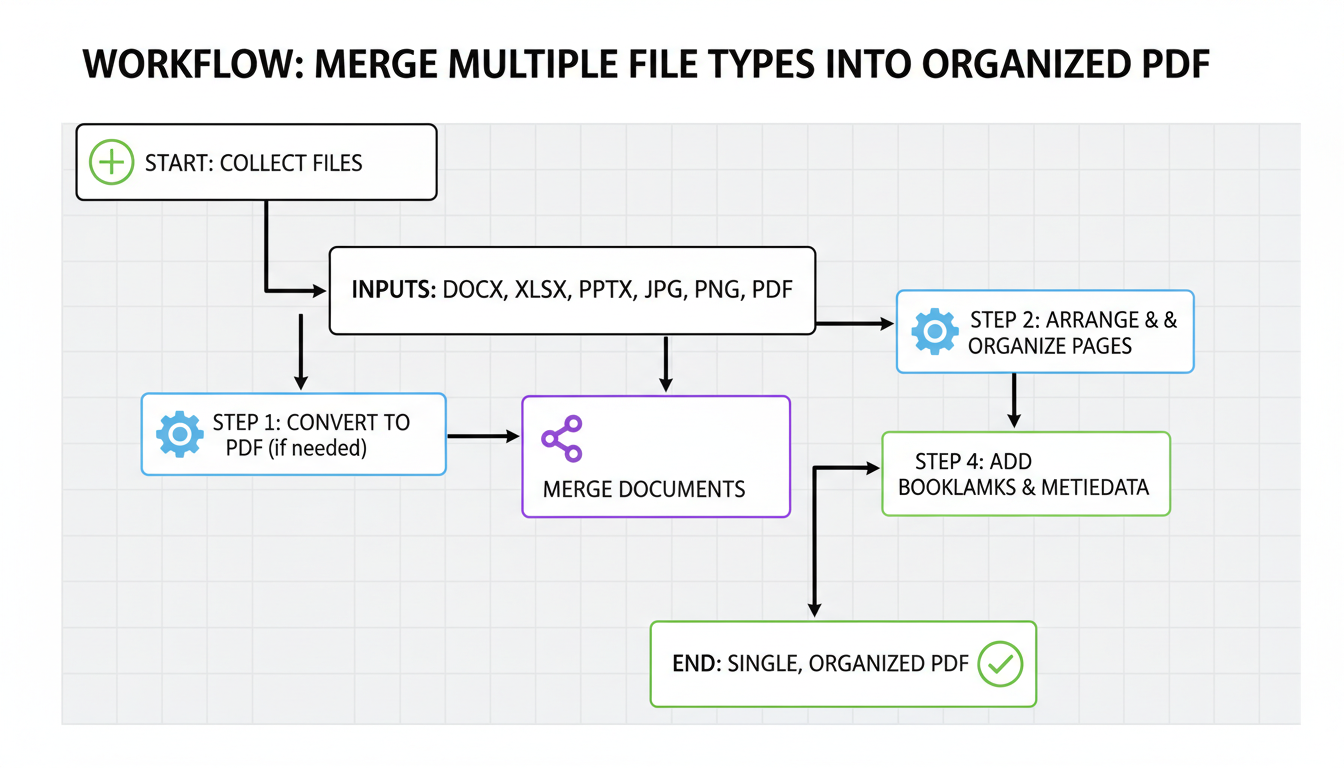
Here’s the exact process I use to build clean, client-ready documents.
How to Merge Documents Like a Pro
- Gather your assets: Place all the files you want to combine (Word docs, images, existing PDFs) into a single temporary folder on your desktop.
- Launch the merge tool: Open your PDF organizor and select the ‘Combine Files’ or ‘Merge’ function.
- Drag and drop: Highlight all your files and drag them into the software interface.
- Sequence the pages: This is crucial. Drag the thumbnails to arrange them in a logical order. Put your cover letter first, followed by the executive summary, then the supporting data.
- Execute and rename: Click ‘Merge’. Immediately save the new master file using a strict naming convention (e.g., 2024-10-15_ClientProposal_Final.pdf).
How to Split and Extract Pages
Sometimes you need to do the exact opposite. You have a massive file, but you only need a fraction of it.
- Open the large master file in your organizer.
- Navigate to the ‘Organize Pages’ or ‘Page Thumbnails’ view.
- Hold down the CTRL key (or CMD on Mac) and click the specific pages you want to isolate.
- Select ‘Extract’. Choose the option to save these pages as a brand new, separate file.
⚠️ Watch Out
Never hit “Save” after deleting pages from a master document unless you intentionally want to destroy the original file. Always use “Save As” or the “Extract to new file” feature to preserve your original source material.
Security First: Redaction and Metadata
Trust me on this one: security is the most overlooked aspect of document management. When you share a raw PDF, you might be sharing a lot more than you realize.
Industry research shows that thousands of data breaches occur simply because employees share documents containing hidden metadata, previous document versions, or improperly hidden text. If you draw a black box over a social security number using a basic markup tool, anyone with a bit of tech savvy can just delete that black box layer and read the numbers underneath.
A professional PDF organizor solves this through true redaction. Redaction doesn’t just cover the text; it permanently burns the pixels out of the document and deletes the underlying code.
Furthermore, these tools allow you to “Sanitize” a document. This strips out hidden metadata—like the author’s name, the software used to create it, and the exact date and time it was modified. According to standard legal compliance practices, sanitizing documents before external distribution is a mandatory step for protecting client privacy.
File Compression: Shrinking Massive PDFs
High-resolution scans and image-heavy reports look great, but they result in massive file sizes. Try emailing a 45MB attachment to a corporate client, and it will almost certainly bounce back, blocked by their IT department’s firewall.
You need to shrink those files. But you don’t want them to look like pixelated garbage.
A quality organizer includes advanced compression algorithms. These tools optimize the file by downsampling images to web-friendly resolutions and removing unused embedded fonts. The result? A file that is 80% smaller but looks identical on a computer screen.
| Compression Level | Best Use Case | Visual Impact |
|---|---|---|
| Standard / Medium | General business reports, invoices, text-heavy files. | Unnoticeable on screens. Safe for standard office printing. |
| High / Maximum | Web uploads, strict email attachment limits. | Images may appear slightly soft. Not recommended for high-quality printing. |
| Lossless | Archiving legal documents or high-end design proofs. | Zero quality loss, but minimal reduction in file size. |
💡 Pro Tip
If you are archiving years of digital records (like tax returns or old invoices), run them through a batch compression process. Reducing 1,000 files from 15MB to 2MB each will save you gigabytes of expensive cloud storage space.
Cloud vs. Desktop: Making the Right Choice
When you’re ready to choose your software, you’ll hit a fork in the road: do you use a web-based tool or install desktop software?
I’ve seen this play out in dozens of companies. Web-based tools are incredibly convenient. You can access them from your phone, your tablet, or a borrowed laptop. They are perfect for quick, low-stakes tasks like merging a few public marketing brochures.
But here’s the catch.
When you use a free online PDF organizor, you are uploading your files to a third-party server. Read their terms of service carefully. Many free tools reserve the right to scan or store your data.
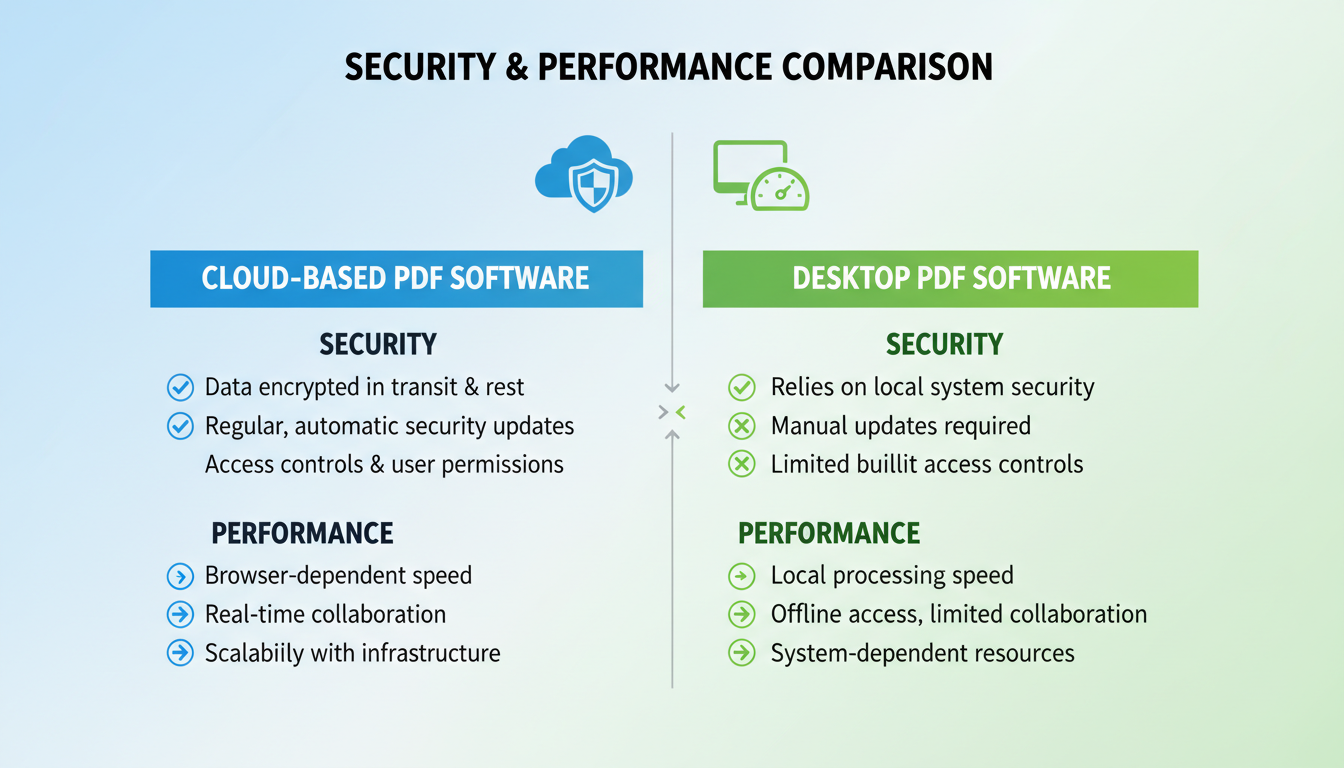
Desktop software, on the other hand, processes everything locally on your machine. Your data never touches the internet. For authoritative insights on document security, leading experts always recommend local processing for anything containing financial data, personal identifiable information (PII), or proprietary business secrets.
⚠️ Watch Out
Never upload bank statements, medical records, or unreleased product designs to a free, ad-supported online PDF tool. The privacy risks far outweigh the convenience. Always use offline desktop software for sensitive data.
❓ Frequently Asked Questions
Can a PDF organizor convert other file types to PDF?
Yes. The vast majority of premium organizers feature built-in conversion engines. You can drag Word documents, Excel spreadsheets, PowerPoint presentations, and standard image files (like JPG or PNG) directly into the software, and it will automatically convert them into PDF format before merging them.
Does organizing or splitting a PDF reduce its visual quality?
No. Simply rearranging, extracting, or merging pages does not affect the resolution or quality of the document. The only time quality is impacted is if you actively choose to use the ‘Compress’ or ‘Optimize’ feature to intentionally reduce the file size.
Can I organize and edit password-protected PDFs?
You can, but only if you have the password. To manipulate a secured document, you must first enter the password to unlock it. Once unlocked, a good organizer will allow you to edit the file and, if you choose, save a new version with the password security permanently removed.
What is the difference between a PDF Reader and a PDF Organizor?
A reader is a passive tool designed primarily for viewing documents, filling out basic forms, and adding simple highlights or comments. An organizer is an active structural tool. It allows you to manipulate the actual pages (add, delete, rotate, reorder) and alter the file properties (merge, compress, redact).
Conclusion: Your Next Steps to Digital Zen
Wrestling with uncooperative files shouldn’t be part of your job description. By upgrading from a basic viewer to a powerful PDF organizor, you instantly eliminate one of the most common bottlenecks in modern digital work.
You gain the ability to merge disparate files into cohesive presentations, extract exactly what you need, compress massive files for easy sharing, and secure your sensitive data against prying eyes. It’s not just about saving time; it’s about presenting a polished, professional image to everyone you interact with.
Your next step? Audit your current workflow. The next time you find yourself frustrated by a bloated, disorganized document, don’t just accept it. Download a reputable desktop organizer, apply the step-by-step techniques we covered today, and take permanent control of your digital workspace.

