
Ever sent a “quick” design proof to a client, only to get a confused email back? “I can’t open this .tiff file. What is it?”
It’s a scenario I’ve seen play out dozens of times. You’ve got a beautiful, high-resolution TIFF file—perfect for editing—but for the rest of the world, it’s a digital brick. It’s too large to email, won’t open on their phone, and brings their workflow to a screeching halt.
This is where knowing how to properly convert a TIFF to PDF isn’t just a technical skill; it’s a professional necessity. It’s about making your work accessible, secure, and easy for everyone to handle.
Forget generic advice. In this guide, we’re going deep. You’ll learn not just the ‘how,’ but the ‘why’ and ‘when’ for each method. We’ll cover everything from a 30-second conversion on the fly to building a bulletproof workflow for handling hundreds of files. Let’s get it done.
📑 What You’ll Learn
TIFF vs. PDF: Why the Switch is a No-Brainer
Before we jump into the methods, let’s be crystal clear on why this conversion is so critical. Think of a TIFF as the raw ingredients for a gourmet meal and a PDF as the perfectly plated, ready-to-serve dish. Both have their place, but you don’t serve your dinner guests a bag of flour.
TIFF (Tagged Image File Format) is a darling of photographers and the print industry for one big reason: it’s typically lossless. This means it preserves every single pixel of data, which is fantastic for editing and high-quality printing. But this quality comes at a cost—massive file sizes and limited compatibility.
PDF (Portable Document Format), on the other hand, was designed from the ground up for universal sharing. It’s the de facto standard for business documents, academic papers, and digital forms for a reason. It just works. Everywhere.
Here’s a head-to-head breakdown:
| Feature | TIFF (Tagged Image File Format) | PDF (Portable Document Format) |
|---|---|---|
| Best For | Professional photo editing, high-quality scanning, print production. | Sharing, archiving, printing, and viewing documents on any device. |
| File Size | Very Large (often 100MB+). | Highly Optimized & Compact. |
| Compatibility | Requires specific software (e.g., Photoshop, Preview). Not web-friendly. | Universal. Opens in any web browser, on any OS, on any device. |
| Security | None. It’s just an image file. | Robust. Supports password protection, encryption, and digital signatures. |
| Text | Just pixels. Text is part of the image and not searchable. | Can contain real, searchable, and selectable text (especially with OCR). |
| Multi-Page | Supported, but can be clunky and not all viewers recognize it. | Natively designed for multi-page documents. The standard. |
🎯 Key Takeaway
Converting a TIFF to a PDF transforms a bulky, inaccessible image into a lightweight, secure, and universally compatible document. For sharing and professional communication, PDF is the undisputed champion.
Choosing Your Weapon: 3 Core Methods to Convert TIFF to PDF
Okay, you’re sold on the ‘why.’ Now for the ‘how.’ The best method depends entirely on your situation: your budget, your timeline, and the sensitivity of your document. Let’s break down the top three contenders.
Method 1: The Quick Fix (Online Converters)
Need to convert a single file, like, right now? An online tool is your best friend. These browser-based converters are incredibly fast and require zero installation. The process is dead simple.
- Find a reputable tool: Search for “TIFF to PDF converter.” Look for sites with a professional design and a clear privacy policy.
- Upload your file: Most have a simple drag-and-drop interface.
- Convert: Click the big “Convert” button.
- Download: Your new PDF will be ready in seconds.
They’re perfect for non-sensitive files like a public flyer or a website mockup. Based on our testing, they handle single-page and even multi-page TIFFs surprisingly well.
⚠️ Watch Out
Never, ever upload sensitive or confidential documents to a free online converter. Your file is being sent to a third-party server, and you have no real control over what happens to it. For contracts, financial records, or private information, always use an offline method.
Method 2: The Power Play (Desktop Software)
For professionals who handle documents daily, relying on online tools is inefficient and risky. This is where dedicated desktop software shines. Applications like Adobe Acrobat Pro are the industry standard, but other powerful options like Foxit PDF Editor or even free open-source programs exist.
Why go this route? Control. Pure and simple.
- Batch Processing: Convert hundreds of TIFFs into individual PDFs with a single click. No more one-by-one drudgery.
- OCR (Optical Character Recognition): This is the magic wand. It scans the image of your text and turns it into actual, searchable, copy-and-paste-able text within the PDF. Game-changing for scanned documents.
- Advanced Security: Add password protection, restrict printing or editing, and apply digital signatures.
- File Merging & Editing: Combine multiple TIFFs (and other file types) into a single, organized PDF. Reorder pages, add headers, and more.
In our agency, this is the only method we use for client work. The security and efficiency are non-negotiable.
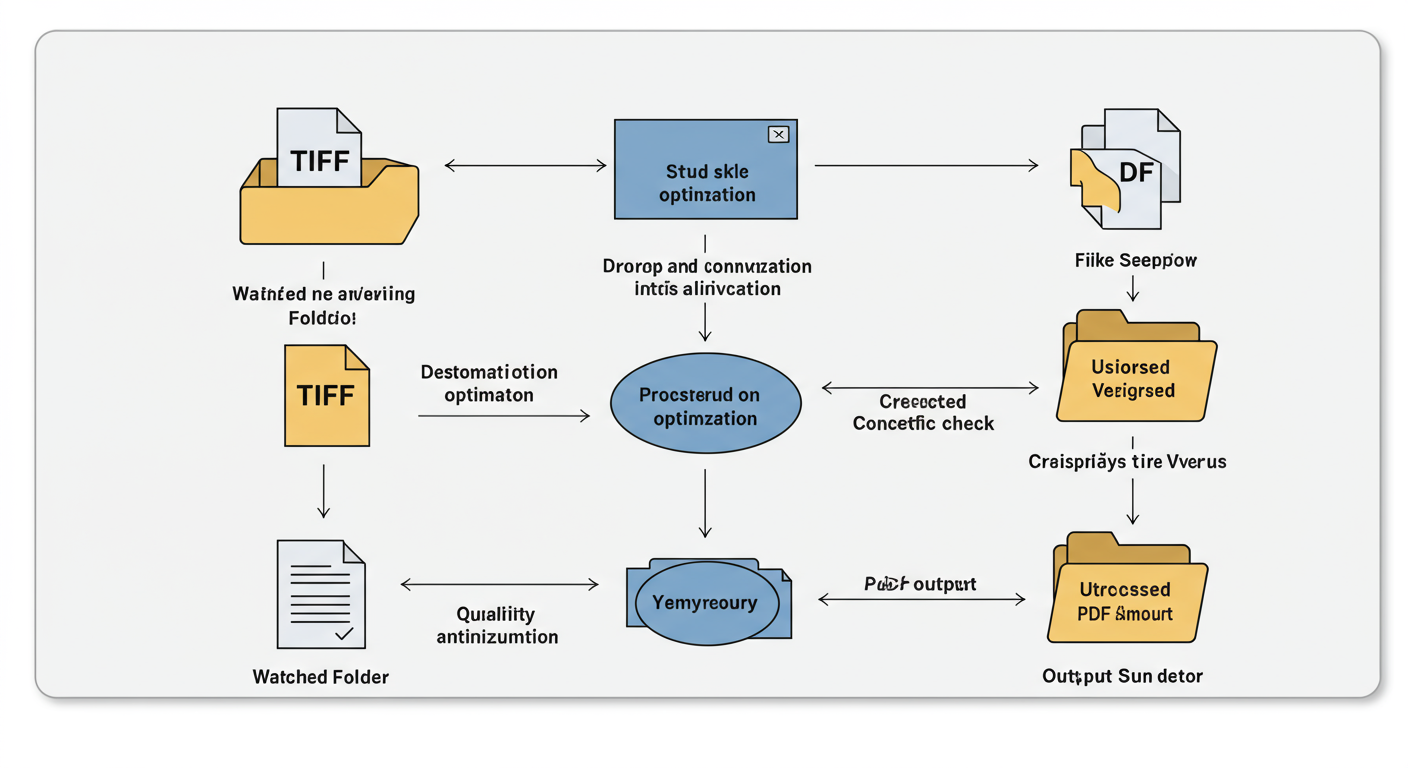
💡 Pro Tip
Set up a “watched folder” in your desktop software. Any TIFF file you drop into this folder will be automatically converted to a PDF and saved in a designated output folder. This automates your entire workflow and saves an incredible amount of time.
Method 3: The Hidden Gem (Your Operating System)
What if I told you that you already have a powerful, secure TIFF to PDF converter on your computer? It’s true. Both Windows and macOS have a built-in “Print to PDF” function that works beautifully.
It’s the perfect balance: 100% free, 100% secure (the file never leaves your machine), and requires no downloads. Here’s how to use it.
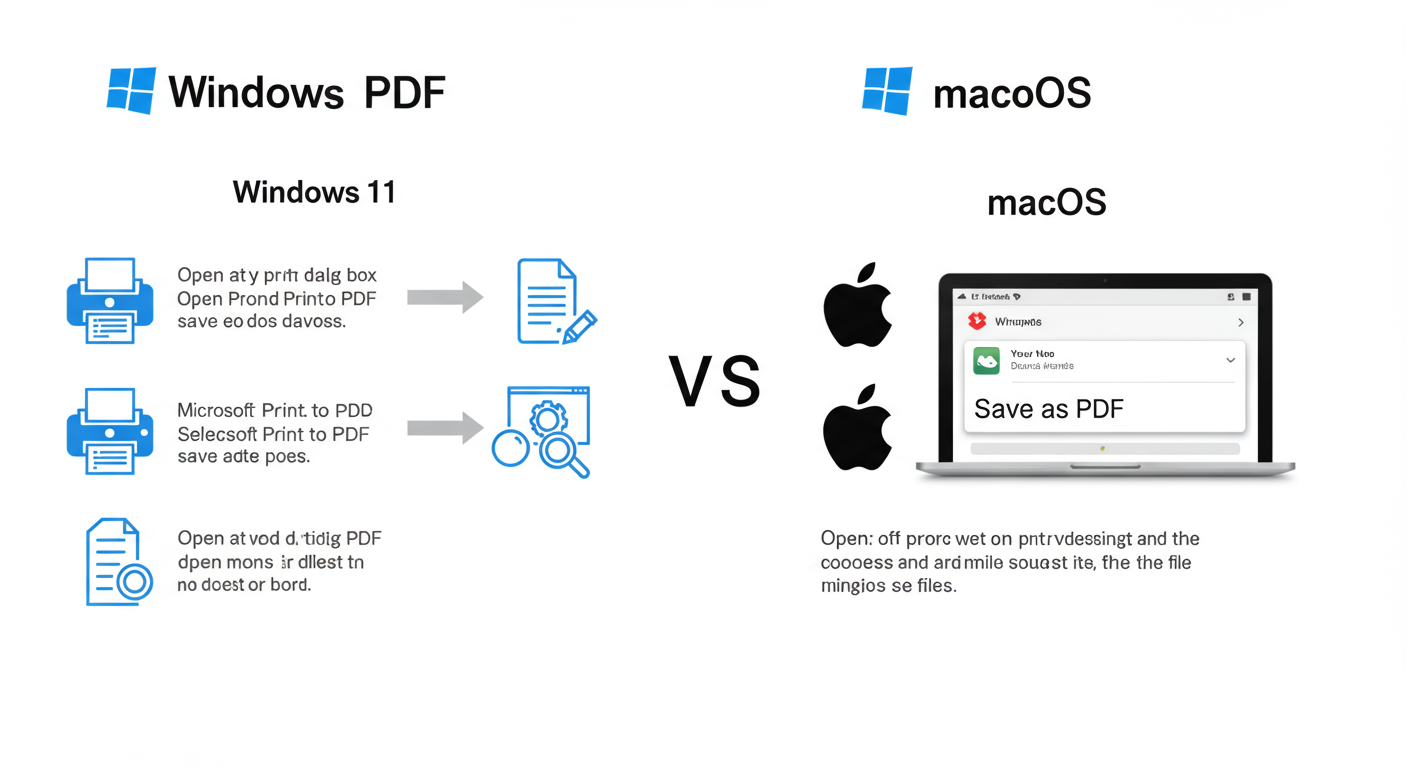
Step-by-Step Guide for Windows 11:
- Open Your Image: Double-click the TIFF file. It will likely open in the “Photos” app.
- Initiate Print: Click the printer icon in the top-right corner or press Ctrl + P.
- Select the “Printer”: In the printer dropdown menu, choose “Microsoft Print to PDF”. This isn’t a physical printer; it’s a virtual one that creates a file.
- Adjust and Print: You can change the orientation or page size if needed. Click “Print.”
- Save Your PDF: A “Save As” window will pop up. Name your new PDF, choose a location, and click “Save.” Done.
Step-by-Step Guide for macOS:
Apple makes it even easier. The Preview app is surprisingly powerful.
- Open in Preview: Double-click your TIFF file to open it in Preview.
- Choose Export: Go to the top menu bar and click File > Export as PDF…
- Save Your File: Name your PDF, choose your save location, and click “Save.” That’s literally it.
For most everyday users, this built-in method is the absolute sweet spot of convenience and security.
The Pro-Level Playbook: Advanced Conversion Techniques
A basic conversion is good. A flawless conversion is better. If you want to produce truly professional PDFs, you need to understand the nuances of quality, file size, and automation. According to Adobe, the creators of PDF, the format is designed for flexibility—you just need to know which levers to pull.
Mastering the Quality vs. File Size Trade-Off
The biggest question we get is: “Will I lose quality?” The answer is: it depends on your settings. A TIFF is prized for its quality, as detailed by archival standards from institutions like the Library of Congress. You can preserve that quality in your PDF if you’re careful.
Here’s a cheat sheet for common settings you’ll find in desktop software:
| Setting / Preset | Resolution (DPI) | Best For | File Size Impact |
|---|---|---|---|
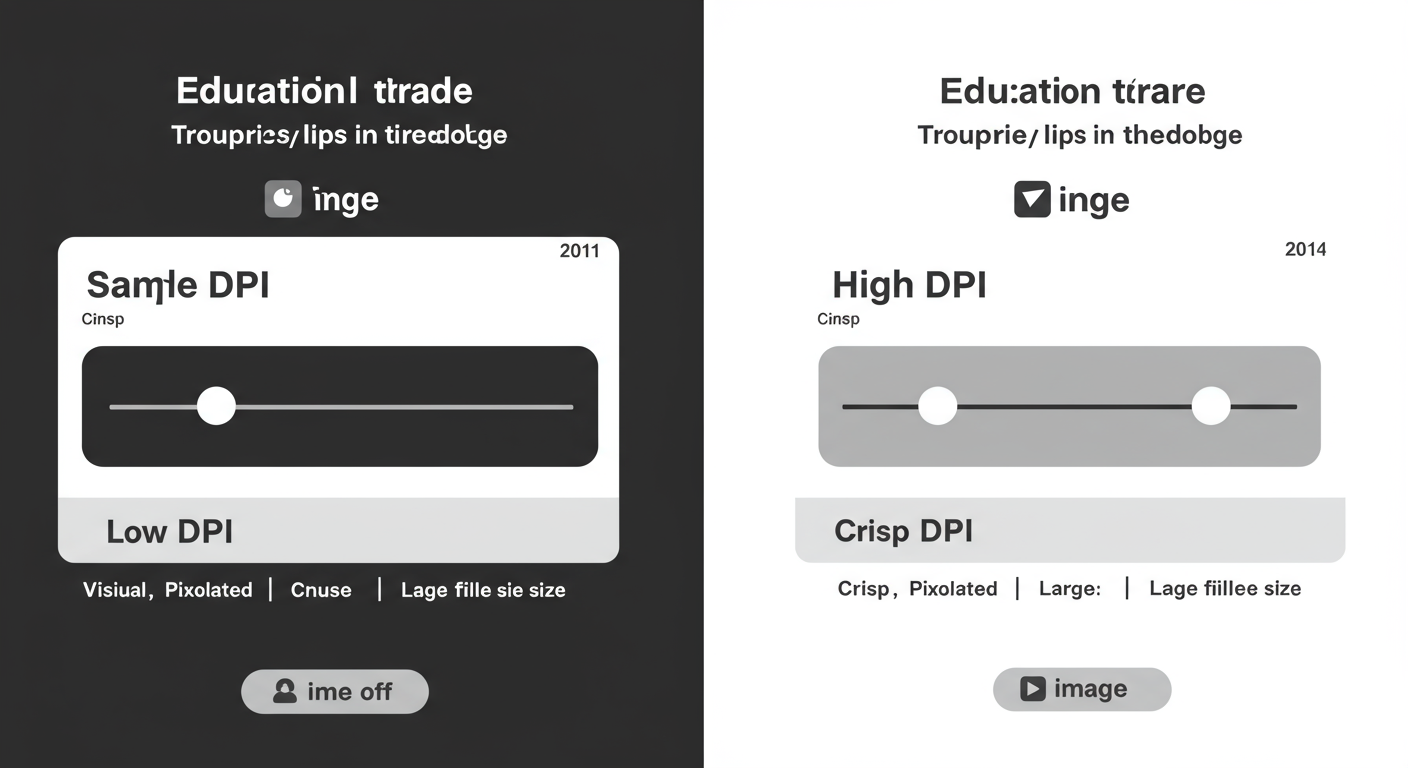
| Smallest File Size | 72-96 DPI | Emailing, on-screen viewing, web embedding. | Drastically Reduced |
| Standard / High Quality | 150-300 DPI | Standard office printing, general document sharing. | Balanced |
| Press Quality / Archival | 300-600+ DPI | Professional printing, archiving master copies. | Very Large |
| Lossless Compression (ZIP) | Original | Archiving when quality is paramount and size is no issue. | Largest |
For 90% of business use cases, a 300 DPI setting provides a perfect balance of crisp, printable quality and a manageable file size.
💡 Pro Tip
When converting scanned documents, run an OCR process before you apply heavy compression. OCR works best on a clean, high-resolution image. Once the text layer is created, you can then compress the underlying image more aggressively to reduce file size without affecting the readability of the recognized text.
Common Pitfalls and How to Sidestep Them
I’ve seen a few common mistakes trip people up when they convert a TIFF to PDF. Here’s what to watch for.
“The most common error is treating all TIFFs the same. A single-page scan and a multi-page, layered graphic design file require completely different approaches.”
Understanding your source file is half the battle. A multi-page TIFF, for example, contains several images in one file. A cheap or basic converter might only grab the first page or flatten them all into one unreadable mess.
⚠️ Watch Out
Be careful with multi-page TIFFs. Before batch converting a folder, test one file first. Ensure your chosen tool correctly creates a multi-page PDF. If it doesn’t, you need a more robust solution like desktop software or a better online tool that explicitly states it supports multi-page TIFFs.
Another pitfall is ignoring color profiles. A TIFF for print might be in CMYK color, while a file for web use is in RGB. A good converter will handle this, but a poor one can lead to washed-out or bizarre-looking colors in your final PDF. When in doubt, stick to desktop software for color-critical work.
❓ Frequently Asked Questions
Will I lose quality when I convert TIFF to PDF?
Not if you use the right settings. PDF supports lossless compression (like ZIP), which preserves 100% of the original image data, just like a TIFF. Quality loss only happens when you intentionally choose “lossy” compression (like JPEG) or downsample the resolution (DPI) to create a smaller file.
How do I convert a multi-page TIFF into a multi-page PDF?
Most modern tools—including the built-in “Print to PDF” on Windows/macOS and good desktop software—will automatically handle this. They recognize the multiple images within the TIFF and create a corresponding page for each one in the final PDF, in the correct order.
Can I convert a TIFF to a searchable PDF?
Yes, but this requires a special feature called Optical Character Recognition (OCR). This is almost exclusively found in advanced desktop software like Adobe Acrobat Pro. The software analyzes the image for text and embeds a hidden, searchable text layer into the PDF. Free online tools and basic OS functions cannot do this.
What’s the most secure way to convert a confidential TIFF file?
The most secure method is always an offline one. Use your operating system’s built-in “Microsoft Print to PDF” (Windows) or “Export as PDF” (macOS) feature. This ensures your file is never uploaded to the internet and remains entirely on your local machine.
Why is my PDF file size still so large after converting from TIFF?
This usually happens if you used lossless compression or kept a very high resolution (DPI). The original TIFF was large because of all its data, and you’ve simply moved that data into a PDF container. To reduce the size, you must use a conversion setting that applies compression or reduces the DPI (e.g., from 600 to 300).
Can I convert a PDF back to a TIFF?
Yes, most comprehensive PDF tools (like Adobe Acrobat) also allow you to export a PDF page or the entire document as an image, including the TIFF format. However, be aware that if the PDF was heavily compressed, you won’t regain the quality that was lost. For more on the TIFF format itself, the Wikipedia article provides a deep technical overview.
Conclusion: From Image File to Asset
Mastering the TIFF to PDF conversion is about taking control of your digital documents. It’s the bridge between a high-quality but impractical source file and a universally accessible, professional asset.
You no longer have to guess. You have a clear framework:
- For speed: Use a reputable online tool for non-sensitive files.
- For security and cost: Use your OS’s built-in “Print to PDF” feature. It’s your secure, everyday workhorse.
- For power and professionalism: Invest in desktop software for batch processing, OCR, and ultimate control.
Your next step? Don’t just read this. Try it. Find a TIFF file on your computer and use your operating system’s built-in function to convert it right now. See how simple and effective it is. Once you do, you’ll never be stuck with an un-shareable file again.

