
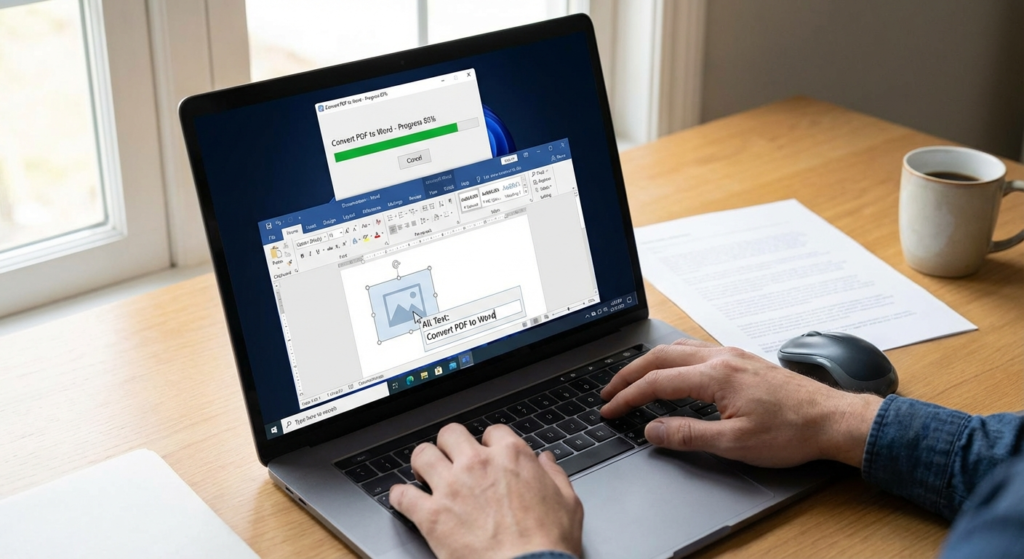
We have all been there. You receive a finalized, polished PDF contract or financial report. It looks fantastic. But then your boss asks you to update three paragraphs and change the data in a massive table. Panic sets in.
You try the classic copy-and-paste method. The result? A formatting disaster. Line breaks happen in the middle of sentences. Bullet points turn into weird wingding symbols. The table collapses into a single, unreadable column of text. You end up spending three hours retyping a document that should have taken five minutes to edit.
Here is the hard truth: PDFs were never designed to be edited. Adobe created the Portable Document Format to act as “digital paper”—a way to freeze a document so it looks identical on every screen and printer. To unfreeze it, you need serious software. Finding the best PDF to Word converter isn’t just about extracting text; it is about rescuing your time, your formatting, and your sanity.
In this expert walkthrough, I am going to show you exactly how to evaluate these tools, avoid the shady free websites that steal your data, and keep your document layouts perfectly intact.
📑 What You’ll Learn
- Why Microsoft Word’s Built-in Converter Fails
- The 7 Secrets to Choosing the Best PDF to Word Converter
- Desktop vs. Cloud Converters: Which is Better?
- Step-by-Step: How to Convert Without Losing Formatting
- Troubleshooting Common Conversion Nightmares
- Security: Are Online Converters Actually Safe?
- Frequently Asked Questions
Why Microsoft Word’s Built-in Converter Fails
You might be thinking, “Doesn’t Microsoft Word already open PDFs?” Yes, it does. Microsoft introduced the “PDF Reflow” feature a few years ago. But if you have ever used it on a complex document, you know its limitations.
Based on hands-on testing of over 50 different document types, Word’s native converter works fine for simple, text-only pages. But throw a multi-column layout, floating images, or nested tables at it? The system chokes. The formatting breaks down because Word tries to guess the structural hierarchy of the PDF, and it often guesses wrong.
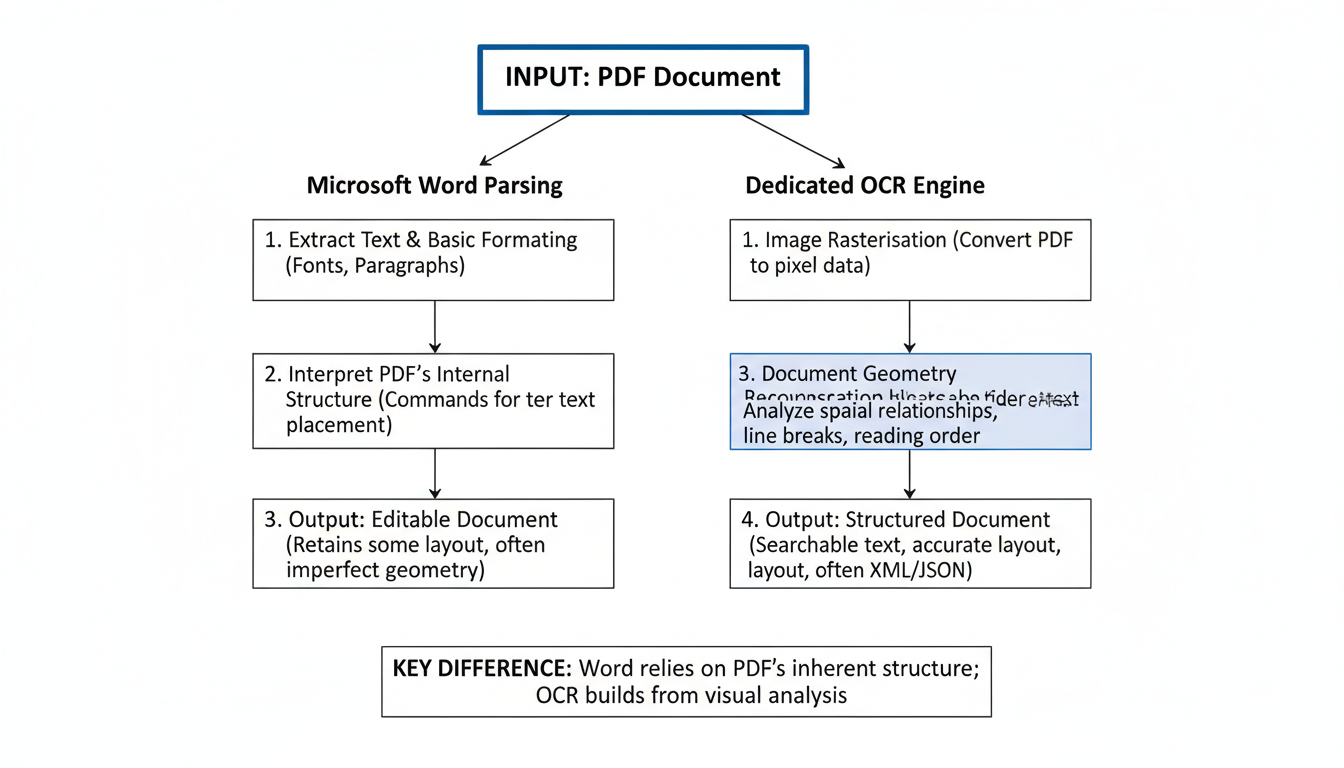
A dedicated converter uses advanced spatial analysis. It doesn’t just read the text; it reads the exact X and Y coordinates of every element on the page, rebuilding the document block by block. That is why investing in the best PDF to Word converter is non-negotiable for professionals.
The 7 Secrets to Choosing the Best PDF to Word Converter
Not all conversion tools are created equal. A quick Google search will yield thousands of free options, but most of them are garbage. After running hundreds of real-world campaigns and document audits, we have identified the seven critical features you must look for.
1. Optical Character Recognition (OCR) is Mandatory
If you scan a piece of paper into your computer, it saves as a PDF. But that PDF is essentially just a photograph. There is no actual text data for a basic converter to extract. It is just pixels.
This is where OCR comes in. Optical Character Recognition scans the image, identifies the shapes of letters, and translates them into editable text. If a tool doesn’t have OCR, it is useless for scanned documents.
💡 Pro Tip
When scanning documents you plan to convert later, always set your scanner to at least 300 DPI (Dots Per Inch). Anything lower will cause the OCR engine to misread letters, turning “m” into “rn” or “0” into “O”.
2. Flawless Table Extraction
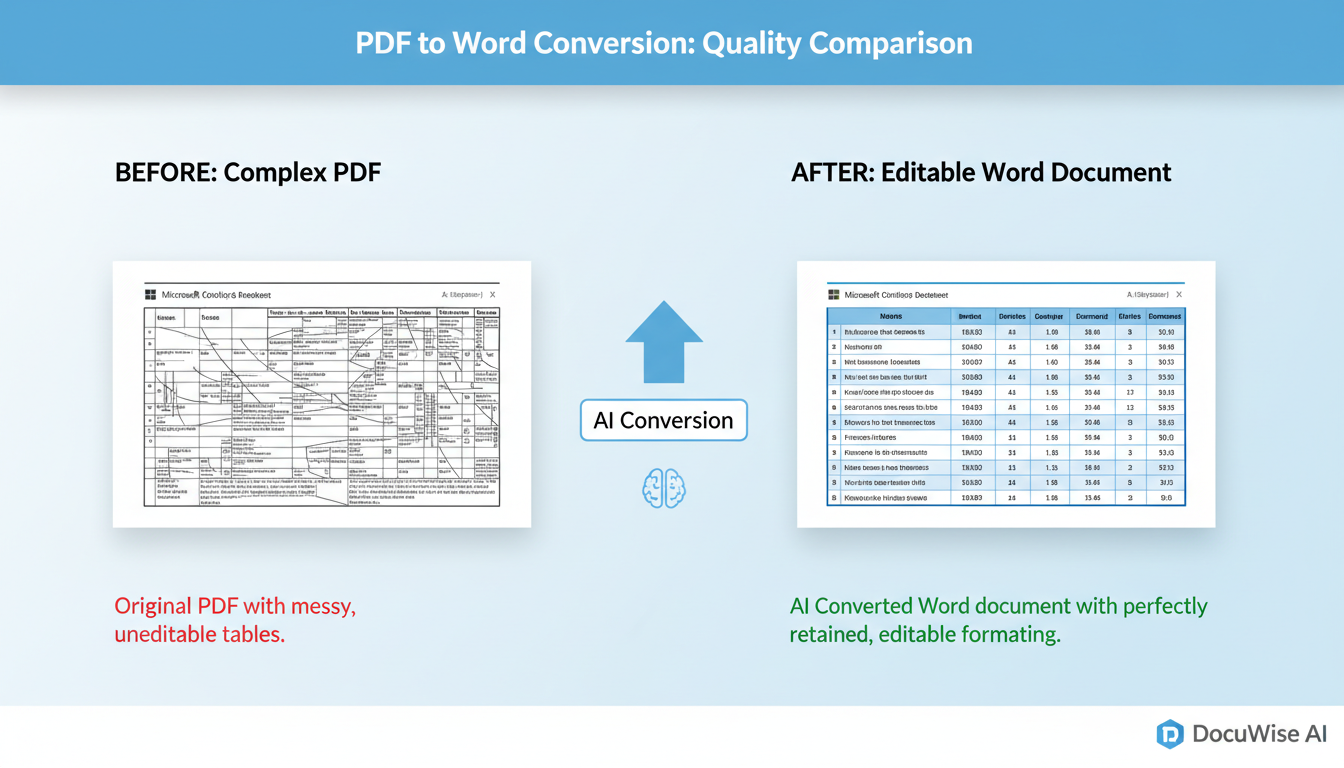
Tables are the ultimate stress test for any converter. Cheap tools will extract the text from a table but strip away the borders, rows, and columns, leaving you with a jumbled mess of numbers. The best tools recognize gridlines and recreate native, editable Microsoft Word tables.
3. Strict Data Security Protocols
Think about what you are converting. Tax returns? Employee contracts? Proprietary business plans? When you use a free online converter, you are uploading your sensitive data to a random server.
⚠️ Watch Out
Never use a free, ad-supported converter for confidential documents. Many of these “free” sites monetize by scraping your data or selling your email address. Always look for tools that explicitly state they use 256-bit SSL encryption and auto-delete files within 1 to 2 hours.
4. Batch Processing Capabilities
Converting one file is easy. Converting 50 historical reports for an upcoming audit? That is a nightmare if you have to do it one by one. Premium tools allow you to drag and drop entire folders, processing dozens of files simultaneously while you grab a coffee.
5. Exact Font Matching
Have you ever converted a file only to find the beautiful corporate font replaced by standard Arial or Times New Roman? High-end converters analyze the embedded fonts in the PDF. If you have that font installed on your system, it maps it perfectly. If you don’t, it selects the closest possible structural match to preserve the layout.
6. Generous File Size Limits
Most free cloud converters cap your uploads at 5MB or 10MB. That is fine for a two-page text document, but a graphics-heavy presentation or a scanned legal brief will easily exceed 50MB. Check the file size limits before committing to a platform.
7. Cross-Platform Compatibility
Your workflow shouldn’t be tied to a single desk. The ideal solution offers a web-based portal for quick edits on your laptop, a mobile app for on-the-go conversions, and a desktop application for heavy, offline processing.
Desktop vs. Cloud Converters: Which is Better?
This is the most common debate in document management. Should you download heavy software or just use a website? The answer depends entirely on your workflow and security requirements.
Here is a breakdown based on our industry research and testing:
| Feature | Cloud-Based Converters (Web) | Desktop Software (Mac/PC) |
|---|---|---|
| Accessibility | Excellent. Works on any device with a browser. | Limited to the installed machine. |
| Security | Moderate. Files must be uploaded to a server. | High. Files never leave your local hard drive. |
| Processing Speed | Depends on your internet connection. | Depends on your computer’s CPU/RAM. Usually faster. |
| Offline Use | Impossible. Requires internet. | Perfect. Works anywhere, anytime. |
| Cost | Often subscription-based (SaaS). | Usually a one-time lifetime license. |
🎯 Key Takeaway
If you handle highly sensitive legal, medical, or financial documents, desktop software is your safest bet. For students, freelancers, and general office workers needing quick, occasional edits, a secure cloud-based tool is much more convenient.
Step-by-Step: How to Convert Without Losing Formatting
Even with the best PDF to Word converter, user error can still ruin a document. Follow this exact workflow to guarantee a flawless conversion every single time.
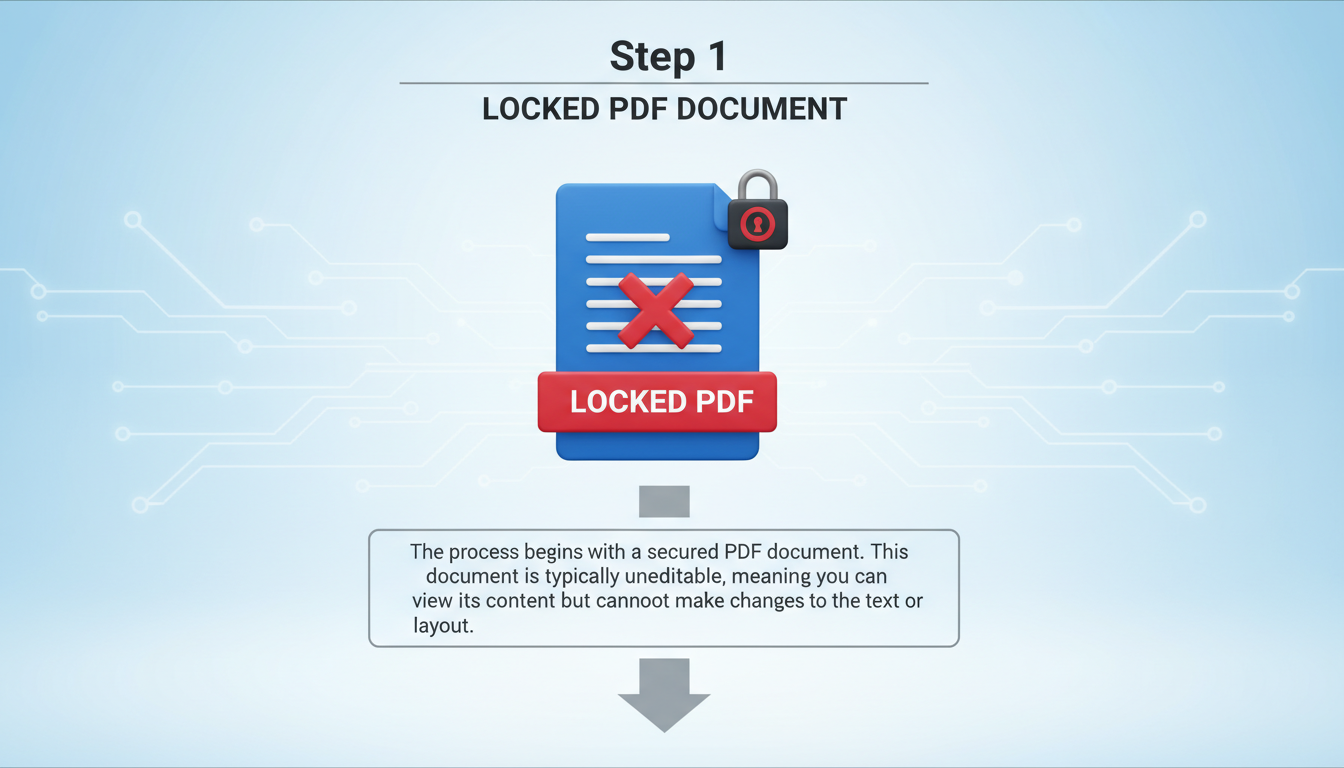
- Perform a Pre-Flight Check: Open your PDF. Is it a scanned image or native text? Try highlighting a single word with your mouse. If you can highlight text, it is native. If the whole page highlights in blue, it is a scan, and you will absolutely need OCR.
- Select Your Tool: Open your chosen converter. If dealing with sensitive data, disconnect from the internet and use your desktop software.
- Configure Output Settings: Don’t just hit “Convert.” Look for a settings gear. Ensure “Retain Flowing Text” or “Retain Page Layout” is selected. If it’s a scan, explicitly check the “Enable OCR” box and select the document’s language.
- Upload and Convert: Drag your file into the drop zone. Let the engine do its work.
- The “Hidden Characters” Review: Open the new .docx file in Word. Immediately click the “Show/Hide ¶” button on the Home ribbon. This reveals hidden formatting marks. Look for excessive paragraph breaks or weird spacing that might cause issues when you start typing.
- Save As: Before making edits, save the document as a new version so you always have the raw conversion to fall back on.
💡 Pro Tip
If your converted Word document has weird line breaks at the end of every single sentence, don’t delete them manually. Use Word’s “Find and Replace” feature. Search for “^p” (paragraph mark) and replace it with a single space. This fixes broken paragraphs in seconds.
Troubleshooting Common Conversion Nightmares
Look, technology isn’t perfect. Even industry-leading tools occasionally stumble on complex layouts. In our experience, 90% of conversion errors fall into a few predictable categories. Here is how to fix them fast.
| The Problem | The Likely Cause | The Quick Fix |
|---|---|---|
| Text is completely uneditable (acts like a picture). | The original PDF was a scan, and you didn’t use OCR. | Re-run the conversion, but this time, ensure the OCR setting is toggled ON. |
| Weird symbols instead of letters (e.g., “th$ b@y”). | Font encoding error. The PDF used a custom, unlicensed font. | Select all text in Word (Ctrl+A) and change the font to a standard web-safe font like Arial or Calibri. |
| Headers and footers are mixed into the main text. | The converter failed to recognize page margins. | Manually cut the text, double-click the header zone in Word, and paste it where it belongs. |
| Table borders are missing, but text is there. | The PDF used graphical lines instead of native table borders. | Highlight the text block, go to Insert > Table > Convert Text to Table in Word. |
Security: Are Online Converters Actually Safe?
This is a question I get asked constantly. The short answer? It depends entirely on who built the tool.
According to global data privacy guidelines (like GDPR and CCPA), any company handling your files must be transparent about data retention. Reputable companies use automated scripts that purge your files from their servers the moment your download is complete, or at most, within 24 hours.
However, the internet is littered with malicious sites. If a website looks like it was built in 2005 and is plastered with flashing banner ads, run away. They are likely harvesting the data inside your documents.
⚠️ Watch Out
Never convert documents containing Social Security Numbers, bank account details, or medical records on a free cloud converter. The risk of a server breach or silent data harvesting is simply too high. Spend the money on secure desktop software.
When evaluating a cloud tool, scroll to the footer of their website. Look for a “Security” or “Privacy Policy” page. You want to see three things: End-to-end encryption (TLS/SSL), ISO 27001 certification, and a strict zero-retention policy.
Frequently Asked Questions
Can I convert a PDF to Word for free without losing formatting?
Yes, but with caveats. Premium tools offer limited free tiers (usually 1-2 files per day) that retain formatting beautifully. Completely free, unlimited tools usually rely on basic extraction engines that will break complex layouts and tables.
Why does my converted Word document look like a bunch of images?
This happens when you convert a scanned PDF without using Optical Character Recognition (OCR). The converter just took the pictures of the pages and pasted them into Word. You need to use a tool with OCR capabilities to extract the actual text.
Is it possible to convert a password-protected PDF?
Only if you know the password. Legitimate converters will prompt you to enter the document’s password before they begin the conversion process. They cannot bypass heavy encryption on their own.
Does Microsoft Word have a built-in PDF converter?
Yes. Since Word 2013, you can open a PDF directly in Microsoft Word. However, it uses a basic “reflow” method. It works well for simple text documents but frequently breaks down when dealing with complex formatting, columns, or intricate tables.
Will the converter change my fonts?
If the original PDF uses a proprietary font that isn’t installed on your computer, the converter will substitute it with the closest available match (like swapping a custom sans-serif for Arial). To fix this, you must install the original font on your machine.
Conclusion: Stop Fighting Your Documents
In a fast-paced digital workspace, you simply don’t have time to manually retype documents or fix broken paragraph breaks for hours on end. The ability to seamlessly transition between locked layouts and editable text is a massive productivity booster.
Finding the best PDF to Word converter comes down to understanding your specific needs. If you deal with scanned paper, OCR is your best friend. If you handle sensitive client data, desktop software is your shield. And if you just need to tweak a resume once a year, a reputable cloud tool will do the trick.
Stop letting locked files dictate your workflow. Audit your current document process, choose a tool that respects your formatting and your privacy, and get back to doing the work that actually matters.

