
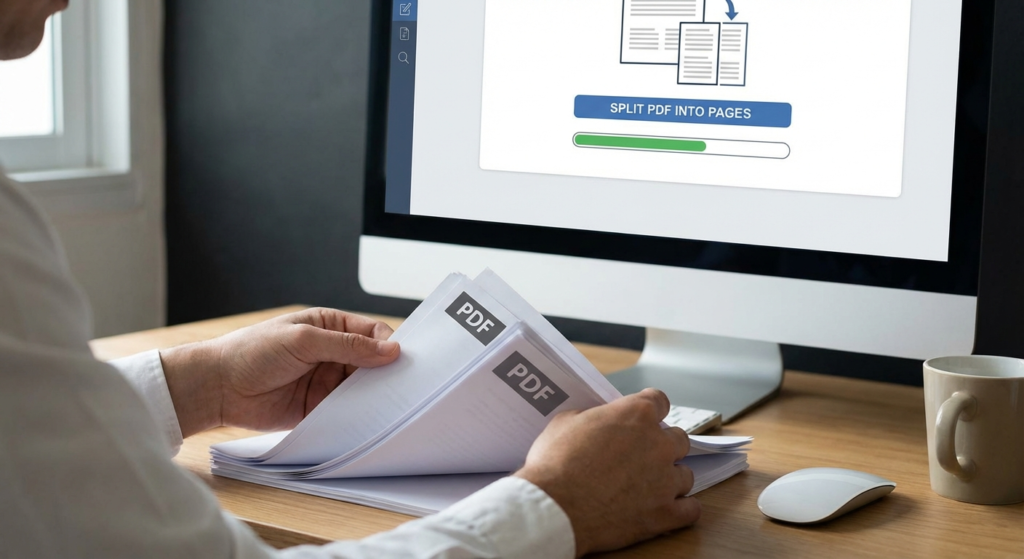
Picture this: It’s 4:55 PM. You’re trying to email a critical quarterly report to a client. You hit send, and—bam. The email bounces back. The file size exceeds the 25MB limit. Panic sets in.
We’ve all been there. You’re staring at a 200-page document, but you only need pages 12 through 15. Sending the whole file isn’t just inefficient; it’s unprofessional. It clogs up inboxes and forces the recipient to hunt for the relevant information like a needle in a haystack.
This is where a high-quality PDF splitter becomes your best friend.
In my experience managing digital assets for enterprise clients, I’ve learned that document agility is everything. Whether you’re a student isolating research chapters, a lawyer extracting specific case files, or a business owner managing invoices, knowing how to split PDF into pages is a non-negotiable skill.
In this guide, we aren’t just going to cover the basics. We’re going deep into the mechanics, the security protocols you need to watch out for, and the “hidden” features in your browser that can save you money.
📑 What You’ll Learn
Why “File Hygiene” Matters More Than You Think
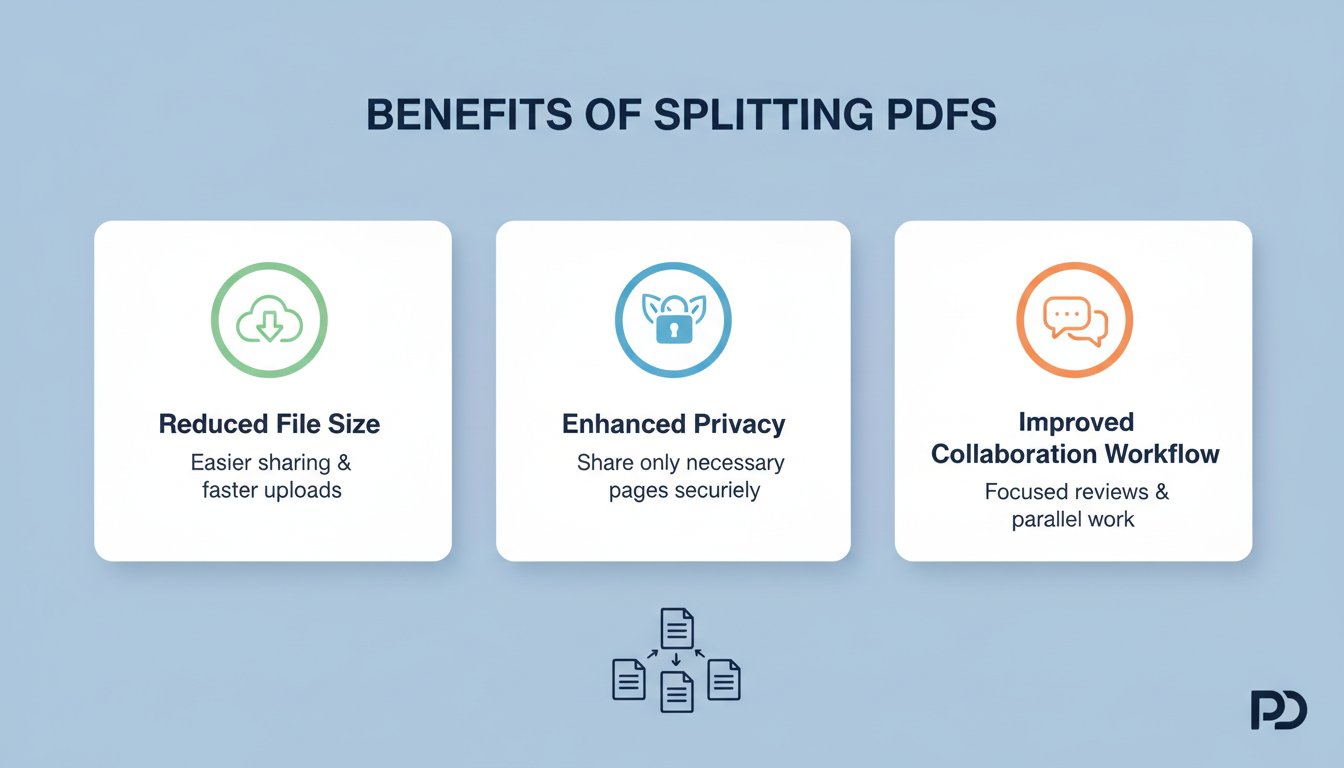
In the modern digital workspace, efficiency is currency. Keeping entire files when you only need a fraction of the data is what I call “digital hoarding.” It slows down workflows, eats up cloud storage costs, and frustrates collaborators.
But it goes beyond just file size limits. Using a PDF splitter is about control and presentation.
Think about it. If you send a client a 50-page contract but only need a signature on page 48, you’re creating friction. By extracting that single page, you reduce the cognitive load on the recipient. You make it easy for them to say “yes.”
Furthermore, there’s the issue of data privacy. You might have a bank statement where only the first page is relevant for a loan application, but the subsequent pages show transactions you’d rather keep private. Splitting the file allows you to sanitize the document before sharing it.
The Mechanics: How Splitting Actually Works
Let’s get technical for a second—but keep it simple. Understanding how these tools function helps you troubleshoot when things go wrong.
A PDF (Portable Document Format) isn’t just a digital piece of paper. It’s a complex container of code. When you use a PDF splitter, the software doesn’t just “cut” the image like a pair of scissors. It reads the file’s metadata and internal structure (the “xref table” for the geeks among us).
The tool identifies the specific page objects you requested and reconstructs a new file structure containing only those elements. This is crucial. A high-quality splitter ensures that fonts, vector layers, and accessibility tags remain intact. A poor-quality one might just flatten everything into a pixelated image, ruining the text’s searchability.
🎯 Key Takeaway
Splitting a PDF isn’t just about deleting pages; it’s about reconstructing a new, leaner document structure. Always use tools that preserve text encoding so your new file remains searchable and clear.
Comparison: Online vs. Desktop vs. Browser
Not all tools are created equal. The market is flooded with options, from free web-based utilities to expensive enterprise suites like Adobe Acrobat Pro. Which one should you use? It depends entirely on your specific needs regarding volume, security, and frequency.
Here is a breakdown of how the different methods stack up:
| Feature | Online Splitters (Cloud) | Desktop Software | Browser (Print to PDF) |
|---|---|---|---|
| Cost | Usually Free (Freemium) | $$$ (One-time or Sub) | Free (Built-in) |
| Security | Medium (Files leave PC) | High (Local processing) | High (Local processing) |
| Speed | Dependent on Internet | Fastest | Fast |
| Batch Processing | Yes (Premium versions) | Yes (Excellent) | No (One by one) |
| Best For… | Quick, non-sensitive tasks | Heavy daily use & legal docs | Occasional, single files |
The “Print to PDF” Browser Hack
Here is a little secret that software companies don’t want you to know: You probably already have a PDF splitter installed on your computer right now. It’s your web browser.
Google Chrome, Microsoft Edge, and Safari all possess a “Print to PDF” engine. This is my go-to method for quick, one-off jobs because it requires zero uploads and zero software installation.
💡 Pro Tip
This method strips interactive elements. If your original PDF has fillable forms or clickable hyperlinks, “Print to PDF” will flatten them. Use a dedicated tool if you need to keep those features active.
How to do it (The “Hack”):
- Open the File: Right-click your PDF and select Open with > Google Chrome (or Edge).
- Trigger Print: Press Ctrl + P (Windows) or Cmd + P (Mac).
- Change Destination: In the print dialog, change the printer from your physical printer to “Save as PDF” or “Microsoft Print to PDF”.
- Select Pages: Under the “Pages” dropdown, switch from “All” to “Custom”.
- Input Range: Type the pages you want (e.g., “2-5, 8”).
- Save: Click Save and name your new file.
It’s fast, it’s free, and your data never leaves your computer.
Step-by-Step: Using a Dedicated Online Splitter
If you need to split a massive 500-page document into 50 separate files, the browser trick won’t cut it. You need a dedicated PDF splitter with batch processing capabilities. Tools like Adobe online, SmallPDF, or iLovePDF are popular here.
Here is the standard workflow for most online tools:
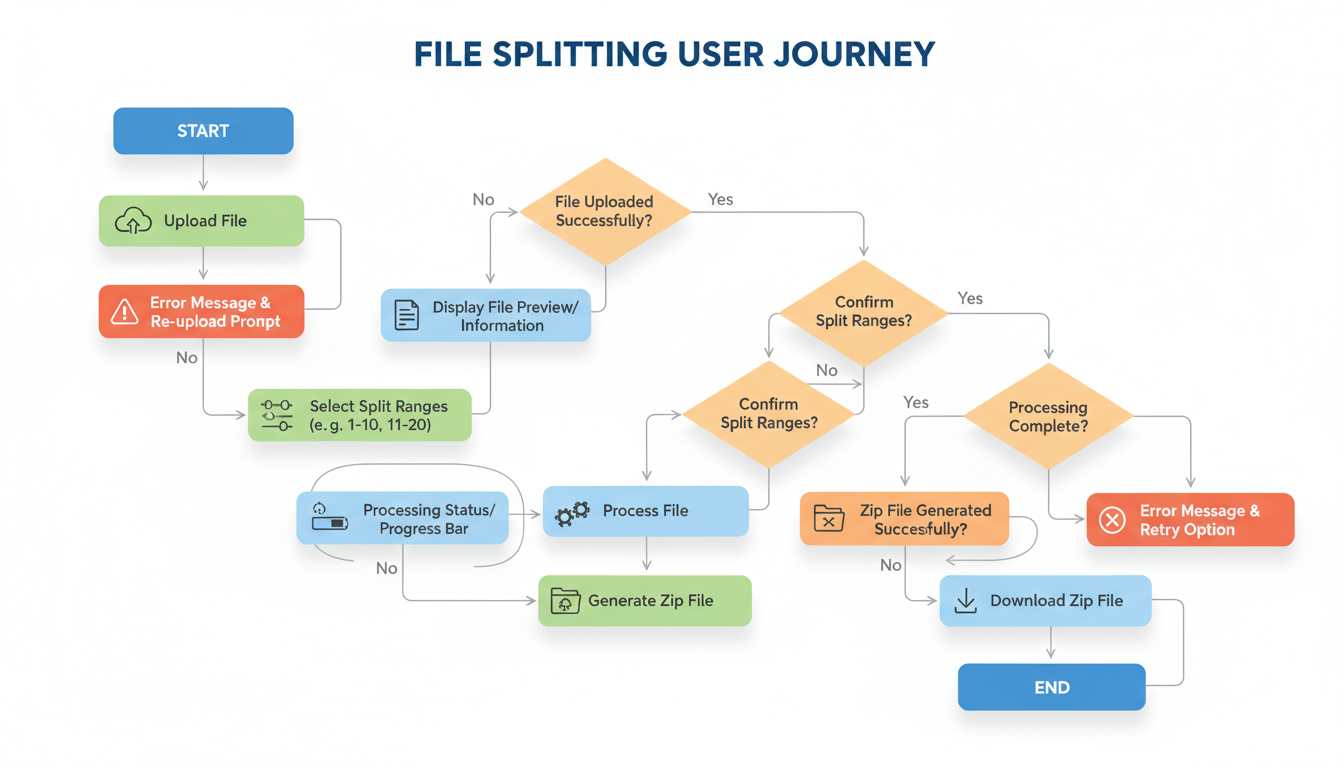
- Upload: Drag and drop your file onto the platform.
- Choose Mode: You will usually see two options:
- Split by Range: “I want pages 1-10 as one file, and 11-20 as another.”
- Extract Pages: “I just want page 5 and page 9.”
- Visual Selection: Most modern tools give you a grid view. You can click the pages you want to keep (or delete). This visual confirmation is a lifesaver to avoid errors.
- Process: Click “Split PDF.” The server processes the request.
- Download: You’ll typically get a ZIP file containing your new documents.
Security: When NOT to Use Free Tools
I cannot stress this enough: Convenience should never trump security.
When you upload a document to a free online PDF splitter, you are uploading that file to a remote server. While reputable companies encrypt this transfer and delete files automatically, you are still taking a risk.
⚠️ Watch Out
Never upload bank statements, medical records (HIPAA violations), or unreleased legal contracts to a free, ad-supported online converter. If the service is free, your data might be the product. For sensitive docs, stick to offline desktop software.
Check the Privacy Policy: Before uploading, look for a clear statement that files are permanently deleted after 1-2 hours. Also, ensure the site uses SSL encryption (look for the padlock in the URL bar).
Advanced Workflow: Organizing Your Split Files
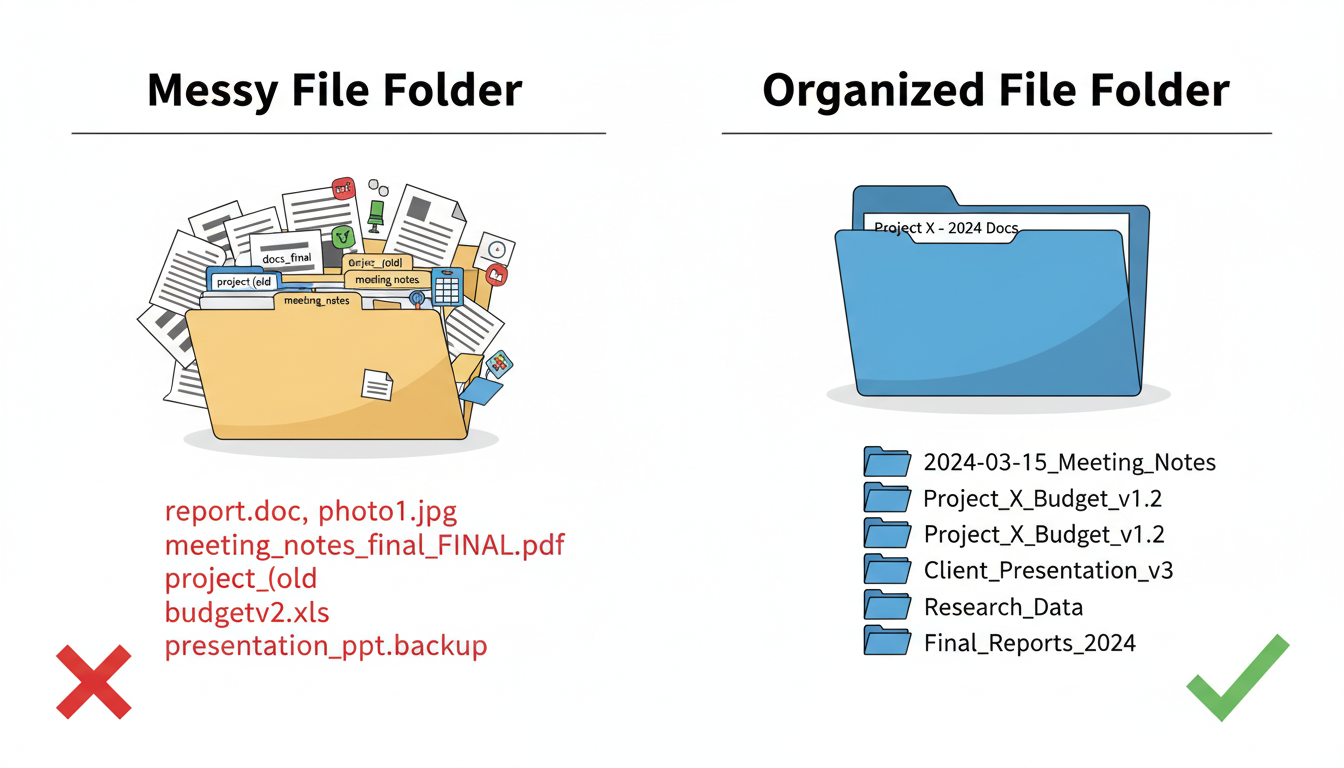
Splitting the file is only half the battle. If you end up with 20 files named “document-split-1.pdf,” you haven’t organized anything; you’ve just created clutter.
From real-world campaigns I’ve managed, I recommend a strict naming convention immediately after splitting. Don’t wait.
The ISO Date Format: Start filenames with YYYY-MM-DD. This ensures that when you sort by name, your files also sort chronologically.
Bad: Invoice_March_ClientA.pdf
Good: 2024-03-15_Invoice_ClientA_Page1.pdf
Just as website administrators use robots.txt and sitemap.xml to structure data for search engines, you need to structure your local files for human retrieval. Future-you will thank present-you for the extra ten seconds of effort.
❓ Frequently Asked Questions
Can I split a password-protected PDF?
Not directly. A PDF splitter needs to read the file structure to separate the pages. If the file is encrypted, you must enter the password to unlock it first. Once unlocked, you can split it like any normal document.
Does splitting a PDF reduce image quality?
It shouldn’t. A high-quality splitter extracts the page “objects” without re-compressing them. However, some low-quality free tools might “rasterize” the pages (turn them into flat images), which can blur text. Always check your output file.
Is there a limit to how many pages I can split?
Online tools often have caps (e.g., 100MB file size or 200 pages) to save server bandwidth. Desktop software usually has no limit, allowing you to process documents with thousands of pages.
Can I merge pages back together after splitting?
Absolutely. Most tools that offer splitting also offer merging. You can take Page 1 from Document A and Page 5 from Document B and combine them into a new master file using a PDF Merger.
Does Windows 11 have a built-in splitter?
Windows doesn’t have a dedicated app named “Splitter,” but the “Microsoft Print to PDF” feature acts as one. Additionally, the Edge browser has excellent built-in PDF handling capabilities.
Conclusion
Mastering the PDF splitter is a small technical skill that yields massive returns in productivity. It stops the “file size bounce-back” nightmare, protects your private data, and keeps your digital filing cabinet pristine.
Whether you opt for the quick-and-dirty browser trick or invest in professional desktop software, the key is to choose the right tool for the sensitivity of your data. Don’t let massive documents slow you down. Split them up, organize them properly, and get back to work.
Ready to optimize your other digital workflows? Check out our guides on data visualization tools like the histogram generator to keep your productivity climbing.

