
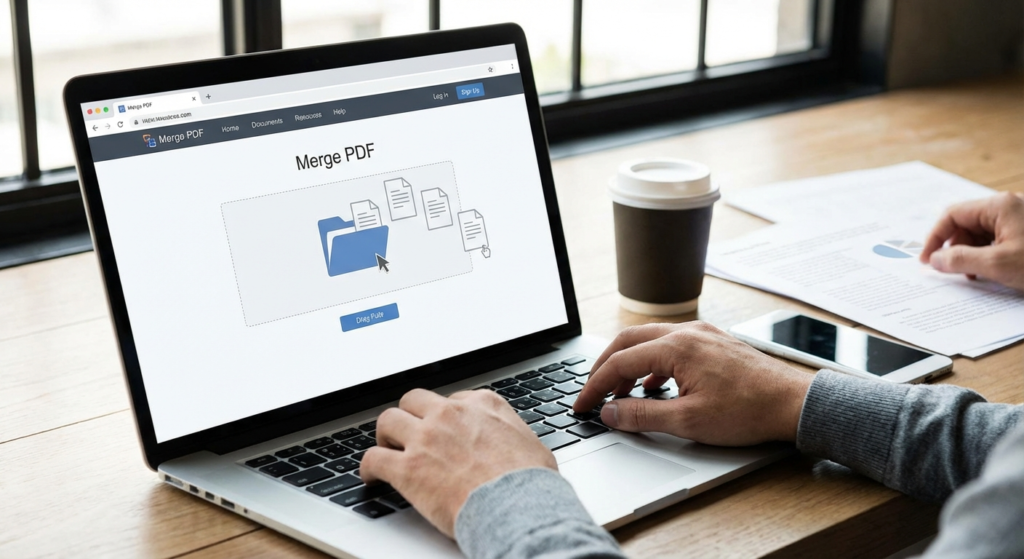
Picture this: You just wrapped up a massive project. You have the signed contract in one file, the project scope in another, and the invoice sitting in a third folder. You attach all three to an email and hit send.
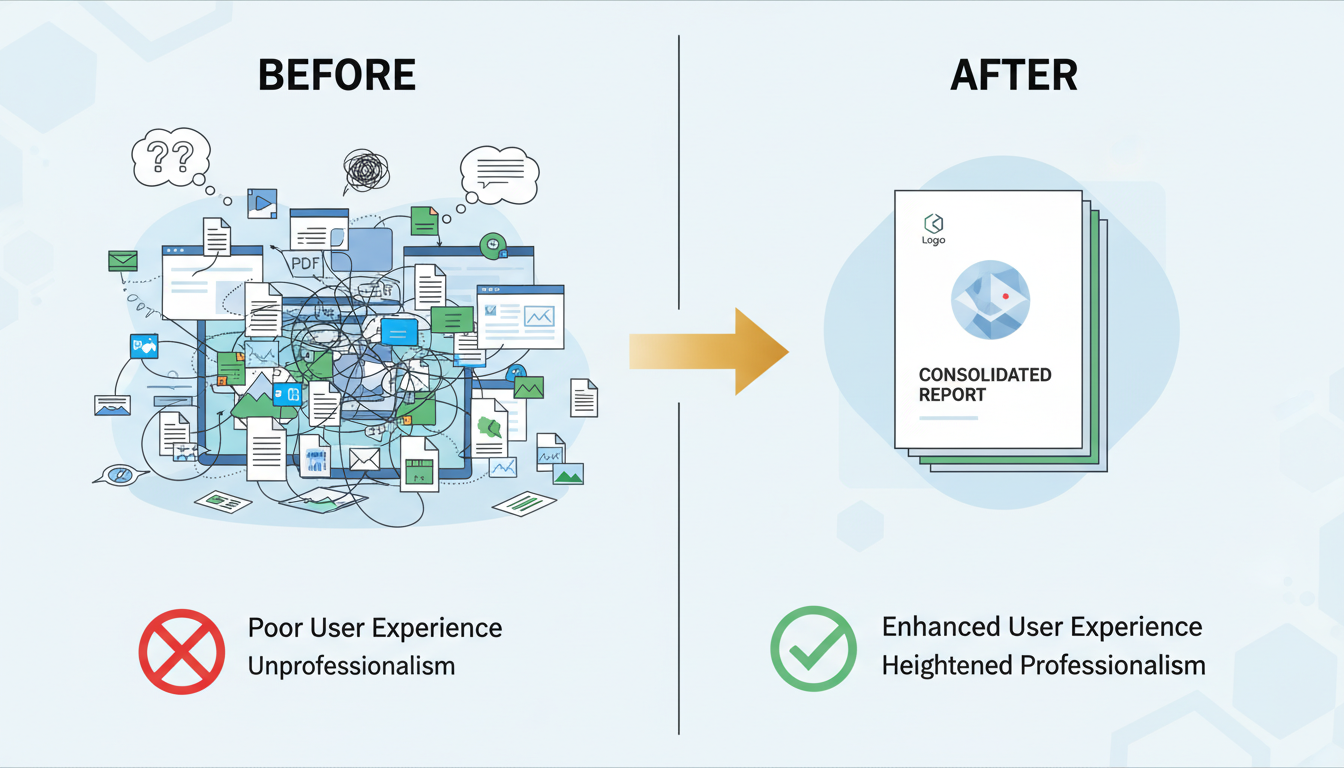
It feels productive, right? But to the client receiving that email, it looks like homework. They have to download, open, and keep track of three separate documents. It’s messy. It’s disjointed. And honestly? It doesn’t look professional.
Here’s the reality I’ve learned after a decade in digital content strategy: Presentation is 50% of the work.
The ability to merge PDF files into a single, cohesive binder is one of those “small” skills that yields massive returns. It turns a scattered mess into a polished package. Whether you’re a student submitting a thesis or a CEO pitching a deck, a single, clean PDF commands respect.
In this guide, we aren’t just going to tell you to “upload and click.” We’re going deep. We’ll cover seven distinct ways to combine documents, the security risks you need to watch out for, and the exact workflow pros use to keep their digital lives organized.
📑 What You’ll Learn
The Psychology of a Single File: Why It Matters
Before we get into the how, let’s talk about the why. I’ve seen deals stall simply because information was hard to find. When you force a recipient to click back and forth between attachments, you increase cognitive load. You’re making them work to understand your value.
When you merge PDF files, you control the narrative. You dictate the order in which the reader sees the information. You lead them from the introduction to the data, and finally to the conclusion, exactly as you intended.
From a data management perspective, it’s also a safety net. A single file is harder to lose than page 4 of a 10-page contract sent as a loose JPEG.
🎯 Key Takeaway
Merging PDFs isn’t just about cleaning up your desktop; it’s a communication strategy. A single, merged document reduces friction for the recipient, ensures no pages get lost, and presents you as an organized professional who respects the reader’s time.
7 Efficient Ways to Merge PDF Files
Most guides give you one method. We’re giving you seven. Why? Because the tool you use should depend on the device you’re on and the sensitivity of your data. After testing dozens of workflows, here are the most efficient methods.
1. Dedicated Online PDF Mergers (The Quickest Fix)
Tools like iLovePDF, Smallpdf, or SodaPDF are the industry go-tos for a reason. They are browser-based, meaning you don’t need to install anything. Perfect for quick, non-sensitive tasks.
2. Browser Extensions
If you merge files daily, navigating to a website gets tedious. Extensions for Chrome or Edge let you merge PDF files directly from your browser toolbar. It saves clicks and keeps you in your flow.
3. Google Drive Integration
For those living in the cloud, connecting a tool like PDF Mergy directly to Google Drive allows you to select files, right-click, and merge them without ever downloading them to your hard drive. This is a massive time-saver for Chromebook users.
4. Mac Preview (The Hidden Gem)
If you use a Mac, stop looking for online tools. The built-in ‘Preview’ app is powerful. You can simply drag a thumbnail from one PDF into the sidebar of another. It’s free, instant, and keeps your data offline.
5. The “Print to PDF” Hack (Windows)
On Windows, you can highlight multiple files in Explorer, right-click, select “Print,” and choose “Microsoft Print to PDF” as your printer. It stitches them together. It’s a bit clunky, but it works in a pinch without third-party software.
6. Mobile Scanning Apps
Apps like Adobe Scan or CamScanner aren’t just for photos. They allow you to select multiple existing PDFs on your phone and combine them. Ideal for when you’re out of the office and need to fire off a report immediately.
7. Adobe Acrobat Pro (The Heavy Hitter)
This is the gold standard. It’s paid, but it offers features free tools don’t, like preserving bookmarks, creating a table of contents automatically, and handling massive file sizes without crashing.
💡 Pro Tip
Naming Matters. Before you merge, rename your source files with numbers (e.g., “01_Intro.pdf”, “02_Data.pdf”). Most tools will automatically sort them by filename, saving you the hassle of manually dragging and dropping pages into the right order later.
Step-by-Step: The Online Method
For 90% of users, a reputable online tool is the best balance of speed and ease. Here is the exact workflow we recommend to ensure quality results.
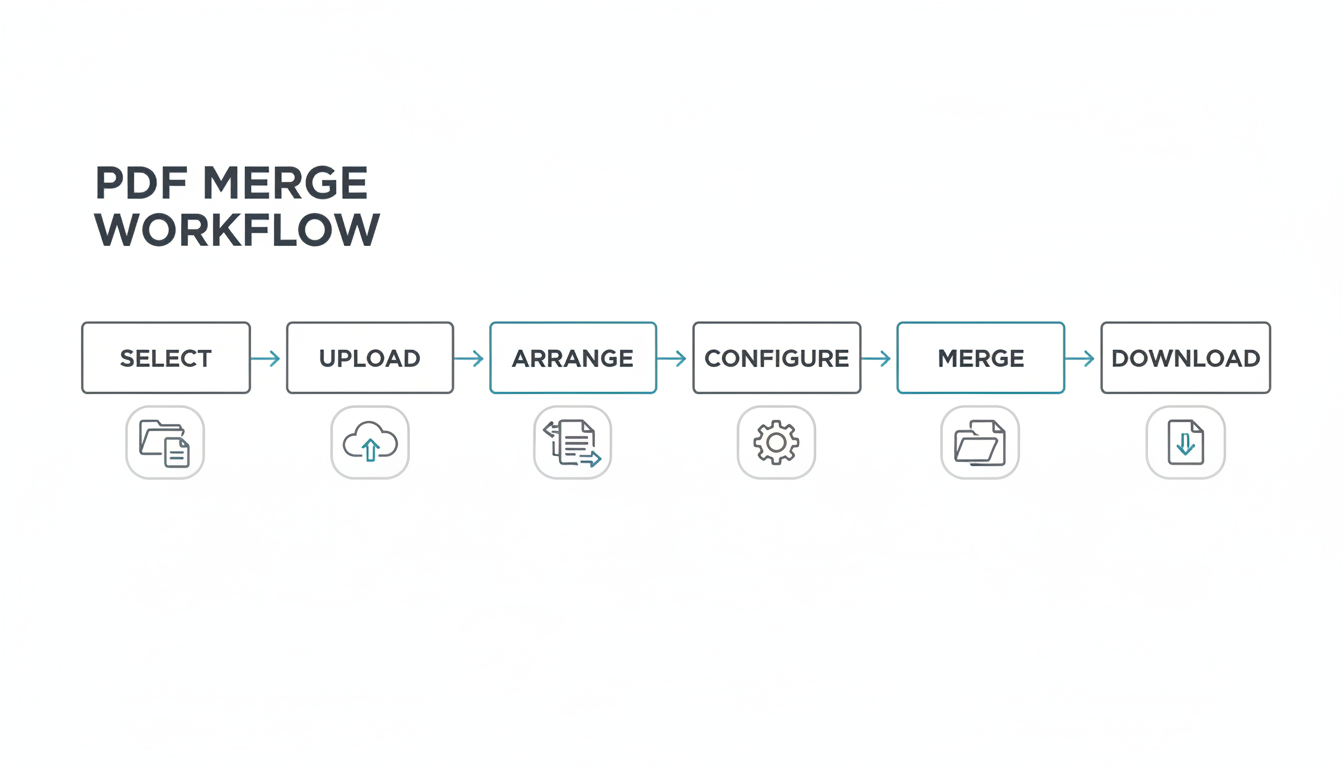
- Choose a Reputable Tool: Stick to established brands. Look for the padlock icon (HTTPS) in the URL bar.
- Batch Upload: Don’t upload one by one. Select all your files on your computer and drag them all at once into the “drop zone.”
- The “Storyboard” Phase: This is critical. You will see thumbnails of your files. Drag them around to set the narrative flow. Does the cover letter come first? Is the appendix last?
- Delete Unwanted Pages: Most tools allow you to expand a file and delete specific blank pages before the merge. Do this now to avoid a sloppy final product.
- Merge and Compress: Hit the “Merge” button. Once done, look for a “Compress” option on the download page. Merging five 5MB files creates a 25MB email attachment—too big for many inboxes. Compressing it can bring it down to 5MB without noticeable quality loss.
Comparison: Online Tools vs. Desktop Software
I often get asked, “Should I pay for software or just use the free stuff?” The answer depends entirely on your data privacy needs and frequency of use.
| Feature | Online Tools (Free/Freemium) | Desktop Software (Paid/Pro) |
|---|---|---|
| Cost | Free (usually) | $15 – $20/month |
| Privacy | Files uploaded to cloud server | Files stay on your device |
| Speed | Dependent on internet speed | Instant (uses CPU power) |
| File Limits | Often capped (e.g., 2 files/hour) | Unlimited |
| Editing Power | Basic (Merge, Split, Rotate) | Advanced (Edit text, Redact, OCR) |
Security: Is It Safe to Upload Your Data?
This is the elephant in the room. When you upload a contract to a free website, where does it go?
In our experience analyzing terms of service, most reputable platforms process your file and then scrub it from their servers within 1 to 2 hours. They use SSL encryption during the transfer, which is the same security standard banks use.
However, “secure” does not mean “private.” You are still handing your data to a third party.
⚠️ Watch Out
Never upload documents containing PII (Personally Identifiable Information) like Social Security numbers, bank account details, or medical records to a free online merger. For these documents, always use offline desktop software like Adobe Acrobat or PDFsam Basic (Open Source) to ensure the data never leaves your machine.
Pro Workflows: Pre and Post-Merge Tips
Merging is easy. Merging well takes a bit of finesse. Here are the nuances that separate a rookie document from a pro one.
Standardize Your Page Sizes
Have you ever opened a PDF where page one is a standard Letter size, and page two is a giant A3 spreadsheet that forces you to zoom out? It’s jarring. Before you merge PDF files, try to ensure they are similar dimensions. If you have mixed orientations (Portrait and Landscape), that’s fine—just ensure the text is readable without the user having to rotate their head.
Fix the Page Numbers
This is a common error. If you merge three documents that each have “Page 1 of 5” at the bottom, your final 15-page document will have three “Page 1s.” It’s confusing. If possible, remove page numbering from the source files and add fresh pagination to the final merged document using the tool’s “Add Page Numbers” feature.
💡 Pro Tip
OCR is your friend. If you are merging scanned images, the final PDF won’t be searchable. Run an “OCR” (Optical Character Recognition) process on the final file. This makes the text selectable and searchable, which is a lifesaver for legal bundles or research papers.
⚠️ Watch Out
Broken Links and Bookmarks. When you merge files, existing hyperlinks usually survive, but internal bookmarks (Table of Contents links) often break because the page references change. Always double-check your navigation links in the final document before sending it out.
Conclusion
Managing digital documents doesn’t have to be a headache. Whether you choose a quick online drag-and-drop tool for your school assignment or invest in robust desktop software for legal contracts, the goal remains the same: clarity.
By learning how to efficiently merge PDF files, you are doing more than just organizing folders. You are upgrading the way you communicate. You’re ensuring that when you hit “Send,” the recipient sees exactly what you want them to see, in the order you want them to see it.
Your next step? Take those loose files sitting on your desktop right now. Pick one of the seven methods above, merge them, and see how much cleaner your digital workspace feels. Trust me, your future self (and your clients) will thank you.
Frequently Asked Questions
Can I merge PDF files with different page orientations?
Yes, absolutely. Modern PDF tools handle mixed orientations (Portrait and Landscape) seamlessly. The final document will keep the original orientation of each page. However, for the best reading experience, we recommend rotating pages so all text runs in the same direction.
Will merging PDFs reduce the image quality?
It shouldn’t. Merging is simply a “stitching” process. However, if you select a “Compress” option during the download, the tool might lower the resolution of images to save file size. If quality is your priority (like for a print portfolio), ensure compression is turned off.
Is there a limit to how many files I can combine?
On free online tools, yes. You might hit a wall at 20 files or a total size of 100MB. If you need to merge hundreds of files, you will likely need to upgrade to a premium account or use desktop software like PDFsam or Adobe Acrobat.
How do I rearrange pages after uploading?
Almost all online mergers feature a drag-and-drop interface. Once your files are uploaded, you will see them as thumbnails. Click and hold a thumbnail to move it left or right in the sequence. What you see on the screen is the order the final PDF will follow.
Can I merge password-protected PDFs?
Generally, no. You will need to provide the password to unlock the file before the tool can merge it. Some advanced tools will prompt you to enter the password during the upload process, but you cannot merge a locked file if you don’t have the key.

