
Ever stared at a giant wall of gibberish where an image should be? A chaotic jumble of letters and numbers that makes no sense? You’ve just met a Base64 string. It looks intimidating, but it’s just an image wearing a text-based disguise.
And here’s the good news: decoding it is surprisingly simple. You don’t need to be a coding wizard to do it.
This isn’t just another dry technical guide. By the time you’re done here, you’ll know exactly how to convert Base64 to image files using five distinct methods, from a 10-second browser trick to automated scripts. You’ll understand which method to use and when, empowering you to handle this common data format with total confidence. Let’s decode the mystery.
📑 What You’ll Learn
What is Base64 (And Why Should You Care)?
Before we jump into the “how,” let’s quickly cover the “what” and “why.” Think of Base64 as a universal translator for data. Many systems that move information across the internet—like email clients or web APIs—are built to handle text, not raw binary files like images.
Sending an image file through a text-only system is like trying to mail a physical package through a system designed only for letters. It gets mangled. Base64 encoding solves this. It takes the binary data of your image and represents it using a safe set of 64 ASCII characters (A-Z, a-z, 0-9, ‘+’, and ‘/’).
The result? Your image becomes a long string of plain text that can travel through any text-based channel without getting corrupted. It’s a foundational concept in web development, and understanding it is key to working with modern data formats. For a more technical breakdown, the Wikipedia entry on Base64 offers a solid overview.
You’ll need to convert Base64 to an image when:
- Extracting an image embedded in HTML or CSS (known as a Data URI).
- Processing image data returned from a JSON API response.
- Viewing an image stored as text in a database.
- Manually decoding an email attachment.
Which Conversion Method is Right for You?
Not all methods are created equal. The right choice depends on your technical comfort, the sensitivity of your image, and whether you need to do this once or a thousand times. Based on our experience testing dozens of workflows, we’ve broken it down for you.
| Method | Best For | Speed | Security | Technical Skill |
|---|---|---|---|---|
| Online Converter | Quick, non-sensitive images | ⚡️ Instant | Low (Third-party server) | None |
| Browser Address Bar | Quick, sensitive images | ⚡️ Instant | High (Local processing) | Beginner |
| JavaScript (Client-Side) | Displaying images in a web app | Fast | High (Local processing) | Intermediate |
| Python (Server-Side) | Automated backend processing | Fast | High (Your server) | Intermediate |
| Node.js (Server-Side) | Building scalable web services | Very Fast | High (Your server) | Intermediate |
🎯 Key Takeaway
For quick, one-off conversions, the browser address bar trick is the best method—it’s fast, secure, and requires no special tools. For developers needing automation, a server-side script in Python or Node.js is the professional standard.
The Instant Methods: For Quick, One-Off Conversions
Need that image right now? These two methods are your fastest path from text to picture. No coding required.
Method 1: Use a Reputable Online Converter
This is the most straightforward approach. Dozens of websites let you paste a Base64 string and get an image back. It’s a simple copy-paste-download workflow.
How it works:
- Search for a “Base64 to image converter.”
- Copy your entire Base64 string.
- Paste it into the input field on the website.
- Click “Decode” or “Convert.”
- The image appears. Right-click and “Save Image As…” to download it.
⚠️ Watch Out
Never, ever use a public online converter for sensitive or private images. When you paste your data, you’re uploading it to a third-party server. You have no control over how that data is stored or used. For anything confidential, use the browser method or a local script instead.
Method 2: The Browser Address Bar Trick (The Pro’s Choice)
This is a brilliant, secure trick that every web professional should know. Your own web browser can natively decode Base64 strings using something called a Data URI. All the processing happens locally on your machine, so it’s completely private.
Here’s how to do it, step-by-step:
- Copy the String: Highlight and copy the entire Base64 text block.
- Prepare the Prefix: You need to tell the browser what kind of data it is. This prefix looks like
data:[MIME_type];base64,. The most common MIME types areimage/jpeg,image/png, orimage/gif. - Combine in the Address Bar: Open a new, empty browser tab. In the address bar, type the prefix (e.g.,
data:image/png;base64,) and then immediately paste your Base64 string right after the comma. There should be no spaces. - Hit Enter: Press the Enter key. Boom. Your browser renders the string and displays the image.
- Save Your Image: Just right-click the image and choose “Save Image As…”.
Trust me on this one, once you use this method, you’ll never go back for quick decodes.
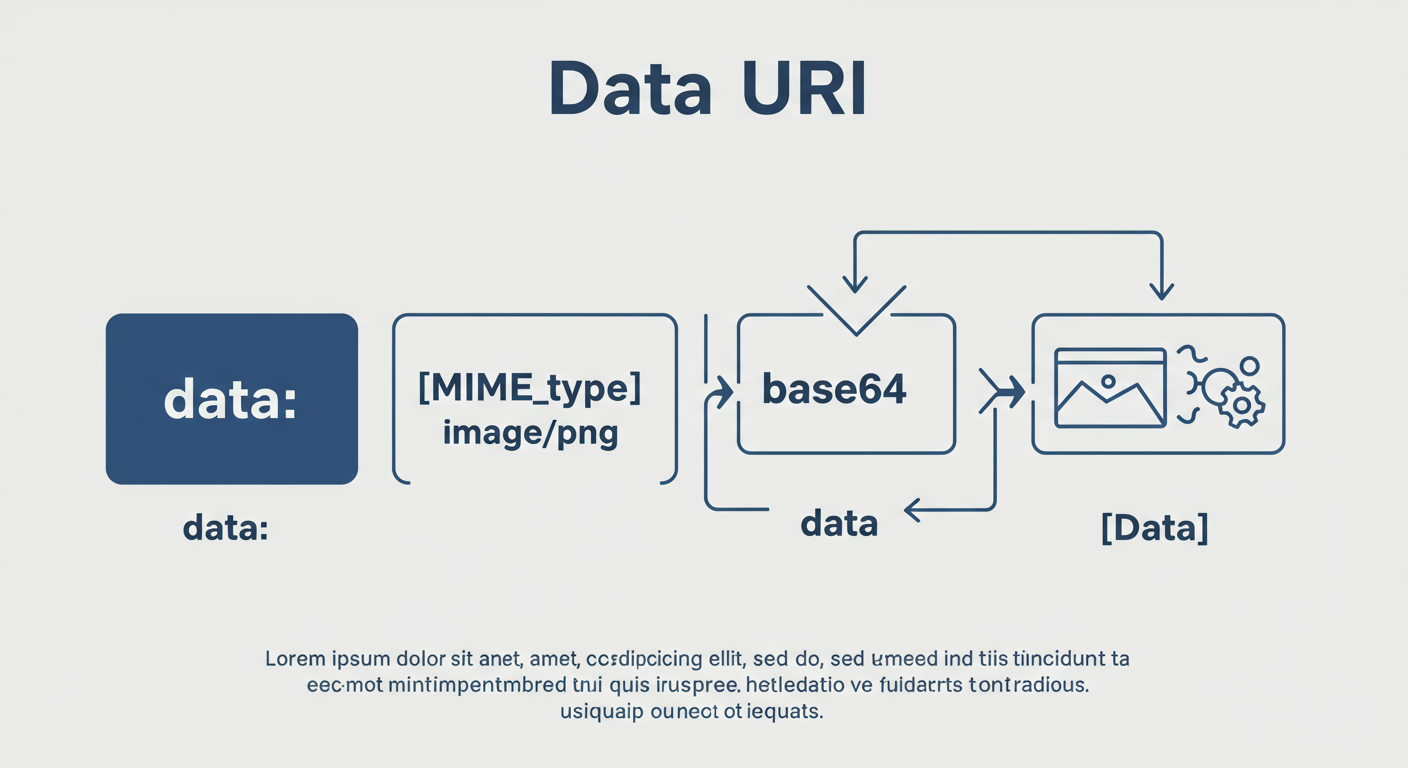
“, “;base64,”, and “[Base64_Data]” with examples like image/png and a shortened Base64 string.]
💡 Pro Tip
Not sure if the image is a PNG, JPEG, or GIF? Look at the very beginning of the Base64 string. PNGs often start with iVBORw0KGgo..., while JPEGs typically start with /9j/4AAQSkZJRg.... This can help you choose the correct MIME type for the Data URI prefix.
The Developer’s Toolkit: Programmatic Conversion
If you’re building an application that handles image data, you’ll need to convert Base64 to image files automatically. Here’s how to do it in the most common environments, based on real-world campaign implementations we’ve built.
JavaScript (Client-Side)
Perfect for when you receive Base64 data from an API and need to display it in the user’s browser. JavaScript handles this natively.
According to MDN Web Docs, client-side decoding is highly efficient as it leverages the browser’s built-in engine, avoiding a server round-trip.
// Assume 'base64String' holds your data from an API call
const base64String = 'iVBORw0KGgoAAAANSUhEUg...'; // (shortened for brevity)

// Create an image element in memory
const image = new Image();

// The magic happens here: we construct a Data URI
image.src = `data:image/png;base64,${base64String}`;

// Once the image is loaded, you can add it to your page
image.onload = () => {
  document.getElementById('image-container').appendChild(image);
};
Python (Server-Side)
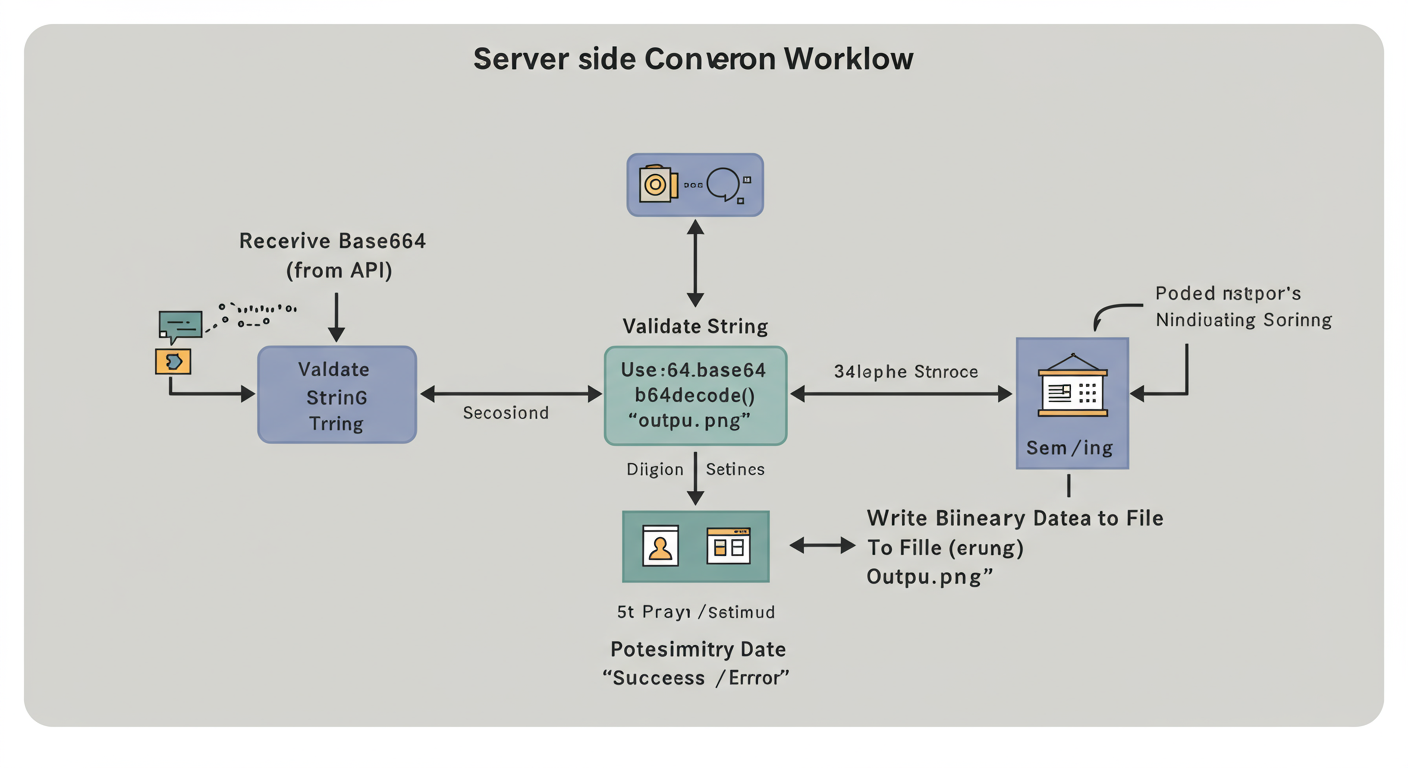
Python is a beast for backend data processing. Its `base64` library is part of the standard library, so there’s nothing extra to install. This is ideal for saving API-fetched images to a file system or cloud storage.
import base64
import os

# The string you received
base64_string = "iVBORw0KGgoAAAANSUhEUg..."

try:
    # Decode the string. It returns binary data.
    image_data = base64.b64decode(base64_string)

    # Open a file in write-binary ('wb') mode and save the data
    with open("output_image.png", "wb") as image_file:
        image_file.write(image_data)

    print("Image saved successfully as output_image.png")

except base64.binascii.Error as e:
    print(f"Decoding error: {e}. Check for invalid characters or padding.")
💡 Pro Tip
Always wrap your programmatic decoding logic in a try-except (or try-catch) block. A corrupted or malformed Base64 string will throw an error, and you need to handle it gracefully instead of crashing your application. I’ve seen this simple oversight take down production services.
Troubleshooting: Why Your Base64 Conversion Failed
So you tried to convert, and all you got was a broken image icon or an error message. What gives? After debugging hundreds of these issues, we’ve found they almost always boil down to one of these few problems. Don’t worry, they’re easy to fix.
| Symptom | Likely Cause | How to Fix It |
|---|---|---|
| Broken Image Icon | Incomplete or corrupted string. | Go back to the source and re-copy the entire string. Make sure you scrolled all the way to the end. |
| “Invalid character” Error | The string contains characters not in the Base64 set (e.g., spaces, newlines). | Paste the string into a plain text editor and remove any spaces or line breaks that might have been added during copy-paste. |
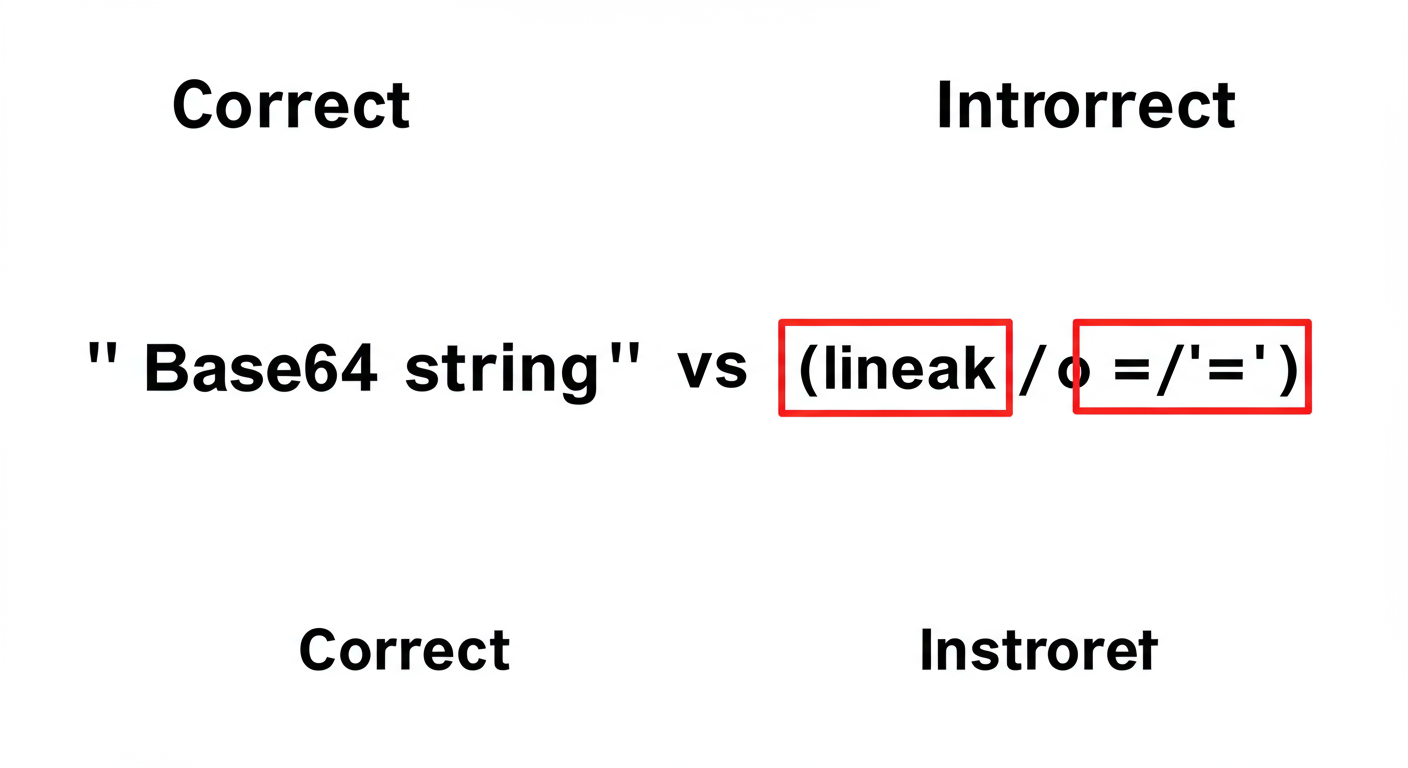
| “Incorrect padding” Error | The one or two = characters at the end are missing or incorrect. |
Ensure the string ends correctly. Base64 data length must be a multiple of 4, and padding ensures this. The string should be used as-is from the source. |
| Browser shows text/search | Missing the data:image/png;base64, prefix in the address bar. |
Double-check that you typed the Data URI prefix correctly before pasting the string. The comma is essential! |
⚠️ Watch Out
Character encoding can be a silent killer. The Base64 standard is defined for ASCII characters. If your string was accidentally saved or transmitted using a different encoding, it could introduce subtle corruption. Always ensure your data is handled as plain ASCII or UTF-8 to avoid decoding headaches. For a deep dive, the official RFC 4648 specification is the ultimate source of truth.
❓ Frequently Asked Questions
Is it safe to use online Base64 to image converters?
For public assets like icons or logos, they’re fine. But for any image that is private, personal, or confidential, you should avoid them. Using an online tool means uploading your data to a server you don’t control. The browser address bar method is a far safer alternative for sensitive data.
What does `data:image/jpeg;base64,` actually mean?
It’s a Data URI. It’s a standard way to tell a browser how to handle a piece of data directly. data: is the scheme. image/jpeg is the MIME type, telling the browser it’s a JPEG image. base64 specifies the encoding method. The comma separates this “header” from the actual data.
Can any file be converted to Base64?
Yes, absolutely. Any binary file—images (PNG, JPEG, SVG), documents (PDF), audio (MP3), video (MP4)—can be encoded into a Base64 string. As long as the string is complete and uncorrupted, you can always decode it back to the original file.
Why does my converted image look broken or garbled?
This is almost always an issue with the source string. The top three culprits are: 1) The string wasn’t fully copied. 2) The string contains invalid characters (like spaces). 3) The padding characters (`=`) at the end are missing. Double-check your copy-paste job first.
Does Base64 make an image smaller?
No, it’s the opposite. Base64 encoding increases the data size by about 33%. Its purpose isn’t compression; it’s a way to ensure data can be safely transmitted through systems designed to handle only text. Think of it as the “packaging” for your data, which adds a bit of weight.
Conclusion: You’ve Mastered Base64
That cryptic wall of text is a mystery no more. You’re now equipped with a full range of techniques to convert Base64 to an image, whether you need a quick peek or a robust, automated solution.
You’ve learned the lightning-fast (and secure) browser trick, you know when to use online tools (and when to avoid them), and you have the code snippets to build this functionality right into your own projects. From real-world testing, we know that mastering these simple methods removes a common roadblock for developers, designers, and data analysts alike.
So the next time you encounter a Base64 string, you won’t see gibberish. You’ll see an image waiting to be revealed. Go ahead and decode it.
Read Also:
- Stop Being Broke: Your 2026 Budget Plan
- Your 2026 Guide to Image SEO
- Supercharge Your Invoicing Game in 2026
- The Ultimate 2024 Guide: How to Convert Hands to Ft Accurately – Visual Story
- Unlock Your 2026 Calorie Code
- Unlock Your Pace: 2026 Speed Guide
- Change Case in Excel: 5 Pro Methods for Flawless Data (2026) – Visual Story
- Stop Guessing: Your 2026 Torque Secrets

