
Picture this: You’ve just hit ‘publish’ on a groundbreaking article. You spent weeks on it. You grab the link, paste it into a post on X (formerly Twitter), and hit send. But instead of the stunning, clickable preview you designed… you get a tiny, generic link. Or worse, nothing at all.
That’s not just a technical glitch. It’s a digital disaster. In the ruthless, fast-scrolling world of social media, that first impression is everything. A broken preview is a guaranteed way to kill your click-through rate before it even has a chance.
But what if you could control that first impression with absolute certainty? What if you could preview, debug, and perfect how your content appears on X, every single time? You can. The secret weapon is a free, official tool: the X Card Validator (often still called the Twitter Card Validator).
This isn’t just another tool for your marketing stack. It’s the bridge between hoping for engagement and commanding it. In this deep dive, you’ll learn not just *how* to use the validator, but how to think like a pro, troubleshoot like an expert, and ensure every link you share is a powerful magnet for clicks.
📑 What You’ll Learn
What Are X Cards, Really? (And Which to Use)
Before we master the validator, let’s get crystal clear on what we’re validating. X Cards are the rich media previews automatically generated from a URL. They transform a boring blue link into a rich, visual summary. This magic happens because your webpage contains a few special lines of HTML meta tags in its <head> section.
Think of them as the trailer for your content. A good trailer gets people into the theater; a good Card gets people to your site. But not all Cards are created equal. Choosing the right one is your first strategic decision.
| Card Type | Key Features | Best For |
|---|---|---|
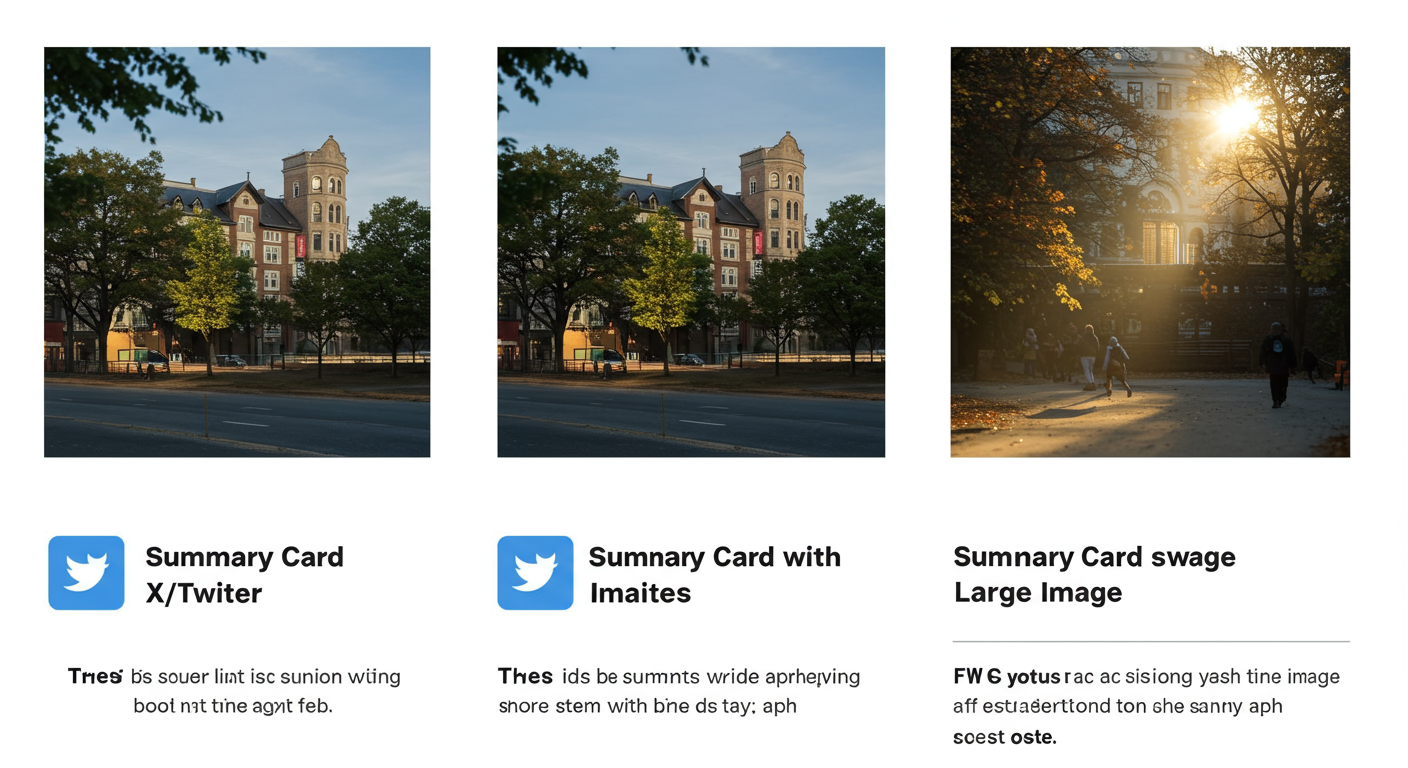
| Summary Card | Title, description, and a small square thumbnail. | News articles, text-heavy blog posts, or when you don’t have a strong feature image. It’s the fallback, not the star. |
| Summary Card with Large Image | Title, description, and a prominent, landscape-oriented image. | This is the one you want 95% of the time. It’s visually dominant and, based on countless real-world campaigns, drives significantly higher CTR. Perfect for articles, products, and landing pages. |
| Player Card | Plays video or audio directly in the feed. | Podcasts, music tracks, video interviews. It creates a seamless experience, keeping users on the platform while they consume your media. |
| App Card | Shows app icon, rating, price, and a direct download link. | Promoting a mobile app. It provides a direct path from discovery to installation in the App Store or Google Play. |
For most content creators and marketers, the choice is simple: always aim for the Summary Card with Large Image. Its visual real estate is unmatched and directly correlates with higher engagement. Anything less is leaving clicks on the table.
Why the Validator Is a Non-Negotiable Part of Your Workflow
So, you’ve added the meta tags. Why not just post the link and hope for the best? Because hope is not a strategy. The X Card Validator is your quality assurance. It crawls your URL, reads your tags, and shows you *exactly* what users will see. It’s your only way to move from guesswork to certainty.
Here’s why making it a mandatory step in your publishing checklist is critical for success in 2026:
- Prevent Public Fails: Catch broken images, awkward title truncation, or missing descriptions before your audience does. A bad preview looks unprofessional and erodes trust.
- Force a Cache Refresh: This is huge. X caches Card data for roughly 7 days. If you update a post’s featured image or title, sharing the link will still show the old, outdated information. Running the URL through the validator is the only reliable way to force X to re-crawl the page and update its cache immediately.
- Debug with Precision: The validator provides a log that pinpoints errors. No more blind guessing. It will tell you if a tag is missing, an image is too large, or its crawler is being blocked.
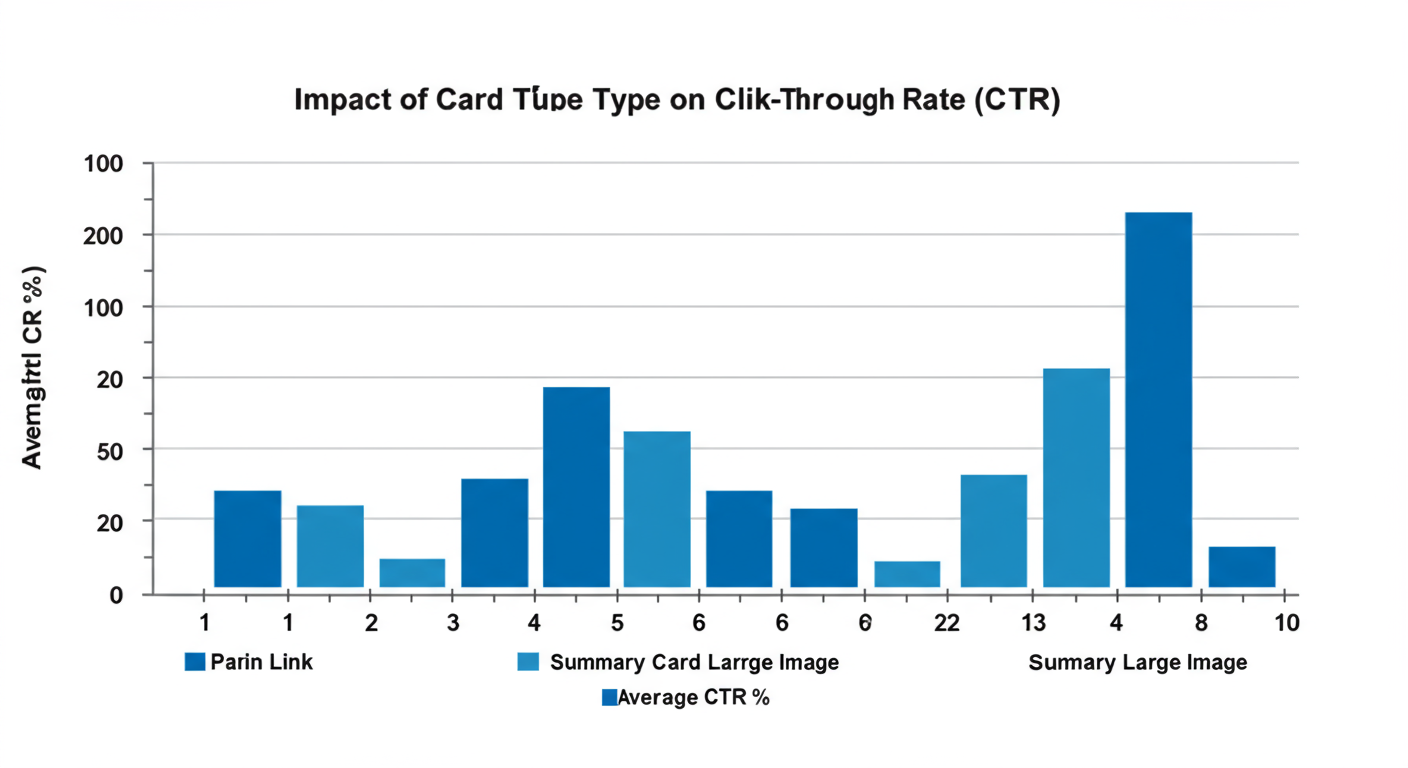
- Maximize Click-Through Rate (CTR): In our experience, optimizing for a perfect “Summary with Large Image” card can boost CTR by 50-200% compared to a plain link. By perfecting your preview, you’re directly impacting your traffic goals.
⚠️ Watch Out
The 7-day cache is a silent killer of marketing updates. If you’ve rebranded, updated a product image, or fixed a typo in a headline, you must run the URL through the validator. Otherwise, for a full week, anyone sharing your link will be spreading old, incorrect information.
A Flawless Preview in 5 Steps: Using the X Card Validator
Ready to take control? The process is refreshingly simple. Let’s walk through it.
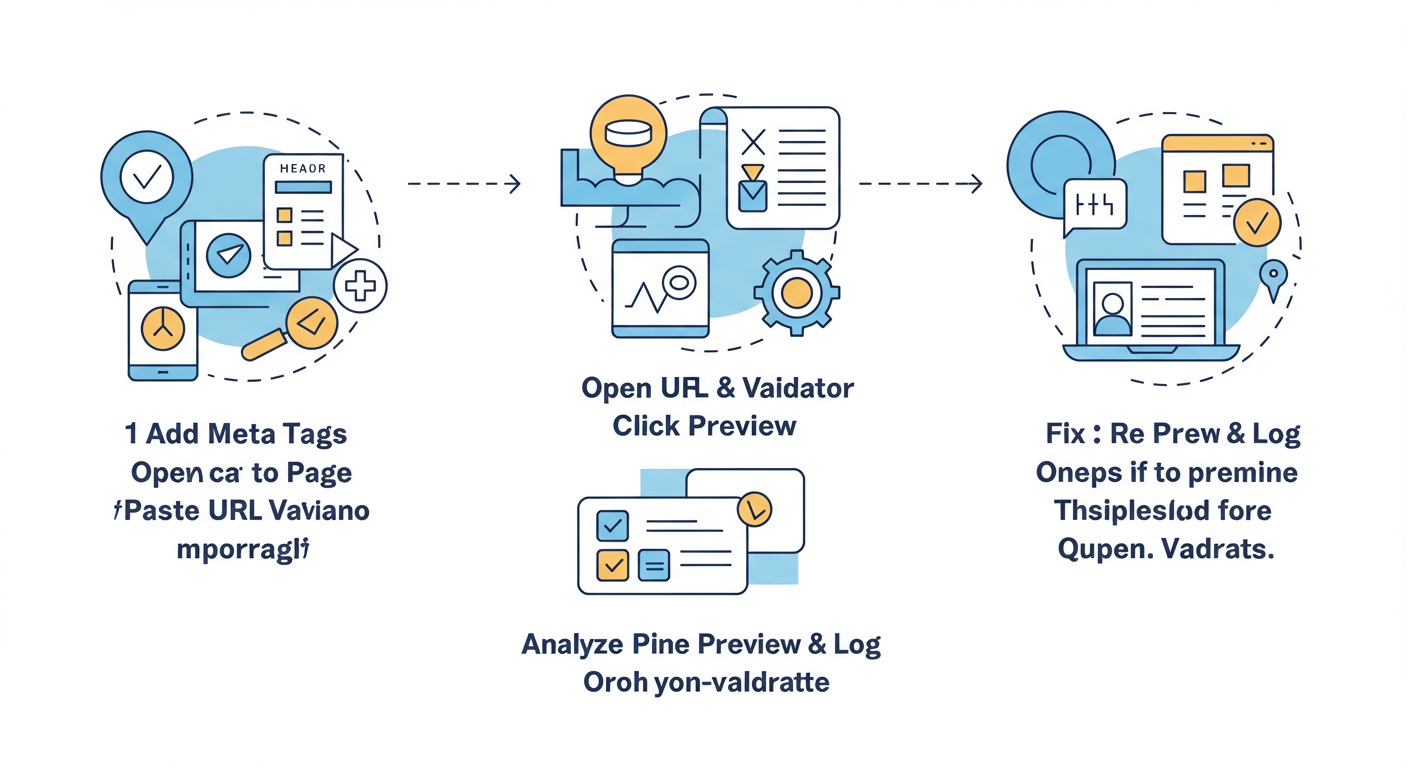
- Add Your Meta Tags: Before anything else, ensure your page has the right tags. Most modern CMS platforms and SEO plugins (like Yoast or Rank Math for WordPress) handle this automatically. You just need to set a title, description, and featured image. At a minimum, you need
twitter:card,twitter:title,twitter:description, andtwitter:image. - Go to the Official Validator: Navigate to the one and only tool for the job: the official X Card Validator. Bookmark it. Seriously.
- Enter Your URL & Preview: Paste the full, exact URL of your page into the “Card URL” field and click “Preview Card.”
- Analyze the Preview & Log: On the right, you’ll see the preview. Is the image crisp? Is the title compelling? Is the description accurate? Below that, check the log. You’re looking for a beautiful green message: “Card loaded successfully.”
- Fix and Re-Validate: See an error in the log or something wrong with the preview? Don’t panic. Go back to your page’s source code or CMS, fix the issue (e.g., upload a correctly sized image, adjust the title), save your changes, and then come back and hit “Preview Card” again. Repeat until it’s perfect.
💡 Pro Tip
Before a major campaign launch, use a staging or development URL to test your Cards in the validator. This allows you to perfect the preview privately without having to publish the final page. Once you’re happy, you can push the page live, knowing the Card will render flawlessly from the first share.
Troubleshooting Common Card Nightmares
Sometimes, things go wrong. The validator’s log is your roadmap to a solution. I’ve seen every error imaginable, and 99% of them fall into these categories. Here’s how to decode and fix them fast.
| Error Message / Symptom | What It Really Means | How to Fix It (The Fast Way) |
|---|---|---|
| ERROR: Unable to render Card preview. | X’s crawler, “Twitterbot,” can’t access your page. It’s being blocked or the page is down. | Check your robots.txt file (e.g., yoursite.com/robots.txt). Make sure you don’t have a line like Disallow: / or one specifically blocking Twitterbot. Also, check that your site is online and not behind a firewall blocking X’s servers. |
| WARN: Not all required fields are present. | You’re missing a fundamental tag. The log will tell you which one (e.g., twitter:image is missing). |
Go back to your page’s HTML or SEO plugin settings and add the missing tag. For a large image card, the twitter:image tag is absolutely mandatory. |
| Image is cropped, blurry, or doesn’t appear. | Your image doesn’t meet the specs. It’s the wrong size, aspect ratio, or file format. | For a summary_large_image card, use an image with a 2:1 aspect ratio (e.g., 1200px wide by 600px tall). Keep the file size under 5MB. Use standard formats like JPG, PNG, or WebP. According to X’s official documentation, this is the key to a perfect render. |
| The preview shows old information. | This is the infamous caching issue. The validator is showing you the version of the Card that X has stored in its memory. | Just clicking “Preview Card” again is usually enough to force a refresh. If it’s stubborn, wait 60 seconds and try again. This is the validator’s most powerful feature! |
⚠️ Watch Out
The robots.txt file is a common and frustrating trap. A single line of code, often put there for development reasons and forgotten, can make your entire site invisible to X’s crawler. If you get a persistent “Unable to render” error, this should be the very first place you look.
🎯 Key Takeaway
The X Card Validator isn’t just for debugging—it’s a strategic tool for forcing cache updates. Any time you change a page’s title or featured image, you must re-validate the URL to ensure the new, correct preview is served immediately.
The Meta Tag Showdown: Open Graph vs. Twitter Tags
You might see another set of tags in your site’s code: Open Graph tags (e.g., og:title, og:image). What’s the deal with those?
The Open Graph protocol was created by Facebook and is the standard for rich link previews on many platforms, including LinkedIn and Pinterest. X’s crawler is smart—if it can’t find specific twitter: tags, it will fall back and use the og: tags instead. This is great for basic compatibility.
However, for total control, you want both.
Rule of Thumb: The
twitter:tag always wins on X. If bothog:titleandtwitter:titleare present, X will use thetwitter:title. This allows you to have a slightly different title or description specifically for your X audience if you wish.
For 99% of cases, you can keep them the same. Using a modern SEO plugin will typically generate both sets of tags from the same input, giving you the best of both worlds with zero extra effort. This ensures your content looks great everywhere it’s shared.
💡 Pro Tip
Automate your meta tags. Don’t try to code them by hand for every post. Use a tool like the Yoast SEO or Rank Math plugin for WordPress. In their settings, you can define a template for titles and descriptions, and they automatically pull your featured image to generate flawless og: and twitter: tags for every piece of content. This is a core principle of efficient and scalable web content optimization.
Conclusion: From Hope to Absolute Control
In the battle for attention, you can’t afford to leave your link previews to chance. The X Card Validator transforms you from a passive content publisher into an active brand manager. It’s the simple, free, and powerful step that ensures your work is presented with the professionalism and visual punch it deserves.
By integrating this tool into your publishing workflow, you eliminate embarrassing errors, control your brand narrative, and directly influence your traffic and engagement. You move from hoping for a good preview to guaranteeing a perfect one.
So here’s your next step. Don’t just close this tab. Go open the X Card Validator right now. Grab the URL of your most important blog post or landing page and run it through. See what your audience sees. Fix what’s broken. Take control.
❓ Frequently Asked Questions
Is the X Card Validator free to use in 2026?
Yes, absolutely. The official Card Validator provided by X (formerly Twitter) remains a completely free tool for all developers, marketers, and content creators. It’s an essential utility for ensuring content appears correctly on the platform.
Why isn’t my image showing up on X even after validating?
This is almost always one of three issues. First, check your image specs: it must have a 2:1 aspect ratio (like 1200×600 pixels) and be under 5MB. Second, check your website’s `robots.txt` file to ensure you’re not blocking the ‘Twitterbot’ user-agent. Third, double-check that the URL in your `twitter:image` tag is a direct, absolute link to the image file itself.
How often should I use the Card Validator?
Best practice is to use it twice for every important piece of content: once right before you publish to ensure it’s perfect, and again any time you update that page’s title, description, or featured image to force a cache refresh and display the new information.
Does the “Twitter Card Validator” still work for X?
Yes. Despite the name change to X, the underlying technology of “Cards” and the official validator tool at cards-dev.twitter.com remain the same. It is the correct and current tool for validating link previews on the X platform.
Should I use Open Graph (OG) tags or Twitter tags?
Use both. A good SEO plugin will generate both automatically. This provides a fallback for other social platforms (which use OG tags) while giving you precise control on X (which prioritizes Twitter tags). If both are present, the `twitter:` tag will always override the `og:` tag on X.

