
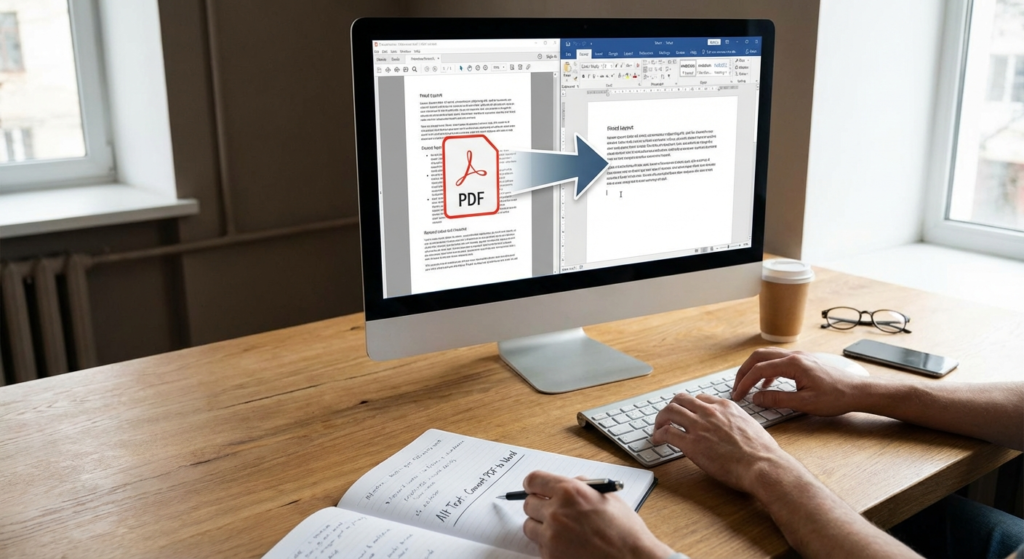
Ever get a PDF you *really* need to edit? It’s a super common headache, right? PDFs are great for keeping things looking consistent, but a pain when you need to make changes. That’s where a good PDF to Word converter becomes your best friend—whether you’re a student, a busy professional, or just trying to wrangle documents at home.
But finding the *right* converter? It’s not just about swapping file types. It’s about keeping your document’s soul intact. We’re talking fonts, images, the whole shebang. A reliable PDF to Word converter saves you from hours of tedious reformatting. So, let’s dive into how these converters work, why OCR is a total game-changer, and how to pick the perfect one for *your* needs.
Why You Need a Reliable PDF to Word Converter in Your Workflow
Look, in today’s world, being able to juggle different document types is crucial. PDFs are fantastic for sharing and printing – can’t argue there. But when it comes to actually *working* on a document, collaborating, or making edits? Not so much. A solid PDF to Word converter bridges that gap, turning static files into editable gold.
Think about handling official documents that need precise updates. Are you *really* going to retype the whole thing? A converter automates the process, pulling the text and plopping it into a Word document (DOC or DOCX). This is a lifesaver for lawyers, HR folks, and content creators who constantly repurpose stuff.
Time Efficiency
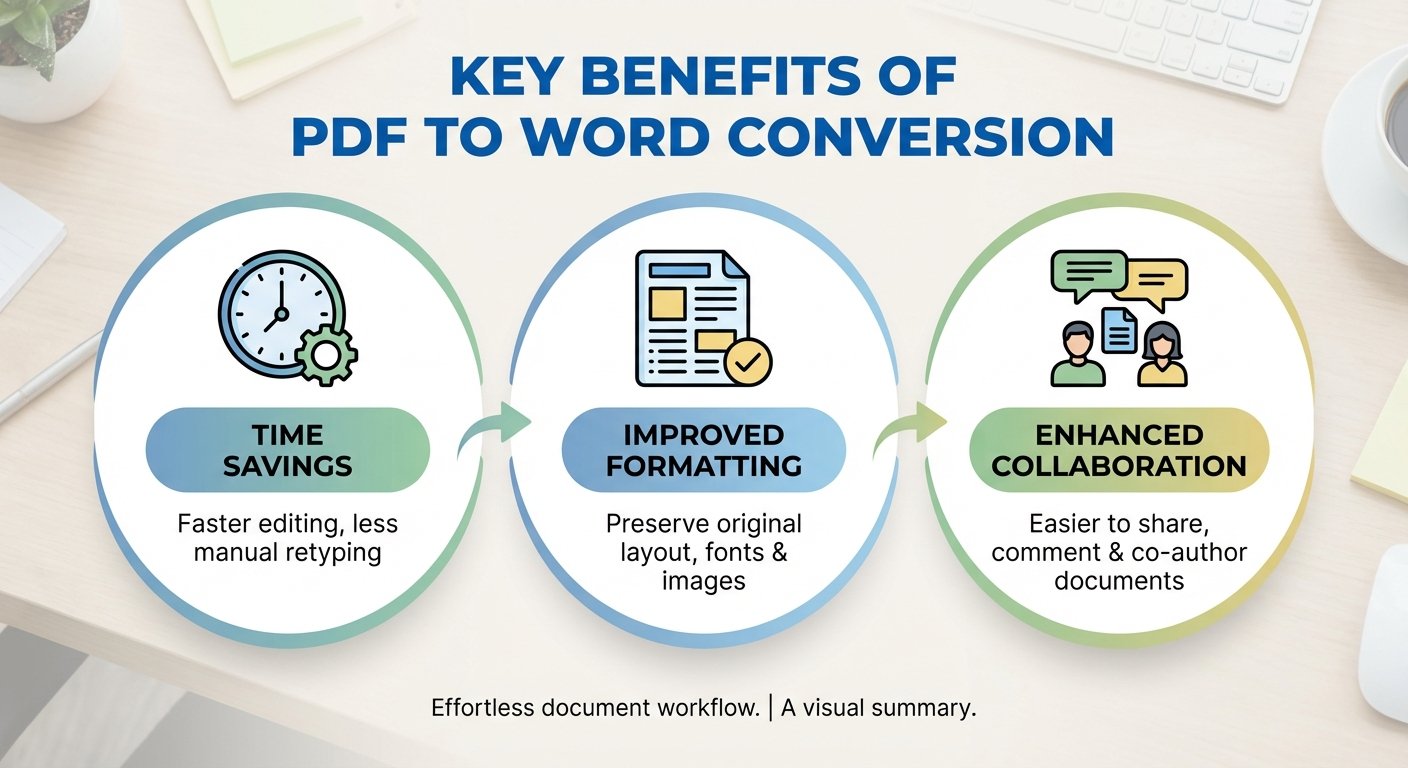
Manual transcription? Forget about it. Hours saved. A converter chews through complex documents in seconds, so you can actually *think* instead of just type.
Formatting Retention
The good ones keep your original layout – headers, footers, tables – exactly where they belong. No more manual tweaking!
Batch Processing
Got a mountain of PDFs? Many converters let you upload a whole bunch at once. Convert entire archives instantly.
Key Features to Look for in a PDF to Word Converter
Alright, not all converters are created equal. You can’t just pick the first one you see. The market’s swimming in these tools, but only a handful deliver the accuracy you need for professional documents. So, what should you look for in a PDF to Word converter?
1. Optical Character Recognition (OCR) Capabilities
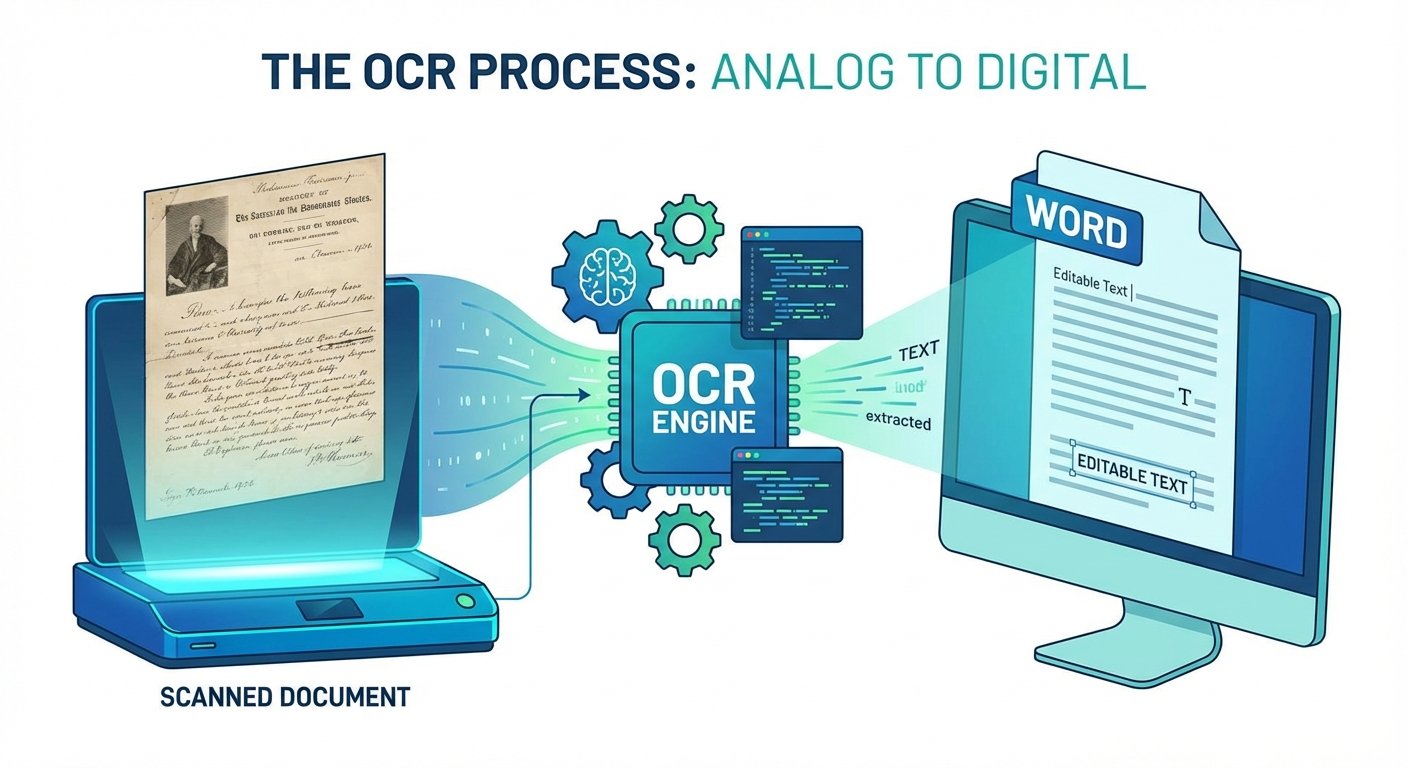
OCR is *the* most important feature. If you’re converting a scanned document – which is basically a picture of text – a basic converter will just give you an image *inside* a Word file. Useless! You need a PDF to Word converter with OCR to actually *recognize* the letters and turn them into editable text.
2. Security and Data Privacy
Converting sensitive stuff like retirement plans or contracts? Security is non-negotiable. Solid converters encrypt your files during transfer and wipe them from their servers after a short time. Look for that.
How a PDF to Word Converter Handles Complex Formatting
Here’s the real test: how well does the PDF to Word converter handle tables, columns, and those pesky floating images? PDFs are fixed; Word is fluid. Translating between the two takes some serious smarts.
When you convert, the software dissects the PDF’s structure. It figures out that a bunch of lines is actually a table, or that text in the margin is a header. The best tools, like the ones from Adobe, use AI to guess the document’s logic. The result? Paragraphs flow naturally in Word, instead of being chopped up with line breaks.
The Role of OCR in a PDF to Word Converter
Like I said, OCR is the heart of converting scanned files. When you use a PDF to Word converter with OCR, it scans the document’s visual patterns, matches them against a font database, and reconstructs the text. Modern OCR is crazy accurate, even with multiple languages and handwriting in some cases!
Step-by-Step Guide: Using a PDF to Word Converter Effectively
Want the best results? Follow these tips, whether you’re using a desktop app or an online service:
- Check the Source Quality: Blurry PDF = blurry conversion. Start with the clearest possible source.
- Review the File Size: Huge files might time out online. Compress the PDF first if needed.
- Select the Right Output: Go for .docx (the modern standard) over .doc for better compatibility with Microsoft Word.
- Proofread the Result: Even the best make mistakes. Double-check numbers and names.
Comparing Free vs. Paid PDF to Word Converter Options
So, is it worth paying for a premium PDF to Word converter, or are free tools good enough? It depends on how much you convert and how complex your documents are.
Free Online Tools
Okay for occasional use and simple text. But they often limit file sizes, lack OCR, and might not be super secure.
Paid Desktop Software
A must for heavy users. Unlimited conversions, strong OCR, batch processing, and offline use. Your data stays on your computer.
Troubleshooting Common Conversion Issues
Even with the best PDF to Word converter, you might hit a snag. Here’s how to fix common problems:
- Broken Layouts: Images floating everywhere? Use Word’s “text wrapping” or try a “flowable” layout setting in your converter.
- Gibberish Text: Probably a font issue or a bad scan. Run it through OCR *before* converting to Word.
- Missing Images: Some converters ditch images to save space. Check your settings to “include images.”
Ensuring Security When Using an Online PDF to Word Converter
Worried about security with online converters? Smart move. When you upload, you’re trusting them with your data. To stay safe:
- Read the Privacy Policy to make sure they delete files after conversion.
- Don’t convert sensitive data (Social Security numbers, bank info) on free public servers.
- Use a VPN if you’re on public Wi-Fi.
Conclusion
Bottom line? Mastering the PDF to Word converter is a huge productivity booster. By understanding the difference between standard conversion and OCR, and picking the right tool, you can turn static PDFs into editable Word documents in a flash. Whether you’re tweaking a resume, updating a contract, or pulling data for a report, these tools are essential. Just remember to prioritize security and accuracy!
FAQs
Yep, but you need a converter with Optical Character Recognition (OCR). Otherwise, you’ll just get an image in your Word doc.
Good converters try to keep everything as close to the original as possible. But complex layouts might need a little manual tweaking in Word.
Most reputable ones are safe for general documents and delete files after a while. But for really sensitive data, use offline software.
Probably because the original PDF was a scan and the converter didn’t use OCR. Re-convert with an OCR-enabled tool.
Yep, many premium converters have a “batch processing” feature to convert multiple files at the same time.

