
Ever received a 50-page scanned contract as 50 separate, massive TIFF files? It’s a digital nightmare. You can’t easily search it, share it, or even be sure you’re viewing the pages in the right order. The result? A bloated, clunky mess that kills productivity.
Here’s the thing: TIFF is a fantastic format for high-quality image archival, but for sharing and collaboration, it’s often the wrong tool for the job. That’s where PDF shines.
This isn’t just another list of tools. This is your definitive 2026 playbook for mastering the TIFF to PDF conversion. You’ll learn not just how to convert your files, but which method to choose based on your specific needs—from speed and security to advanced professional features. We’ll cut through the noise and give you the actionable strategies we use every day.
📑 What You’ll Learn
The Strategic Shift: Why Moving from TIFF to PDF is a Power Move
Before we jump into the “how,” let’s solidify the “why.” Understanding the fundamental differences between these two formats is key to building a smarter document workflow. While TIFF (Tagged Image File Format) is the heavyweight champion of lossless image quality, PDF (Portable Document Format) is the undisputed king of document exchange.
Think of it this way: a TIFF is like a raw, unedited master photograph. It contains every pixel of data, making it perfect for archival or professional editing. A PDF, on the other hand, is the beautifully framed, ready-to-hang print. It’s optimized for viewing, sharing, and security, ensuring everyone sees the exact same thing, every single time.
Based on our hands-on testing and real-world campaign management, the move to PDF for distribution offers undeniable advantages in efficiency and user experience.
| Feature | TIFF (Tagged Image File Format) | PDF (Portable Document Format) |
|---|---|---|
| Best For | High-quality scanning, archiving master images, professional printing. | Sharing, collaboration, forms, and universal document viewing. |
| Compatibility | Often requires specific software; not universally supported in web browsers. | Opens on virtually any device with a free reader. The global standard. |
| File Size | Typically very large due to lossless compression (like LZW). | Highly optimized with advanced compression; significantly smaller. |
| Security | No built-in encryption or password protection. | Robust security: password protection, editing restrictions, digital signatures. |
| Interactivity | Static image format. No interactive elements. | Supports hyperlinks, forms, buttons, embedded media, and comments. |
| Text | Text is part of the image (a picture of words). | Can contain real, searchable, and selectable text (especially with OCR). |
🎯 Key Takeaway
Use TIFF for storing the highest-quality master copy of a scanned document or image. For everything else—sharing with colleagues, sending to clients, or posting online—convert TIFF to PDF to guarantee accessibility, security, and a much smaller file size.
Choosing Your Weapon: A Breakdown of 5 Pro Conversion Methods
Alright, let’s get to the action. There’s more than one way to convert TIFF to PDF, and the best method depends entirely on your situation. Are you converting a single, non-sensitive file, or a batch of 1,000 confidential documents? Let’s break it down.
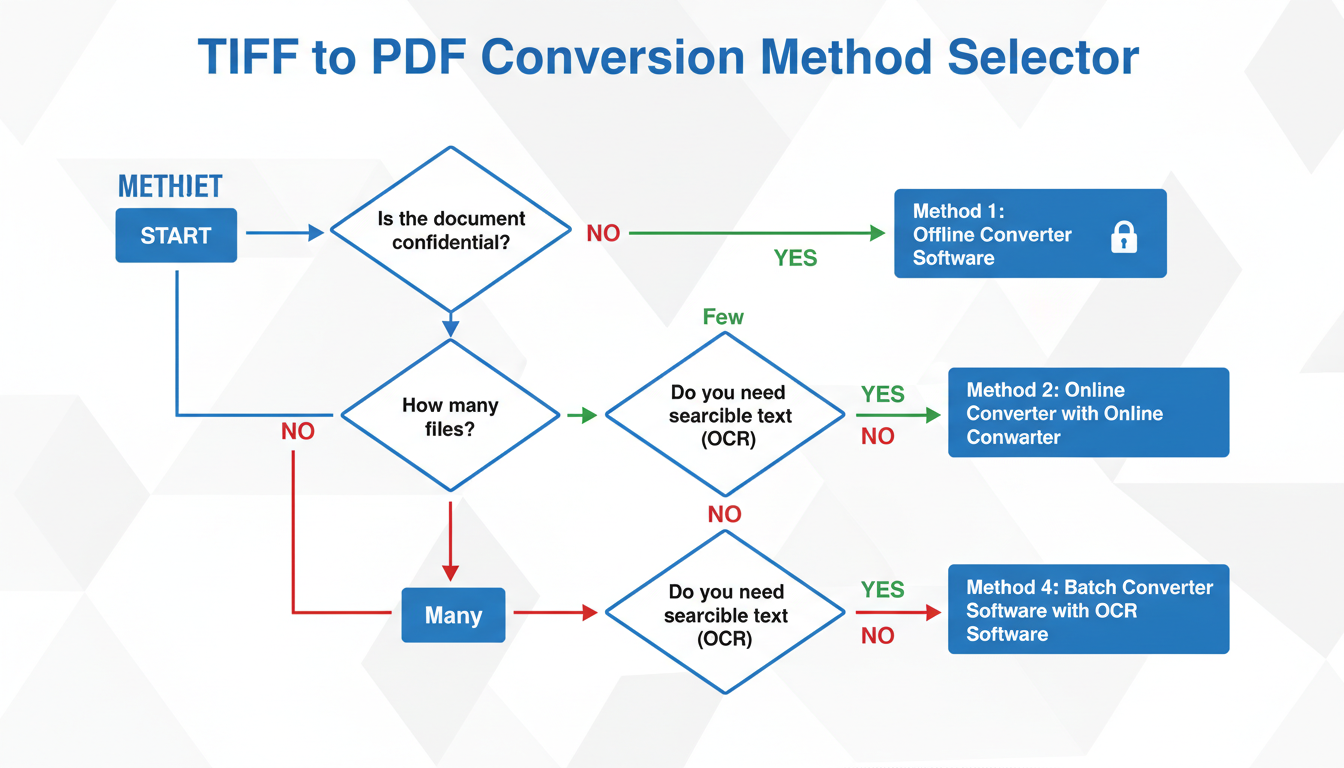
Method 1: The Instant Fix (Free Online Converters)
For a quick, one-off conversion, you can’t beat the convenience of a web-based tool. There’s no software to install, and the process is dead simple.
You simply visit the website, upload your TIFF (even multi-page ones), click “Convert,” and download your PDF. It’s fast and it works.
Best for: Non-sensitive documents, quick single-file conversions, and users on any device without access to specific software.
⚠️ Watch Out
Privacy is the price of convenience. Never, ever upload sensitive or confidential documents (like contracts, financial records, or personal IDs) to a free online converter. You’re sending your data to a third-party server, and you can’t be 100% sure how it’s handled. For anything private, use an offline method.
Method 2: The Hidden Powerhouses (Your OS’s Built-in Tools)
You probably already have a powerful and secure PDF converter on your computer. Both Windows and macOS have native features that handle this task beautifully, keeping your files entirely on your local machine.
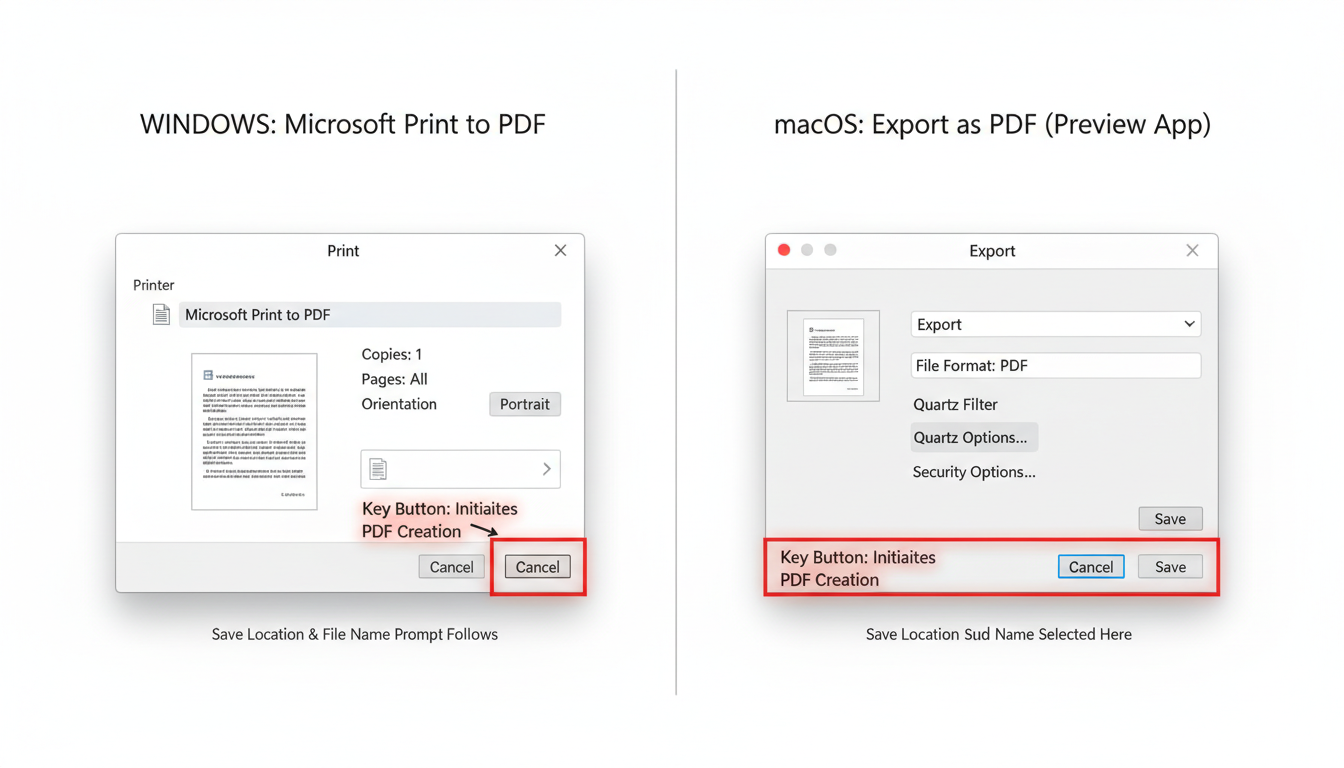
On Windows 10 & 11 (Microsoft Print to PDF):
- Open your TIFF file. It will likely open in the Windows Photos app.
- Press
Ctrl + Pto open the Print dialog. - From the ‘Printer’ dropdown menu, select Microsoft Print to PDF.
- Adjust orientation or page size if needed.
- Click Print. You’ll be prompted to name your new file and choose where to save it. Done.
On macOS (Preview App):
- Double-click the TIFF file to open it in Preview. You’ll see all pages in the sidebar if it’s a multi-page file.
- Go to the menu bar and click File → Export as PDF…
- Give your file a name, choose a save location, and click Save.
It’s that easy. From our experience, these built-in tools are the most underrated methods for secure, everyday conversions.
Method 3: The Professional’s Choice (Dedicated Desktop Software)
When you need serious firepower, you turn to dedicated software like Adobe Acrobat Pro. This is for users who work with documents professionally and need features that go far beyond simple conversion.
Why go pro? Three reasons:
- Batch Processing: Convert hundreds of TIFFs into individual PDFs or merge them into one with a single click. It’s a massive time-saver.
- Optical Character Recognition (OCR): This is the magic wand. OCR scans the image of your text and turns it into actual, searchable, copy-and-paste-able text within the PDF. According to Adobe’s own resources, this transforms static archives into dynamic, searchable databases.
- Total Control: Fine-tune compression, edit text and images, add security, and prepare documents for professional printing.
Best for: Businesses, legal professionals, archivists, and anyone who needs OCR and batch processing capabilities.
💡 Pro Tip: Unlock Your Scans with OCR
If you’re converting scanned documents, using an OCR-enabled tool is non-negotiable. It’s the difference between having a “dumb” picture of a document and a “smart,” fully searchable file. You can instantly find keywords across thousands of pages, which is invaluable for research, legal discovery, and efficient record-keeping.
Method 4: The Open-Source Hero (GIMP)
Want more power than the built-in tools without the price tag of pro software? Free and Open-Source Software (FOSS) like GIMP (GNU Image Manipulation Program) is your answer. It’s a full-featured image editor that can export to PDF with surprising control.
How to do it in GIMP:
- Open your TIFF in GIMP. It will import multi-page files as separate layers.
- Go to File → Export As…
- Name your file with a
.pdfextension. - In the export dialog box, make sure you check “Layers as pages (top layers first)”. This is the crucial step for multi-page documents.
- Click Export.
Best for: Tech-savvy users and designers who are already comfortable with graphics software and want a powerful, free, and offline solution.
Method 5: The Automation Ace (Command-Line Tools)
For developers, system administrators, or anyone who needs to automate conversions, command-line tools are the ultimate solution. A tool like ImageMagick can convert files with a single line of code, making it perfect for scripting and server-side processing.
A simple conversion command might look like this:
magick convert input.tiff output.pdf
You can build this into complex workflows to automatically process thousands of files without any manual intervention. It’s the definition of working smarter, not harder.
Best for: Developers, power users, and anyone needing to integrate conversions into an automated workflow.
Conversion Method Showdown: Which Tool is Right for You?
Still not sure which path to take? This table breaks it down. We’ve rated each method based on the factors that matter most.
| Method | Cost | Security | Key Feature | Best For |
|---|---|---|---|---|
| 1. Online Converters | Free | Low ⚠️ | Extreme convenience | Quick, non-sensitive, one-off tasks. |
| 2. OS Built-in Tools | Free | High ✅ | Secure & pre-installed | Everyday secure conversions for most users. |
| 3. Dedicated Software | Paid Subscription | Highest ✅ | OCR & Batch Processing | Professionals and businesses. |
| 4. Open-Source Editors | Free | High ✅ | Granular image control | Tech-savvy users on a budget. |
| 5. Command-Line | Free | Highest ✅ | Full automation | Developers and system administrators. |
Beyond Conversion: Pro-Level Tips for a Perfect PDF
A successful conversion isn’t just about changing the file extension. It’s about creating a final document that is high-quality, optimized, and easy to use. Trust me on this one, these small steps make a huge difference.
💡 Pro Tip: Master Your Compression Settings
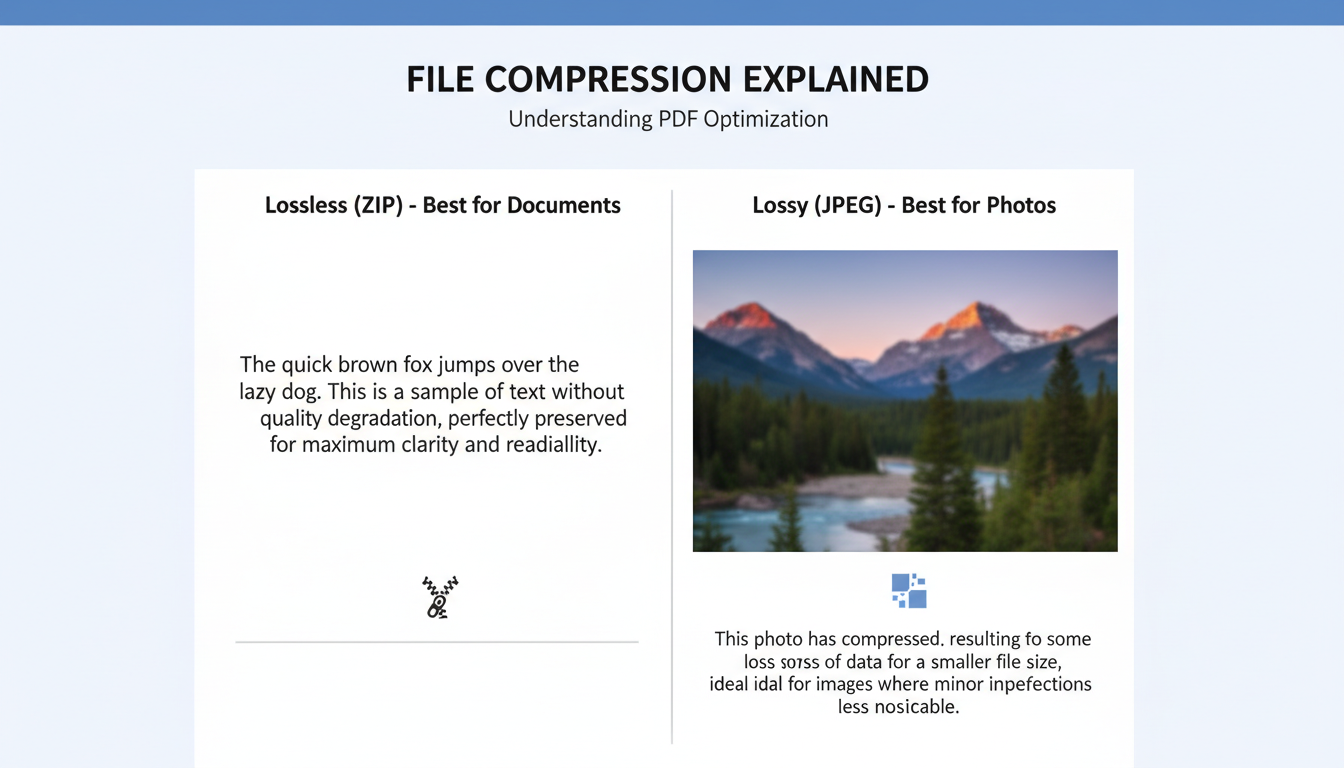
When exporting from pro software, you’ll often see compression options. Here’s a simple rule of thumb: For scanned documents with sharp text and line art, use a lossless compression like ZIP. For photographs, JPEG compression will give you a much smaller file with minimal visible quality loss. Choosing the right one can slash your file size without compromising readability.
⚠️ Watch Out: Garbage In, Garbage Out
Your final PDF will only be as good as your source TIFF. Before you convert, open the image and check for issues. Is it skewed or crooked? Is it oriented correctly (portrait vs. landscape)? Use a simple image editor to crop, straighten, and rotate the TIFF before you convert it. This saves you the headache of trying to fix a poorly formatted PDF later.
Finally, consider the archival standards. For long-term storage, industry best practice is to use the PDF/A (Archival) format, a specific ISO-standardized version of PDF. As the Library of Congress notes, this format is designed to ensure your documents will be viewable in the exact same way for decades to come. Many professional tools allow you to save directly to PDF/A.
❓ Frequently Asked Questions
Can I convert a multi-page TIFF to a single PDF?
Yes, absolutely. All modern conversion methods—from online tools to desktop software—are designed to handle multi-page TIFFs. They will automatically process all pages into a single, ordered PDF document.
Will converting a TIFF to PDF reduce its quality?
It depends on your settings. PDF uses compression, but you’re in control. Using high-quality or lossless compression settings in pro software results in virtually no quality loss. For most uses, the default settings provide an excellent balance of quality and smaller file size.
Is it safe to use online TIFF to PDF converters?
For non-sensitive files, they are generally safe and convenient. However, for anything confidential (contracts, financial data), we strongly recommend using an offline method like your OS’s built-in tools or trusted desktop software to ensure 100% data privacy.
How do I make my scanned TIFF searchable after converting it?
You need a tool with Optical Character Recognition (OCR). This feature, found in dedicated software like Adobe Acrobat, analyzes the image of the text and converts it into real, selectable, and searchable text within the PDF. It’s a game-changer for digital archives.
Can I convert a PDF back to a TIFF?
Yes, it’s a two-way street. Most of the tools that convert TIFF to PDF can also reverse the process. This is useful if you need to extract a high-quality, uncompressed image from a PDF for editing or high-resolution printing.
Your Next Move: From Clutter to Clarity
You now have a complete toolkit to convert TIFF to PDF like a seasoned pro. The one-size-fits-all approach is a myth; the smartest workflow comes from choosing the right tool for the job.
For a quick, non-critical file, an online converter is your friend. For your daily, secure needs, your operating system has you covered. And when you demand the absolute best in quality, searchability, and efficiency, investing in professional software pays for itself.
So here’s your next step: Look at the last document you struggled with. Was it a clunky TIFF? Now you have the knowledge to streamline that process. Go apply it and transform your cluttered digital files into clean, efficient, and universally accessible documents.

