
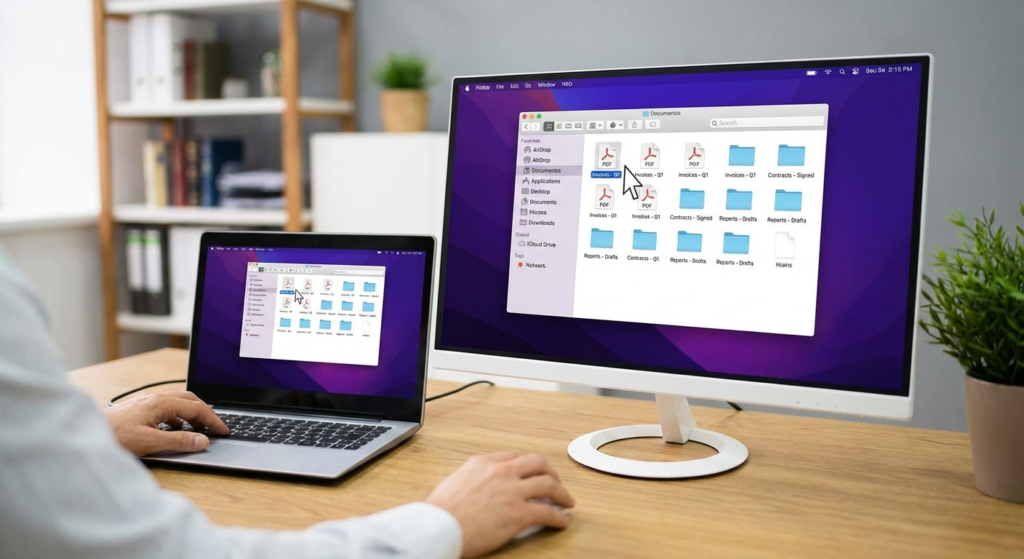
Picture this: It’s 4:55 PM on a Friday. You’re about to hit “send” on a massive project proposal. Suddenly, you realize page 14 is upside down, the financial appendix is missing, and the cover sheet belongs to a draft from three weeks ago. Panic sets in.
We’ve all been there. In the rush of modern work, document management often feels like herding cats. But here’s the truth: the state of your digital files is a direct reflection of your professional efficiency. If you are still scrolling through endless folders or manually printing and scanning pages just to reorder them, you are wasting hours of your life.
This is where mastering a PDF organizer becomes a non-negotiable skill. It’s not just about tidying up; it’s about transforming static, clumsy files into dynamic assets that work for you, not against you. In this guide, we’re going to strip away the confusion and show you exactly how to dominate your document workflow.
📑 What You’ll Learn
The Real Power of PDF Organization
Let’s get one thing straight. A PDF organizer is not the same as a PDF reader (like the free version of Adobe Acrobat) or a full-blown content editor. Think of it as the digital equivalent of a high-end binder with infinite flexibility.
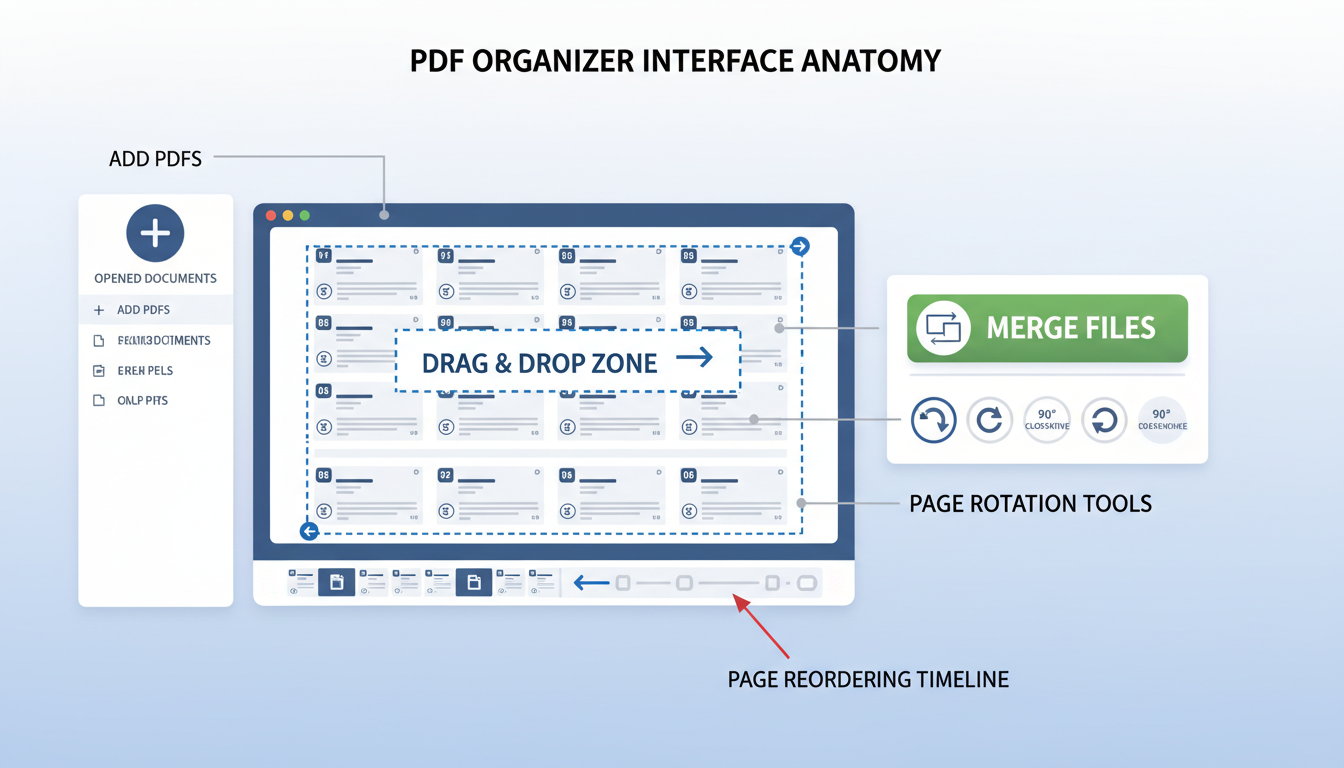
A reader lets you look. An editor lets you rewrite sentences. A PDF organizer focuses on the architecture of the document. It gives you the power to shuffle pages, merge distinct reports into one cohesive narrative, or slice a massive 500-page ebook into five digestible chapters.
In our experience working with legal teams and creative agencies, the ability to manipulate document structure without breaking the formatting is a superpower. According to recent productivity data, knowledge workers spend nearly 20% of their workweek looking for internal information or tracking down colleagues for help with tasks like file conversion. By streamlining this, you aren’t just “organizing files”—you’re reclaiming your time.
🎯 Key Takeaway
Don’t confuse editing with organizing. A PDF organizer is an architectural tool that allows you to restructure, merge, and split documents without altering the source content or formatting integrity.
Core Features You Can’t Ignore
Not all tools are created equal. The market is flooded with “free” utilities that are little more than data-harvesting traps. When you are evaluating a tool to handle your sensitive documents, you need to look for specific capabilities.
Here is a breakdown of the essential functions versus the “nice-to-haves” that separate professional tools from basic utilities.
| Feature Category | Basic Functionality | Pro-Level Capability |
|---|---|---|
| Structure Control | Merge and Split files | Extract specific page ranges, insert blank pages, and overlay watermarks |
| Visual Editing | Thumbnail view | Drag-and-drop reordering across multiple open tabs/windows |
| Data Handling | Simple save | Metadata scrubbing, OCR (Optical Character Recognition), and compression |
| Security | None | Password encryption and permission setting (preventing printing/copying) |
Most users stop at “Merge.” They combine three files and call it a day. But the real magic happens when you use the Split and Rotate functions in tandem. For example, scanning a contract often results in mixed orientation pages. A robust organizer detects this and allows you to fix the orientation of a single page without affecting the rest of the document.
Step-by-Step: The Perfect Workflow
You have the files. You have the tool. Now, how do you actually execute a clean organization process without losing data? Based on hands-on testing with dozens of platforms, here is the fail-safe workflow.
- The “Sandbox” Phase: Never work on your only copy. Create a folder named “WIP” (Work In Progress) and copy your source files there. This protects your originals from accidental overwrites.
- Visual Sorting: Open your organizer. Switch to “Grid View” or “Page Thumbnails.” This gives you a bird’s-eye view of the entire document structure.
- The Purge: Before you rearrange, delete. Look for blank pages (common in double-sided scans), cover sheets that are no longer relevant, or disclaimer pages that you don’t need to send to the client.
- Reorder and Rotate: Drag pages into the logical flow. If you are merging a landscape spreadsheet into a portrait report, ensure the orientation is readable.
- Metadata Check: This is the step 90% of people miss. Check the document properties. Does the title still say “Template_V3_Final_FINAL”? Rename the internal title to match your file name.
- Compression & Export: Save the file. If it’s for email, apply a “Standard” compression. If it’s for print, keep it at “High Quality.”
💡 Pro Tip
Watch your file names. When merging documents, the final PDF often adopts the metadata of the first file you uploaded. Always go into ‘Properties’ or ‘Metadata’ settings before saving to ensure the Author Name and Document Title are professional and accurate.
Online vs. Desktop: The Security Debate
This is the most common question we get: “Should I use a free online tool or buy software?” The answer depends entirely on what is inside your PDF.
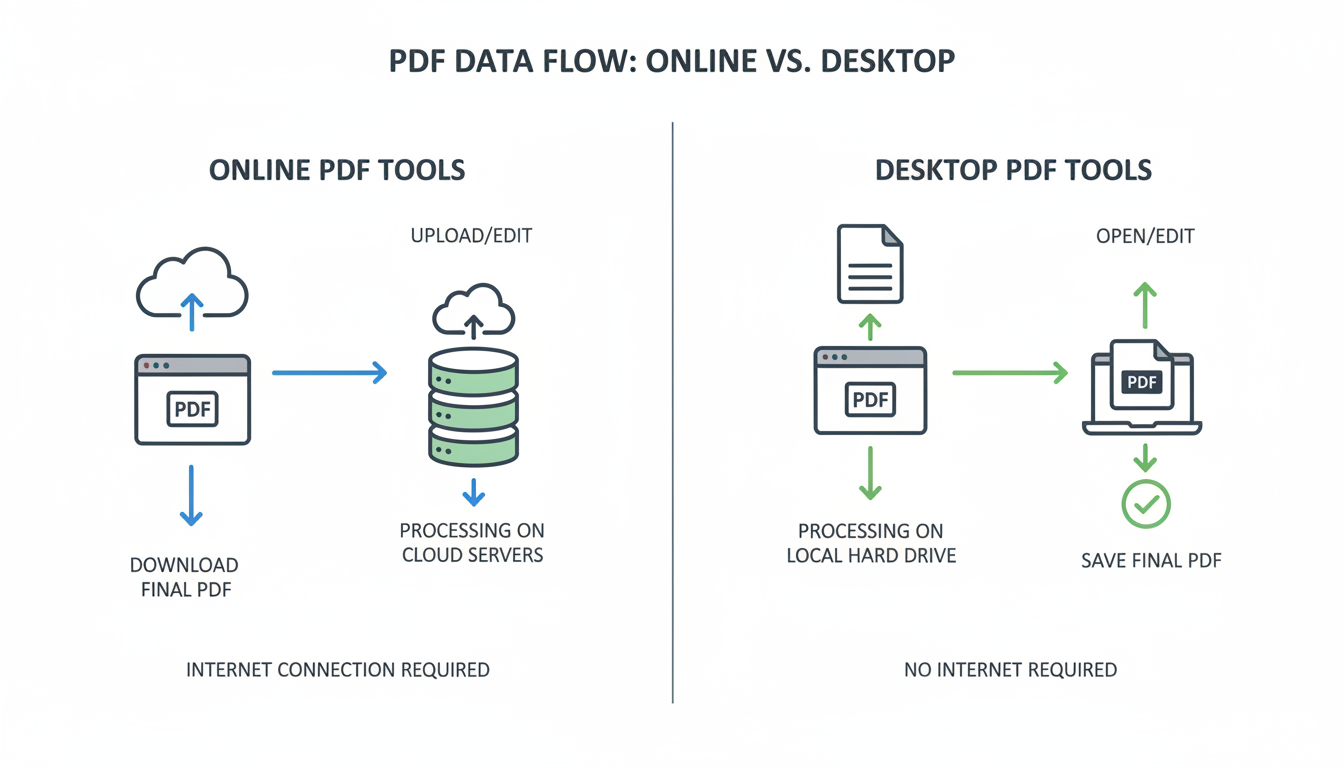
Online tools are incredibly convenient. They work on Chromebooks, Macs, and Windows machines without installation. However, when you upload a file to a cloud server, you are technically handing over a copy of that data. While reputable sites use SSL encryption and auto-delete files after a few hours, the risk is never zero.
Desktop software, on the other hand, processes everything locally on your machine (client-side). For lawyers, healthcare professionals dealing with HIPAA data, or developers handling proprietary code, desktop is the only safe choice.
⚠️ Watch Out
Avoid “Free” Unlimited Tools. If an online service offers unlimited processing with no ads and no premium tier, you are likely the product. Be extremely wary of uploading bank statements or tax documents to unknown free PDF websites.
| Feature | Online PDF Tools | Desktop Software |
|---|---|---|
| Speed | Dependent on internet upload/download speed | Instant processing using local CPU/RAM |
| Privacy | Files uploaded to remote server | Files never leave your computer |
| File Size Limits | Usually capped (e.g., 50MB or 100MB) | Unlimited (handle 1GB+ files easily) |
| Cost | Often free or freemium | Usually requires a license or subscription |
Advanced Strategies for Power Users
Once you master the basics, you can start using a PDF organizer to optimize complex workflows. Here is where the pros separate themselves from the amateurs.
1. The Portfolio Mashup
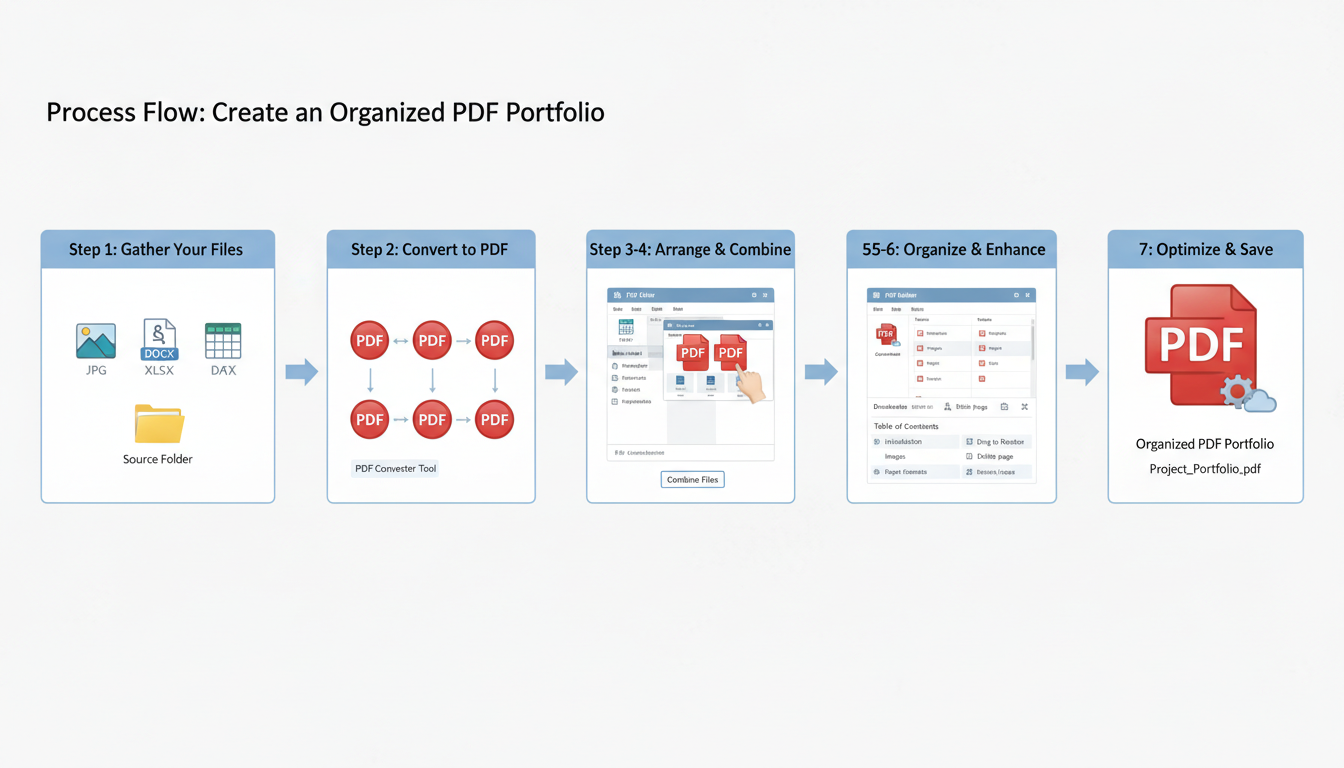
Freelancers often have work scattered across formats: JPEGs of designs, Word docs of copy, and Excel sheets of campaign results. A PDF organizer acts as the unifying force. Convert everything to PDF first, then merge them into a single “Client_Portfolio.pdf.” Use the organizer to insert “Divider Pages” (simple colored pages with titles) between sections to guide the viewer.
2. Data Standardization
Sometimes, organization is about data utility. Developers often need to extract data tables from PDFs to use in backend systems. While an organizer manages the pages, you might need to convert that data structure first. For instance, if you have raw data pages, you might process them through a CSV to JSON converter before converting the final output to PDF for the report. This ensures the data presented in your organized PDF is accurate and clean.
3. The “Split-and-Merge” Archive Technique
Do you have a year’s worth of invoices in one massive scan? Use the split function to break them down by month. Then, merge those monthly files into quarterly reports. This creates a “Russian Doll” file structure that makes auditing a breeze.
💡 Pro Tip
Use Bookmarks. A top-tier PDF organizer allows you to add “Bookmarks” or a clickable Table of Contents to the sidebar of your PDF. If your document is over 20 pages, this is mandatory for a good user experience.
❓ Frequently Asked Questions
Does organizing a PDF reduce its quality?
It shouldn’t. A good PDF organizer manipulates the page structure (the container) without re-compressing the images or fonts inside. However, be careful to uncheck any “Optimize” or “Compress” boxes if you want to retain 100% of the original resolution.
Can I organize password-protected PDFs?
Generally, no. You will need to enter the password to unlock the file before the software can rearrange or merge pages. This is a security feature, not a bug.
What is the difference between a PDF Editor and an Organizer?
Think of an Editor as a word processor—it changes the text and images on the page. An Organizer is like a binder—it changes the order, number, and orientation of the pages.
Why do my merged PDFs have different page sizes?
This happens when you combine files from different sources (e.g., a Letter-sized Word doc and an A4 scanned image). Advanced organizers have a “Normalize Page Size” feature to scale everything to a uniform standard.
Is it safe to use a PDF organizer on my phone?
Yes, mobile apps are great for quick fixes. However, managing complex, multi-file merges is often frustrating on a small touch screen. We recommend using a desktop or tablet for heavy lifting.
⚠️ Watch Out
Don’t ignore accessibility. When you merge documents, you often break the “reading order” tags used by screen readers for the visually impaired. If you are publishing publicly, run an Accessibility Check after organizing.
Conclusion: Take Control of Your Digital Environment
Mastering your digital documents is a productivity superpower that few people talk about. By integrating a robust PDF organizer into your workflow, you move from a state of digital chaos to structured efficiency. Whether you are merging reports for a board meeting, splitting chapters for a thesis, or simply cleaning up scanned receipts for tax season, these tools provide the flexibility required in a modern work environment.
Don’t let a messy file system slow you down. Start by auditing your current document workflow today. Pick a tool that matches your security needs, follow the sandbox method, and watch your efficiency soar.

