
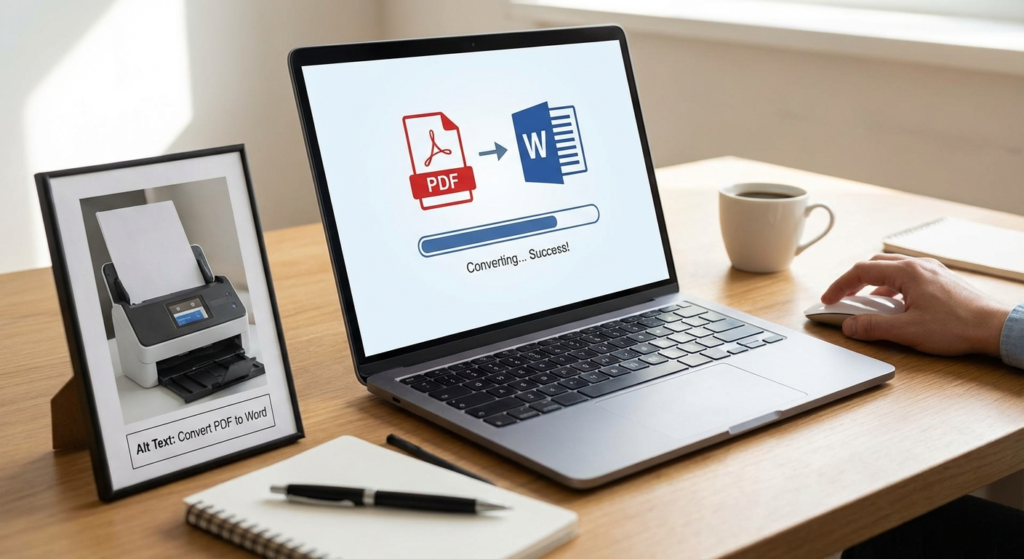
Picture this: It’s 4:45 PM. You’ve just received a critical contract or a research paper that needs immediate edits. You open the file, and your heart sinks. It’s a PDF. You click on the text, but the cursor just sits there, mocking you. You can’t type. You can’t delete. You’re stuck.
We’ve all been there. The Portable Document Format (PDF) is the gold standard for sharing files because it locks everything in place—fonts, images, margins—so it looks the same on a phone as it does on a desktop. But that stability is a nightmare when you need to make changes. This is where a high-quality PDF to Word converter stops being a luxury and becomes a necessity.
But here’s the thing: not all converters are created equal. Some will turn your document into a beautiful, editable Word file. Others? They’ll hand you a garbled mess of broken paragraphs and floating text boxes that take longer to fix than retyping the whole thing from scratch. In my years of managing digital content workflows, I’ve tested dozens of these tools, and I’m going to show you exactly how to pick the right one so you never have to manually retype a document again.
📑 What You’ll Learn
The Real Cost of Bad Conversions
In the modern digital workflow, data fluidity is everything. While PDFs are perfect for final distribution, they are terrible for collaboration. A reliable PDF to Word converter bridges the gap between a “locked” display format and a flexible working document.
I’ve seen professionals waste hours trying to copy and paste text from a PDF into Word. The result? Broken lines, missing headers, and tables that look like abstract art. By utilizing a dedicated converter, you maintain the integrity of complex layouts. This is non-negotiable for documents like legal contracts, technical whitepapers, or financial reports where a misplaced decimal point or a shifted paragraph can change the meaning of the entire document.
🎯 Key Takeaway
Don’t settle for “good enough.” A high-quality converter doesn’t just extract text; it reconstructs the document’s DNA—preserving tables, fonts, and flow—saving you hours of reformatting time.
Under the Hood: Native vs. Scanned PDFs
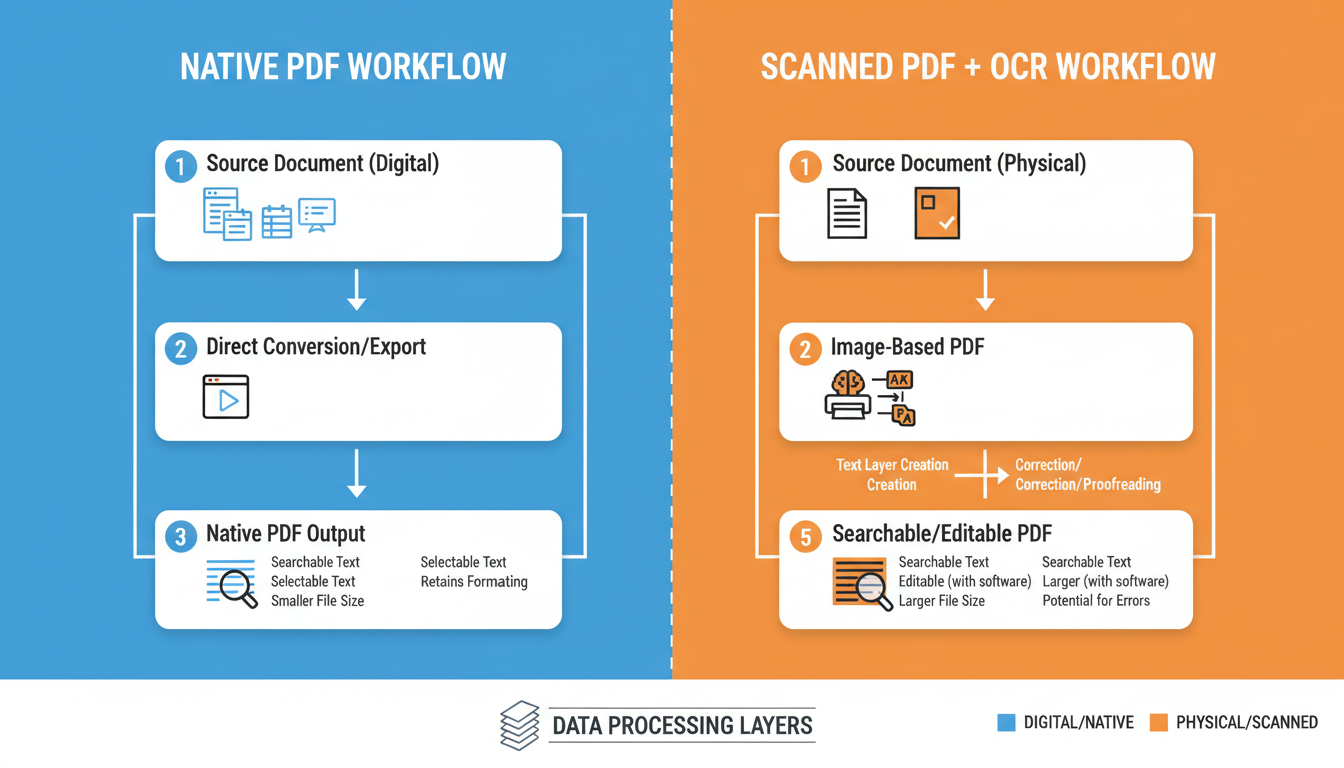
To pick the right tool, you have to understand a bit of the mechanics. It’s not magic; it’s algorithms. Generally, there are two types of conversion processes, and knowing the difference will save you a lot of headaches.
1. The Native PDF (The Easy Path)
If a PDF was created directly from an application like Microsoft Word, Excel, or InDesign, we call it a “native” PDF. The converter simply reverses the encoding. It reads the internal structures—text strings, font tags, and vector graphics—and maps them to Microsoft Word’s XML structure. These conversions are usually 99% accurate.
2. The Scanned PDF (The Hard Path)
This is where things get tricky. If you scan a paper document, the resulting PDF doesn’t contain text; it contains a picture of text. A standard converter will just paste that image into a Word doc, which is useless if you need to edit.
For these files, you need a PDF to Word converter equipped with OCR (Optical Character Recognition). OCR analyzes patterns of light and dark pixels to identify letters and numbers. Modern OCR engines, powered by machine learning, reconstruct the document layer by layer, placing recognized text over the background image to create an editable file.
💡 Pro Tip
Not sure if your PDF is native or scanned? Try to highlight a sentence with your mouse. If you can select individual words, it’s native. If the selection box grabs the whole page or a large block like an image, it’s a scan, and you must use a tool with OCR capabilities.
7 Expert Factors for Choosing a Converter
The market is flooded with options, from free web apps to expensive enterprise software. Based on extensive testing, here are the criteria you should use to filter out the noise.
1. Layout Retention Capabilities
Does the converter use text boxes or standard paragraphs? This is the biggest differentiator. Poor converters place every line of text in a separate box to preserve visual layout. While it looks good, it makes editing a nightmare because text doesn’t flow to the next line. You want a tool that reconstructs the “flow” of the document.
2. OCR Accuracy
If you deal with scans, OCR is vital. Look for tools that support multiple languages. If the software expects English but reads a French document, the accuracy drops significantly.
3. Batch Processing
Do you have 50 files to convert? Don’t do them one by one. Professional tools allow you to drag and drop a whole folder and walk away while it processes.
4. Security Protocols
We’ll touch on this more later, but if you are handling sensitive data, local processing (offline) is always safer than cloud processing.
5. Handling of Tables and Images
Tables are the arch-nemesis of conversion software. A top-tier PDF to Word converter recognizes grid lines and converts them into actual Word tables, not just tab-separated text.
Here is a quick comparison of what you typically get with free versus paid solutions:
| Feature | Free Online Converters | Premium/Desktop Software |
|---|---|---|
| File Size Limit | Usually capped (e.g., 10MB) | Unlimited |
| OCR Quality | Basic (often skips handwriting) | Advanced (AI-driven) |
| Security | Files uploaded to cloud | Local processing available |
| Batch Processing | Rarely available | Standard feature |
| Formatting | Often uses text boxes | Reconstructs paragraphs |
Step-by-Step: The Perfect Conversion Workflow
Even the best software needs a little help. Follow this workflow to ensure the highest quality output.
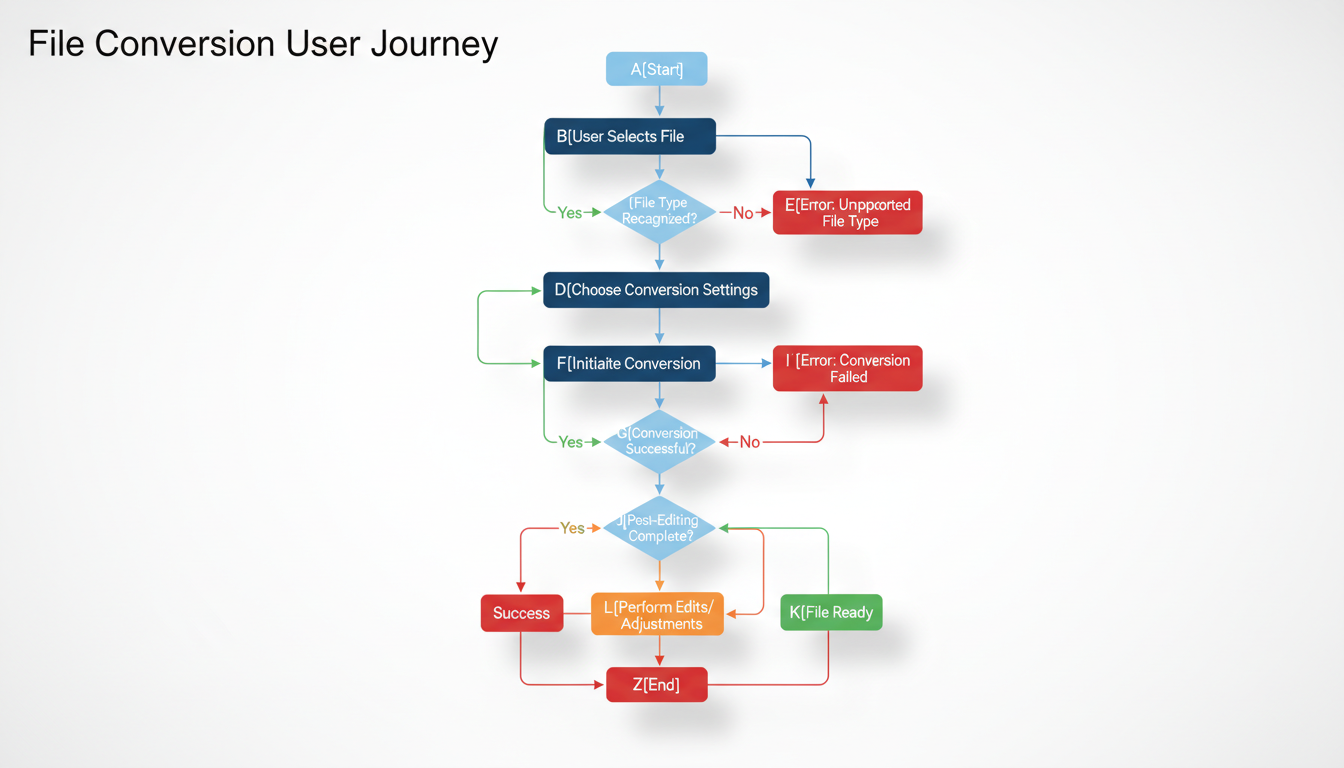
- Pre-Flight Check: Open your PDF. Is it password protected? Remove the password first. Is it a scan? Ensure the page is oriented correctly (not upside down).
- Select Your Tool: Choose your PDF to Word converter. If the document contains simple text, a free tool might suffice. For complex layouts, fire up a premium tool.
- Configure Settings:
- Language: Set the document language for better OCR.
- Images: Decide if you want to keep or discard images to reduce file size.
- Layout: Choose “Flowing Text” over “Exact Layout” if you plan to do heavy editing.
- Convert: Initiate the process.
- The “Clean Up” Phase: Open the Word doc. Turn on “Show/Hide ¶” (paragraph marks) to see how the converter handled line breaks.
Once your document is in Word format, you might want to perform further data manipulation. For developers or data analysts working with structured data derived from these documents, converting formats is a common next step. It’s similar to how one might use a SQL to JSON converter for database management—it’s all about getting data into the most usable state.
Troubleshooting Common Formatting Nightmares
Let’s be real: sometimes the conversion fails. Here is how to handle the most common errors I see in the field.
| Problem | Why It Happens | How to Fix It |
|---|---|---|
| Gibberish Text | The PDF has a weird encoding or custom font. | Try using the OCR feature even if it’s a native PDF. It forces the tool to “read” the visual letters. |
| Floating Text Boxes | Converter prioritized visual layout over text flow. | Select the text, copy it, and use “Paste Special > Keep Text Only” into a fresh document. |
| Broken Tables | Invisible borders in the PDF. | Manually convert text to table in Word, or draw the table borders in the PDF editor before converting. |
One specific issue worth noting is character corruption. If you are extracting data for linguistic analysis, you need to verify the integrity of the text. In such cases, using a tool like a character frequency counter after conversion can help you spot if specific symbols or accented characters were replaced by question marks or boxes.
⚠️ Watch Out
The “Font Substitution” Trap: If your PDF uses a font you don’t have installed (like a specific brand font), Word will substitute it with something generic like Arial. This changes the spacing and can push text onto new pages. Always check your page count after conversion!
Security and Privacy Considerations
I cannot stress this enough: be careful where you upload your files. When you use a free online PDF to Word converter, you are uploading your document to a remote server. For a school essay? Probably fine. For a client’s tax return? Absolutely not.
According to Adobe, security is integral to the PDF standard, but that security is compromised the moment you upload it to an untrusted third party. Reputable providers use SSL encryption and auto-delete files after an hour, but you should always read the privacy policy.
⚠️ Watch Out
Avoid “totally free” tools that don’t have a clear business model. If you aren’t paying for the product, your data might be the product. Stick to well-known brands or open-source tools if you are on a budget.
The Future of Document Conversion
We are moving rapidly toward “intelligent conversion.” AI is changing the game. Future tools won’t just recognize characters; they will understand context. Imagine a converter that automatically tags headings for accessibility, generates a summary of the document, and even translates the language while converting.
Standards organizations like the ISO continue to refine document standards (such as PDF 2.0), ensuring that interoperability between different software ecosystems improves. This evolution guarantees that the bridge between static and editable documents will become seamless.

Conclusion
Converting a PDF to Word is more than just a file format change; it is about unlocking the potential of your content. By choosing the right PDF to Word converter, you ensure that your documents remain accurate, secure, and professionally formatted.
Don’t just grab the first free tool you find on Google. Assess your needs. If you need to edit a scanned contract, prioritize OCR. If you need to change a typo in a resume, prioritize layout retention. The technology exists to make your life easier—use it wisely.
❓ Frequently Asked Questions
Is it safe to use an online PDF to Word converter?
Generally, yes, if you use reputable services. They use SSL encryption and delete files shortly after conversion. However, for highly confidential documents (legal, medical, financial), I always recommend using offline desktop software to ensure the file never leaves your computer.
Why does the formatting look different after I convert PDF to Word?
PDFs are “fixed-layout” (like a painting), while Word is “flow-oriented” (like a stream of water). If the converter can’t perfectly map the coordinates, elements shift. This is most common with complex layouts involving floating images or multiple columns.
Can I convert a scanned PDF to Word?
Yes, but only if the converter has Optical Character Recognition (OCR). Without OCR, the converter will just place a picture of the page into Word, which you cannot edit.
How can I convert multiple PDFs to Word at once?
You need a tool that supports “batch processing.” This is rarely found in free online tools but is a standard feature in paid desktop software like Adobe Acrobat Pro or Nitro PDF.
Will my fonts be preserved during conversion?
Only if those fonts are installed on your computer. If the PDF uses a font you don’t have, Word will substitute it, which might alter the document’s appearance and pagination.

