

Ever opened a data export expecting a neat spreadsheet, only to be hit with a terrifying wall of curly braces, colons, and brackets? If you have, you’ve met JSON. And if you’re reading this, you probably need to get that data into a format that actually makes sense to a human—Excel.
Here’s the reality: JSON is fantastic for computers. It’s lightweight, flexible, and powers the modern web. But for analysts? It’s a headache. You can’t make a pivot table out of a hierarchy tree. You need rows and columns.
In this guide, I’m not just going to toss a few links to online converters at you. We are going to break down exactly how to convert json file to csv excel formats using professional-grade methods that preserve your data integrity. Whether you’re a non-technical marketer needing a quick fix or a data scientist automating a pipeline, I’ve got you covered.
📑 What You’ll Learn
The “Flat vs. Nested” Conflict: Why This is Hard
Before we jump into the “how,” you need to understand the “why,” because this specific problem trips up even seasoned pros.
JSON (JavaScript Object Notation) is hierarchical. Think of it like a family tree. You have a parent, children, and grandchildren. CSV (Comma Separated Values), on the other hand, is flat. It’s a 2D grid.
When you try to convert json file to csv excel, you aren’t just changing the file extension. You are fundamentally smashing a 3D structure into a 2D plane. This process is called “flattening” or “normalization.”
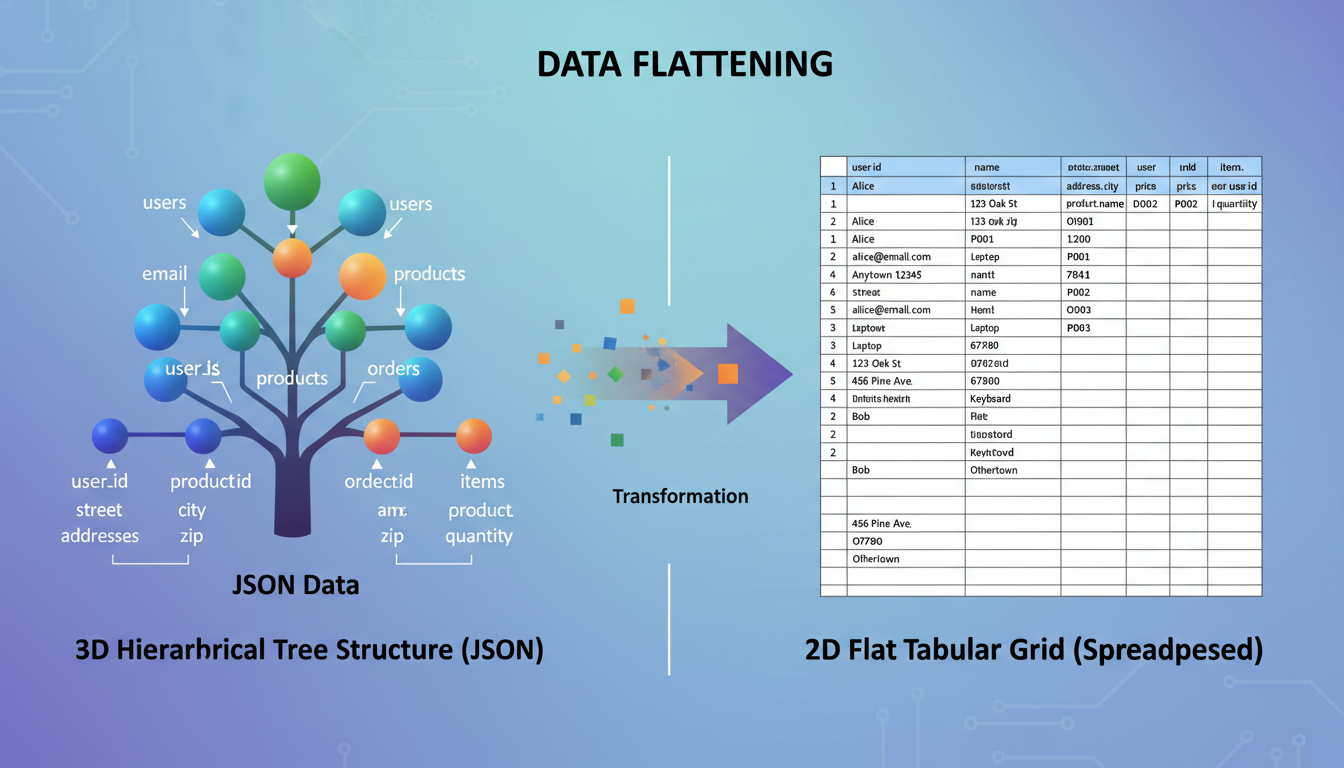
If you don’t flatten correctly, you lose data. It’s that simple. I’ve seen countless reports where the “Orders” column just said [Object] because the converter didn’t know how to handle the nested details. We’re going to make sure that doesn’t happen to you.
Method 1: The Excel Power Query (Best for Business Users)
In my experience, this is the absolute best method for 90% of users. You don’t need to write code, and you don’t need to upload sensitive company data to a random website. Excel actually has a powerful JSON parser built right into it—most people just don’t know where it is.
This feature is called Power Query. It handles the heavy lifting of flattening nested lists for you.
Step-by-Step Guide:
- Open Excel: Start with a blank workbook.
- Get Data: Go to the Data tab on the ribbon.
- Select Source: Click on Get Data > From File > From JSON.
- Import: Locate your JSON file and click Import.
- The Power Query Editor: A new window will pop up. This is where the magic happens. You’ll likely see a list of “Records.”
- Convert to Table: Click the button in the top left that says To Table.
- Expand Columns: This is the critical step. You will see a small icon in the column header (two arrows pointing away from each other). Click that. It allows you to select which fields to “expand” into new columns.
- Load: Once your data looks like a spreadsheet, click Close & Load.
💡 Pro Tip
If your JSON file has deep nesting (like a list of orders inside a customer record), you may need to click the “Expand” icon multiple times. Expand the top level first, then find the new column that contains the nested list, and expand that one too. It’s like peeling an onion.
Method 2: The Python Script (Best for Automation)
Look, if you have to convert one file a month, use Excel. But if you have to convert 50 files every morning before your coffee gets cold, you need Python.
Python, specifically the Pandas library, is the industry standard for data manipulation. It gives you granular control over how data is flattened, how dates are formatted, and how missing values are handled.
Here is a robust script template that I use for production workflows. It uses json_normalize, which is a lifesaver for nested structures.
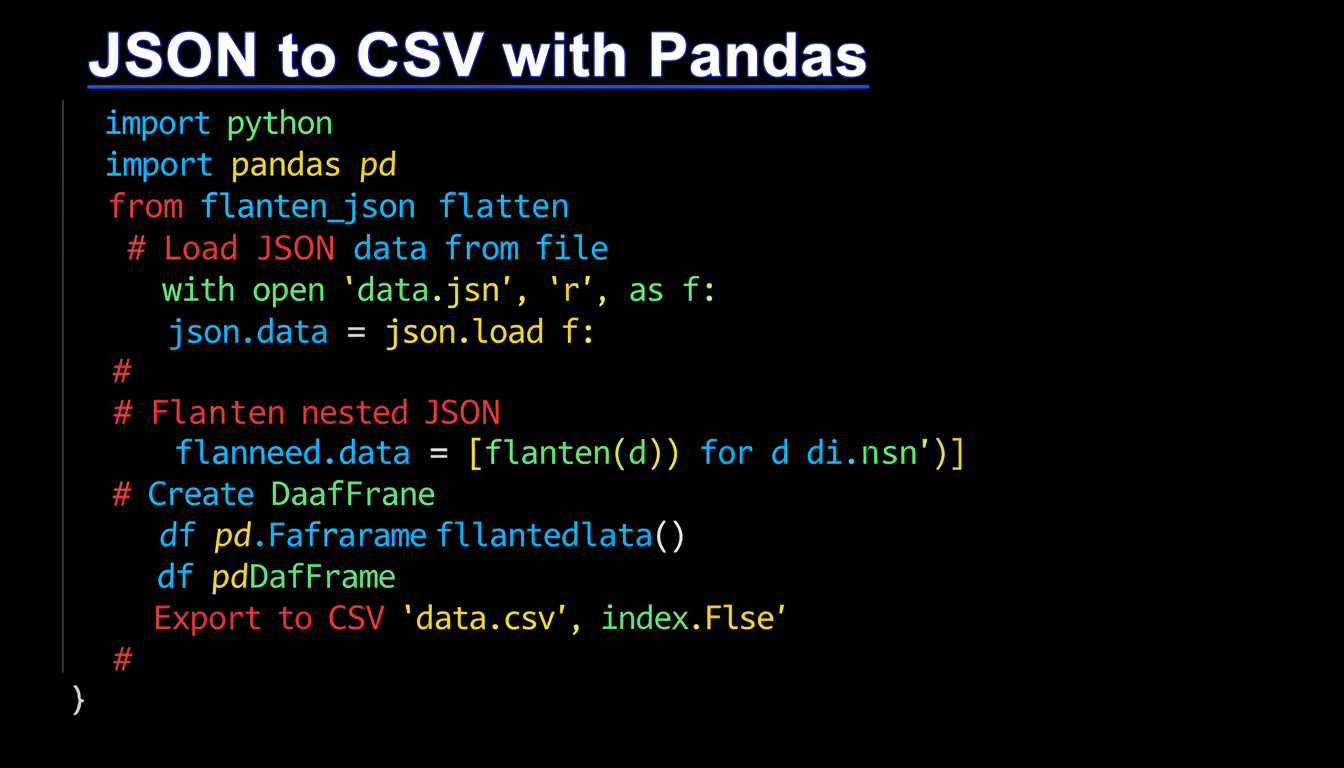
The Code:
import pandas as pd
import json

# Load the JSON data
with open('data.json', 'r', encoding='utf-8') as f:
    data = json.load(f)

# Normalize (flatten) the data
# 'record_path' is used if your data is inside a specific key like 'results'
df = pd.json_normalize(data)

# Save to CSV
df.to_csv('output_data.csv', index=False, encoding='utf-8')

print("Conversion complete!")
⚠️ Watch Out
Memory Leaks: If you try to load a 5GB JSON file into Pandas on a standard laptop, your machine will crash. For massive files, you need to use “streaming” or “chunking” methods to process the file line-by-line rather than all at once.
Method 3: Online Converters (Best for Quick Fixes)
Sometimes you just need the data now. You don’t want to open a terminal, and you don’t want to fiddle with Power Query. Online converters are great for this, provided the data isn’t sensitive.
Tools like ConvertCSV or generic JSON-to-CSV web apps work by parsing the text in your browser or on their server. They are fast, but they often struggle with complex nesting.
When to use them:
- The file is small (under 10MB).
- The data is public (no PII or trade secrets).
- The structure is simple (flat key-value pairs).
Comparison: Which Method Should You Choose?
Still not sure which route to take? I’ve broken down the pros and cons based on real-world usage in 2026.
| Feature | Excel Power Query | Python (Pandas) | Online Converters |
|---|---|---|---|
| Difficulty | Medium (No Code) | High (Requires Coding) | Low (Copy-Paste) |
| Security | High (Local) | High (Local) | Low (External Server) |
| Automation | Medium (Macros) | Excellent | None |
| Handling Nesting | Excellent (Visual) | Excellent (Programmatic) | Poor to Average |
| Cost | Requires Excel License | Free (Open Source) | Free / Freemium |
The Nightmare of Nested Data
This is where most people fail when they try to convert json file to csv excel.
Imagine a JSON record for a “User.” Inside that user record, there is a list of “Purchases.”
User A has 3 Purchases.
If you convert this to a flat CSV, you have two choices:
- Explode (Unwind): You create 3 rows for User A. The user data (Name, Email) is duplicated on every row, but each row shows a unique purchase. This is usually what you want for analysis.
- Concatenate: You keep 1 row for User A, and the “Purchases” column becomes a messy string like
"Item1 | Item2 | Item3". This keeps the row count down but makes analysis impossible.
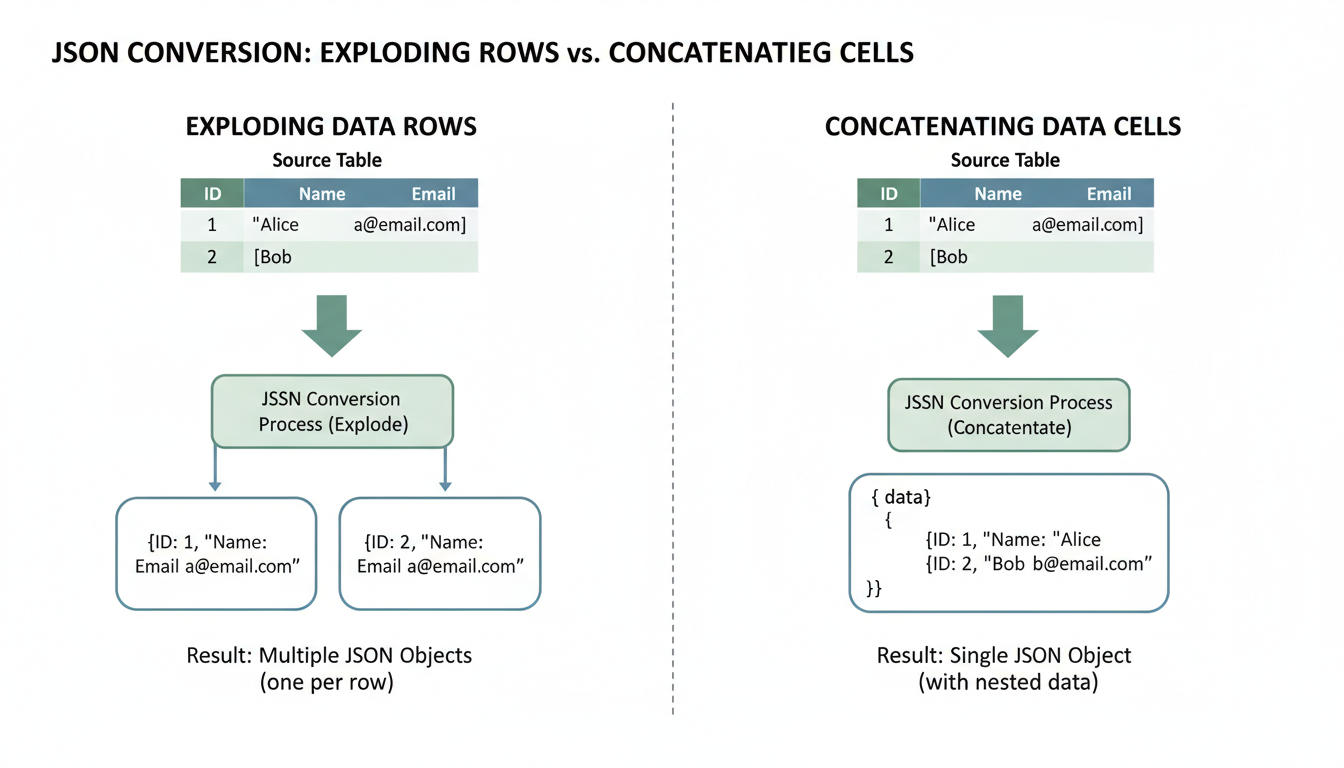
According to MDN Web Docs, JSON’s structure is designed for data interchange, not storage analysis. That’s why you have to make this decision during conversion. If you use Python, json_normalize handles the “Explode” method beautifully. If you use Excel Power Query, expanding the columns effectively does the same thing.
🎯 Key Takeaway
Don’t just look for a tool that changes the file extension. Look for a tool that allows you to control how the data is flattened. If you can’t expand nested lists or handle special characters, your converted CSV will be useless for analysis.
❓ Frequently Asked Questions
Why does my CSV look weird in Excel?
This is usually an encoding issue. JSON is almost always UTF-8. Excel, historically, hasn’t always handled UTF-8 CSVs well by default. To fix this, instead of double-clicking the CSV to open it, open Excel first, go to the Data tab, and import the CSV, explicitly selecting “UTF-8” as the file origin.
Can I convert a 1GB JSON file to Excel?
Technically, yes, but be careful. Modern Excel (2026 versions) can handle over a million rows, but performance will crawl. For files that large, you are better off converting the JSON to CSV using Python, and then loading that CSV into a database or a BI tool like Power BI or Tableau, rather than Excel directly.
What is JSON Lines (JSONL) and does it matter?
Yes! Standard JSON is one giant object or array. JSONL is a format where every line in the file is a separate, valid JSON object. It’s much easier to process large datasets with JSONL. If your tool fails to read your file, check if it’s actually JSONL; you might need a different parser setting.
How do I handle commas inside my data?
This is the classic CSV trap. If your data contains a comma (e.g., “New York, NY”), a dumb converter will think that’s a new column. Professional tools wrap these fields in double quotes (e.g., "New York, NY") so Excel knows it’s a single text field. Always ensure your converter supports “text qualifiers.”
Conclusion: Your Data, Your Way
Converting data shouldn’t feel like pulling teeth. Whether you choose the visual control of Excel’s Power Query, the raw automation power of Python, or the speed of a web converter, the goal remains the same: getting your data into a shape where you can actually use it.
My advice? If you are doing this for work and the data matters, skip the online tools. Spend ten minutes learning the Power Query method I outlined above. It’s safer, more reliable, and frankly, it makes you look like an Excel wizard to your boss.
Ready to take your data skills further? Check out the official Microsoft guide on Power Query to master data imports.

